
Overview
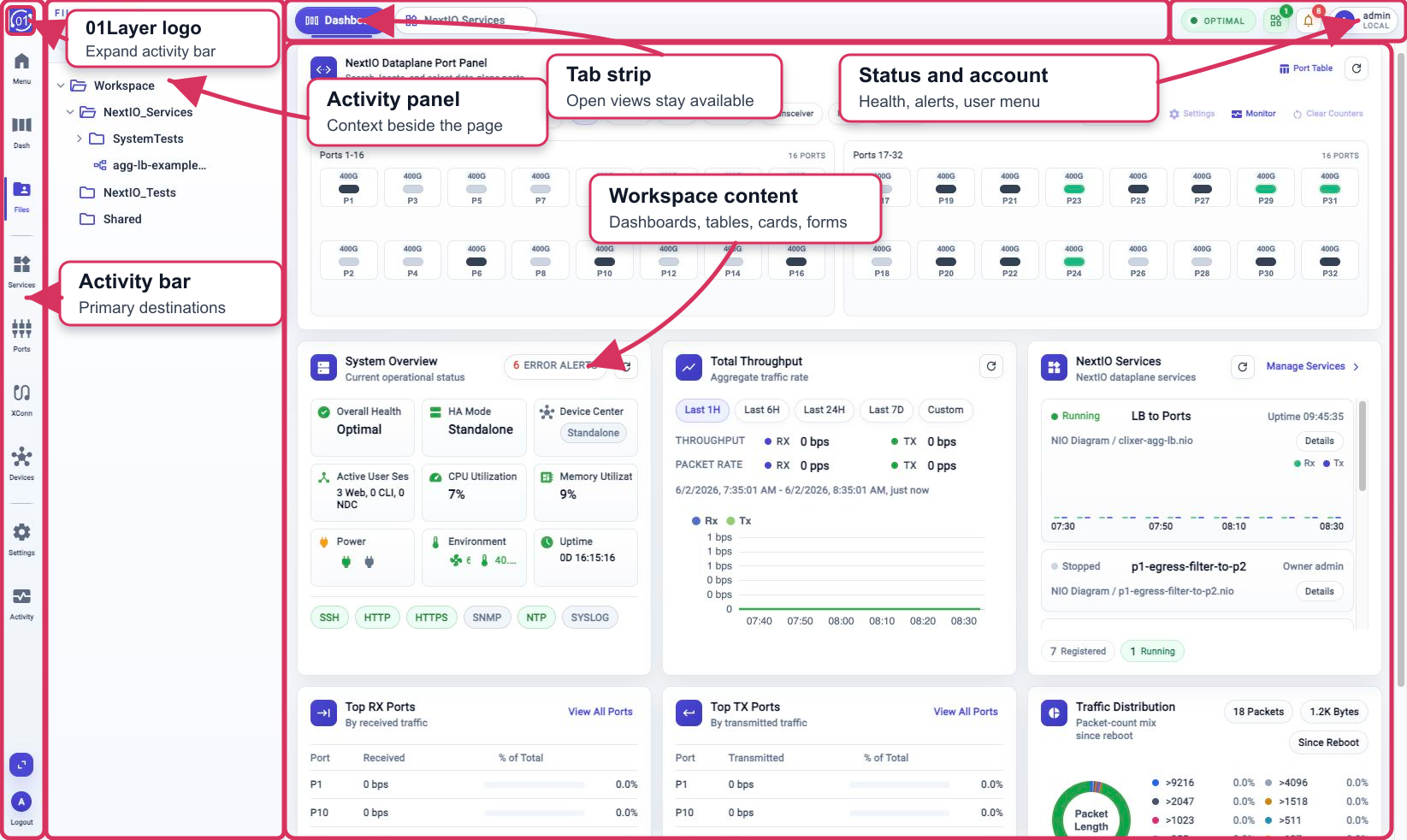
The 01Layer Web UI uses a stable workspace layout so operators can move between tools without losing orientation. The activity bar stays on the left, opened views stay in the tab strip, status remains visible at the top right, and the main workspace changes based on the active view.
Use this page as a layout map. Task-specific pages explain the detailed steps for files, services, settings, activity monitoring, and dashboards.
Layout Map
Most Web UI screens are built from the same regions.
Activity Bar Modes
The layout map shows the activity bar in folded mode. Click the 01Layer logo at the top left to expand it and show full destination labels.
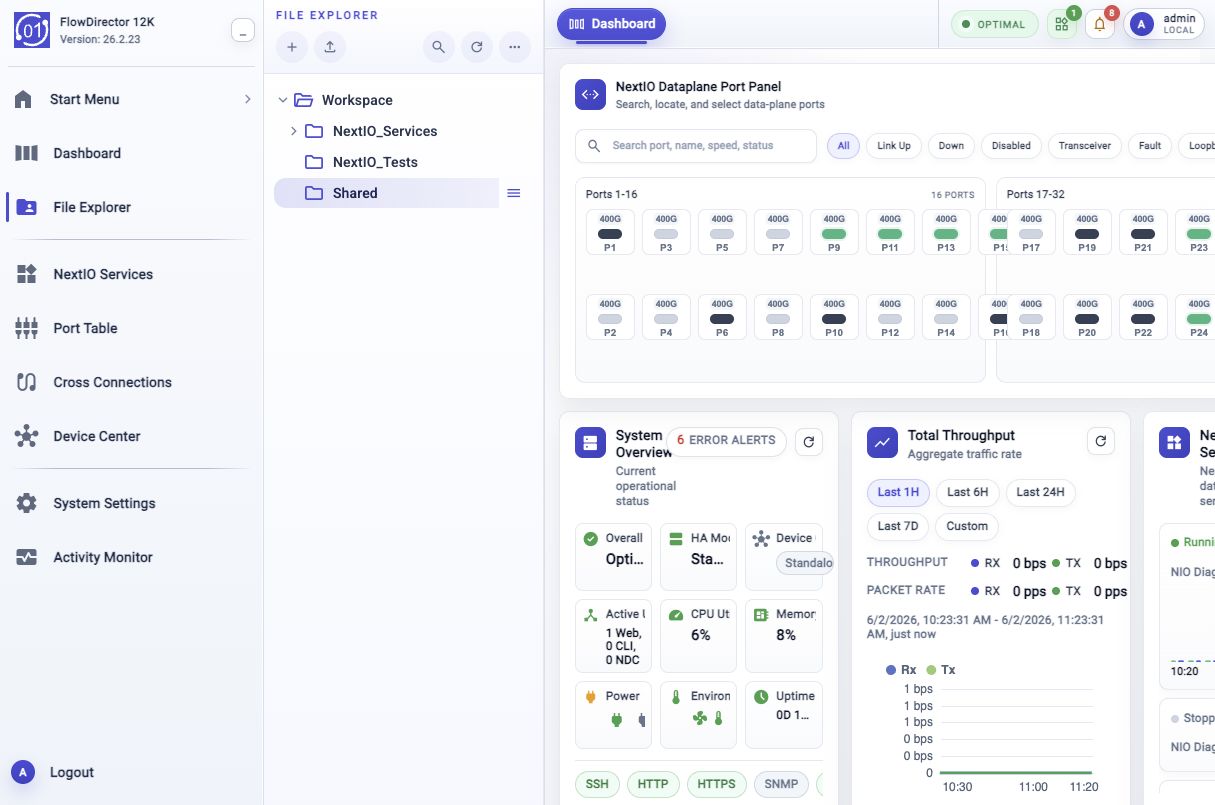
From expanded mode, use the minimize control near the top of the activity bar to fold it again.
Layout Regions
| Region | Purpose |
|---|---|
| Activity bar | Opens primary destinations such as Dashboard, File Explorer, NextIO Services, Device Center, System Settings, and Activity Monitor. The layout map shows folded mode; click the 01Layer logo at the top left to expand the labels. |
| Activity panel | Optional left-side panel used by tools that need local context beside the active page. File Explorer is the clearest example. |
| Tab strip | Keeps opened views available across the top of the workspace. Use it to return to views that are already open. |
| Workspace content | Main area for dashboards, tables, cards, forms, diagrams, charts, and workflow output. |
| Status and account area | Shows appliance status, alerts, shortcuts, notifications, and the signed-in account menu. |
| Dialogs and detail panels | Focused surfaces for confirmations, workflow inputs, row details, logs, and copyable records. |
How Views Open
- Dashboard opens by default after sign-in and normally remains available as a tab.
- Activity-bar destinations either open a tab, reveal an activity panel, or do both when the view needs side-by-side context.
- The Start Menu opens additional tools, settings, quick access items, and account actions.
- Tables, cards, charts, diagrams, and forms appear in the workspace content area.
- Dialogs appear over the active view when the task needs focused input, confirmation, or progress output.
- Detail panels open from selected rows, cards, services, files, or workflow records when more information is available.
Common Workspace Behavior
The Web UI keeps navigation visible while the workspace changes. This lets an operator start from Dashboard, open a service table, inspect a file, check Activity Monitor, and return to the original view without starting over.
Read-only pages usually refresh data directly. Configuration and operational changes usually open a workflow dialog so the Web UI can collect inputs, show progress, and retain the result in Activity Monitor > Workflows.
Some controls are hidden or disabled when they do not apply to the selected object, appliance model, service state, or current account permissions.
If The Layout Looks Different
- A narrow browser window can collapse or compress parts of the workspace.
- Product family and user permissions can hide buttons that do not apply.
- Some pages open an activity panel; others use the full workspace width.
- Browser local storage can affect expanded or folded navigation state.
- A page that loads slowly may indicate an appliance service or health issue. Check Activity Monitor > System Health when several views are affected.
Related Tasks
- Use Web UI Login And Logout for sign-in, readiness checks, and logout.
- Use Start With Activity Bar for activity-bar modes, About This Device, and Start Menu items.
- Use System Settings for appliance configuration tasks.
- Use Activity Monitor to inspect events, workflows, metrics, and health.
- Use File Explorer to manage files and open service designs.