
Overview
High Availability (HA) uses keepalived and VRRP to let two FlowMagic appliances present one shared virtual IP (VIP). One appliance is the VRRP Master and owns the VIP. The peer remains the VRRP Backup, monitors the Master's advertisements, and can take ownership of the VIP when the Master is no longer available.
Use High Availability Settings to configure HA enablement, cluster identity, preferred role, VRRP priority, HA handshake password, HA port, private port address, netmask, and the shared VIP.
Important — HA protects virtual-IP availability, not appliance state. This keepalived configuration does not replicate 01Layer configuration, NextIO services, files, capture data, message queues, or live sessions between appliances. Keep the two appliances operationally equivalent through your approved configuration and change-control process. Existing client sessions may need to reconnect after a takeover.
The same settings are available from the CLI through:
config system ha
show system ha
HA Architecture
The two appliances attach to the same HA-capable network through the configured Port. Each appliance has its own HA Port Private IP Address, while the pair shares the same Unique HA Cluster ID, HA Handshaking Password, netmask, and Virtual IP Address.
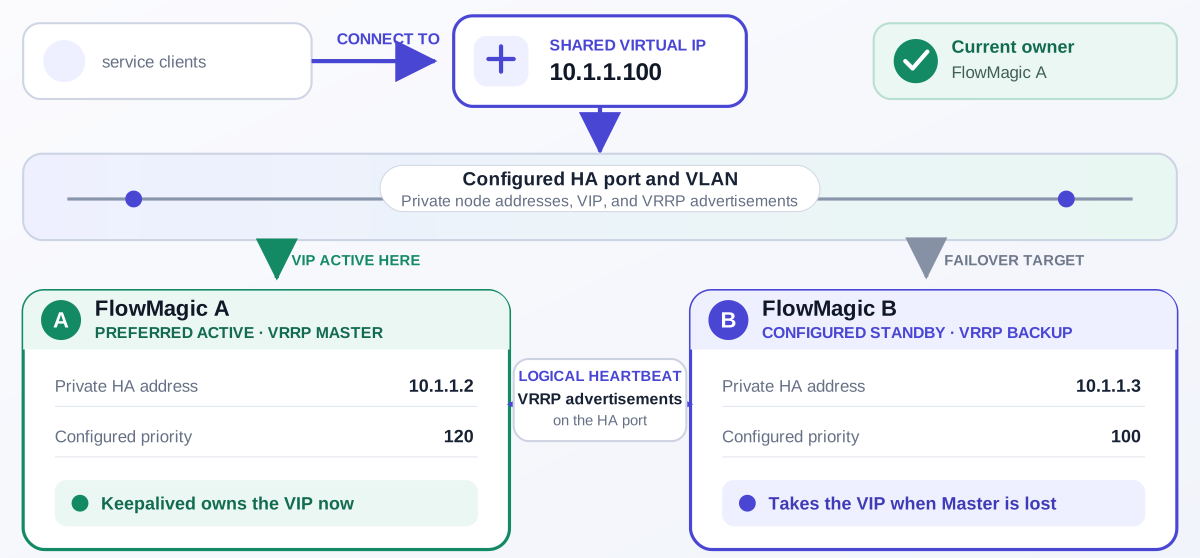
The diagram uses example addresses. In normal operation:
- Clients connect to the shared VIP, not to the private address of the preferred active appliance.
- FlowMagic A has the higher priority, enters the VRRP Master state, and owns the VIP.
- FlowMagic A sends VRRP advertisements over the configured HA port. These advertisements form the logical heartbeat that FlowMagic B monitors.
- FlowMagic B remains in the VRRP Backup state and does not own or answer for the VIP.
- If FlowMagic B stops receiving valid Master advertisements, it can transition to Master and add the VIP to its HA interface. New client connections then reach FlowMagic B through the same VIP.
The heartbeat is a logical VRRP exchange on the configured HA interface and network. The current HA settings do not define a separate state-synchronization link. Both the VIP path and the peer advertisements therefore depend on correct switch, VLAN, firewall, and interface configuration for that HA network.
Configuration Identity Versus Runtime State
The configured Device HA Role expresses the intended preference for a unit. The live keepalived state determines which unit currently owns the VIP.
| Concept | Preferred Active Unit | Standby Unit |
|---|---|---|
| Configured role | active |
standby |
| Priority | Higher, for example 120 |
Lower, for example 100 |
| Normal VRRP state | Master | Backup |
| Private HA address | Unique to this unit | Unique to this unit |
| Virtual IP | Same on both units; currently owned | Same on both units; not owned until takeover |
| Heartbeat behavior | Sends Master advertisements | Monitors Master advertisements |
Do not treat the words Active and Standby as proof of current VIP ownership. Verify the live address and reachability after deployment, failover, maintenance, and recovery.
What HA Does And Does Not Protect
| Protected by this HA pair | Not provided by this HA setting |
|---|---|
| Reachability of the configured VIP when a peer can take over | Configuration, file, capture, queue, or session replication |
| Automatic VRRP role transition when Master advertisements are lost | Protection from a shared switch, VLAN, power, or upstream routing failure |
| A stable address for new management or service connections | Guaranteed preservation of existing TCP or application sessions |
| Preferred ownership through configured priorities | Application-health failover unless the deployed runtime explicitly tracks it |
Typical Uses
Use this topic when two appliances should present a shared management or service address and one unit should take ownership of that virtual IP while the peer is standby.
Typical examples:
Show HA settings:  show system ha
Display from config:
  config system ha
Enable HA on an active unit:
  config system ha enable true name flowdirector device_role active cluster_id 100 device_priority 120 ha_handshake_password HASecret ha_port eth0 private_ip 10.1.1.2 private_netmask 255.255.255.0 virtual_ip 10.1.1.100
Enable HA on a standby unit:
  config system ha enable true name flowdirector device_role standby cluster_id 100 device_priority 100 ha_handshake_password HASecret ha_port eth0 private_ip 10.1.1.3 private_netmask 255.255.255.0 virtual_ip 10.1.1.100
Disable HA:
  config system ha enable false
Prerequisites
- Confirm that you have administrator permission to change system settings.
- Record the current settings with
show system ha. - Confirm that both appliances run compatible 01Layer releases and have equivalent service configuration for the workloads reached through the VIP.
- Confirm the peer units, HA port, private IP addresses, netmask, and virtual IP address.
- Confirm that the virtual IP address is not already used by another device.
- Configure both units with the same Unique HA Cluster ID, HA Handshaking Password, and Virtual IP Address.
- Use different HA Port Private IP Address values for the two units.
- Use a higher Priority for the preferred active unit.
- Confirm that both HA ports are in the intended network and can exchange VRRP advertisements. Do not filter the peer heartbeat path.
- Confirm that firewall, switch, VLAN, management ACL, and routing rules allow clients to reach the virtual IP regardless of which appliance owns it.
- Keep the private IP address of each appliance reachable for direct administration and recovery when the VIP is unavailable.
- Identify shared infrastructure in the path. A single switch, VLAN, power source, or upstream gateway can remain a common failure domain.
- Schedule a controlled failover test and a rollback window before treating the pair as production-ready.
- Use quotes for values that contain spaces.
Workflow
- Open System Settings.
- Choose HA Settings and Role.
- Review Enable, Cluster Name, Device HA Role, Unique HA Cluster ID, Priority, and HA Handshaking Password.
- In Virtual IP Settings, set Port, HA Port Private IP Address, Netmask, and Virtual IP Address.
- Click Apply HA Settings....
- Repeat the configuration on the peer unit with the appropriate role, priority, and private IP address.
- Verify the saved settings with
show system ha. - Verify that the VIP is present on only one appliance and is reachable from a client on the intended network.
- Perform the controlled failover test in Validate The HA Pair.
Expected Behavior
The workflow displays the current HA settings and applies selected changes to the saved HA configuration.
When Enable is disabled, the HA runtime service is stopped and the saved
configuration is retained. You can also update the HA fields while Enable
is disabled; this stages the saved cluster, role, port, private address, and
virtual IP values without starting keepalived or taking ownership of the
virtual IP. When Enable is enabled, the appliance generates the keepalived
runtime configuration and starts the transient ICN.HA service for the static
virtual IP entries.
The enabled unit with the higher effective VRRP priority should become Master and own the configured VIP. The peer should remain Backup while valid Master advertisements arrive. If those advertisements stop, the Backup can transition to Master and take ownership of the VIP after the VRRP detection interval.
Failover time is not a single fixed product value. It depends on the generated keepalived configuration, advertisement and detection timing, network behavior, and the time required for neighboring systems to learn the new VIP owner.
In The Web UI
Review HA Settings
- Open System Settings.
- Choose HA Settings and Role. The workflow opens as High Availability Settings.
- Review Enable, Cluster Name, Device HA Role, Unique HA Cluster ID, Priority, HA Handshaking Password, and Virtual IP Settings.
- Apply no changes if you only need to inspect the current settings.
Configure HA On The Preferred Active Unit
- Set Enable.
- Enter Cluster Name.
- Set Device HA Role to Active.
- Enter Unique HA Cluster ID.
- Set Priority higher than the standby peer.
- Enter HA Handshaking Password.
- In Virtual IP Settings, select Port.
- Enter HA Port Private IP Address, Netmask, and Virtual IP Address.
- Click Apply HA Settings....
- Verify the saved settings with
show system ha.
Configure HA On The Standby Unit
- Set Enable.
- Use the same Cluster Name, Unique HA Cluster ID, HA Handshaking Password, and Virtual IP Address as the active unit.
- Set Device HA Role to Standby.
- Set Priority lower than the preferred active unit.
- Enter the standby unit's own HA Port Private IP Address.
- Click Apply HA Settings....
- Verify the saved settings with
show system ha.
Validate The HA Pair
Do not validate HA only by checking that both configurations were saved. Validate ownership, peer communication, client reachability, takeover, and recovery during an approved maintenance window.
Establish The Normal Baseline
- Run
show system haon both appliances and compare the shared and unit-specific values. - Confirm that the VIP is present on only the preferred active appliance.
- Reach the VIP from at least one representative client network.
- Reach each appliance through its private address.
- Review the
ICN.HAservice and system events for configuration, interface, authentication, or VRRP errors.
Test A Controlled Takeover
- Keep direct access to both private addresses available throughout the test.
- Start a continuous reachability check to the VIP from a representative client.
- During the approved window, disable HA or stop the
ICN.HAruntime on the current Master according to your maintenance procedure. - Confirm that the standby unit becomes Master and that the VIP is present on that unit only.
- Confirm that new client connections through the VIP succeed.
- Review both appliances for unexpected split-brain, authentication, or interface events.
Restore Preferred Ownership
- Return the original appliance to service and confirm its saved HA settings before enabling HA.
- Observe which appliance owns the VIP after the peer rejoins. Do not assume that ownership has returned until you verify it.
- Confirm that only one appliance owns the VIP and repeat the client reachability check.
- Record the observed failover and recovery times, any interrupted sessions, and the final owner.
Stop the test if both appliances own the VIP. Remove one unit from the HA network or disable HA on one unit, retain direct private-address access, and correct the cluster identity, password, network reachability, and priority settings before continuing.
Check From The CLI
Use either command below to display the current HA settings:
config system ha
show system ha
The config form without additional fields is display-only. It does not modify
the configuration.
Show one field:
show system ha enable
show system ha ha_port
show system ha virtual_ip
CLI Help Reference
Display the HA fields:
config system ha ?
Expected fields:
<Enter>                  - Display current settings
enable                   - Enable HA
name                     - Cluster name
device_role              - Role of the unit in a HA pair, either Active or Standby
cluster_id               - HA cluster identifier, the same between active and standby unit
device_priority          - Priority of this unit, larger number has higher priority
ha_handshake_password    - HA password (8 letters max) used to do HA handshaking
ha_port                  - Port
private_ip               - Port IP address
private_netmask          - Port netmask
virtual_ip               - Port virtual IP address
Display value choices for the role and port:
config system ha device_role ?
config system ha ha_port ?
The available HA ports depend on the appliance model. On FlowDirector-12K, the
HA port list is limited to eth0.
Change From The CLI
Enable HA on the preferred active unit:
config system ha enable true name flowdirector device_role active cluster_id 100 device_priority 120 ha_handshake_password HASecret ha_port eth0 private_ip 10.1.1.2 private_netmask 255.255.255.0 virtual_ip 10.1.1.100
Enable HA on the standby unit:
config system ha enable true name flowdirector device_role standby cluster_id 100 device_priority 100 ha_handshake_password HASecret ha_port eth0 private_ip 10.1.1.3 private_netmask 255.255.255.0 virtual_ip 10.1.1.100
Change only the device priority:
config system ha device_priority 110
Stage HA values while keeping HA disabled:
config system ha enable false name flowdirector device_role standby cluster_id 100 device_priority 100 ha_handshake_password HASecret ha_port eth0 private_ip 10.1.1.3 private_netmask 255.255.255.0 virtual_ip 10.1.1.100
Disable HA while retaining saved settings:
config system ha enable false
Field Reference
| CLI Field | UI Field | Type Or Values | Notes |
|---|---|---|---|
enable |
Enable | Boolean | Enables or disables HA runtime service. |
name |
Cluster Name | String | Operator-facing cluster name. |
device_role |
Device HA Role | active or standby |
Preferred role of this unit in the HA pair. |
cluster_id |
Unique HA Cluster ID | Integer | VRRP cluster identifier; use the same value on both units. |
device_priority |
Priority (Larger number has higher priority) | Integer from 1 to 255 |
Higher value has higher preference for master role. |
ha_handshake_password |
HA Handshaking Password | Password string | Shared HA password; use the same value on both units. |
ha_port |
Port | HA-capable port | Interface used for the HA virtual IP. |
private_ip |
HA Port Private IP Address | IP address | Unit-specific address used on the HA network; never duplicate it. |
private_netmask |
Netmask | Netmask | Netmask for the HA port private address. |
virtual_ip |
Virtual IP Address | IP address | Shared address owned by the active unit and taken over by the standby. |
Confirmation And Rollback
Applying the workflow saves the HA configuration only after activation
succeeds. To roll back, reapply the previous values recorded from
show system ha.
To stop HA without deleting the saved role, cluster, and virtual IP values:
config system ha enable false
To return HA to service, reapply the saved values with enable true, or set
enable true after confirming the saved fields are correct.
Notes
- HA activation is backed by keepalived and a transient
ICN.HAservice. - The active and standby units must use the same
cluster_id,ha_handshake_password, andvirtual_ip. - Each unit should use a unique
private_ip. - The preferred active unit should use a higher
device_priority. - The configured role is an intended preference. Verify the live VIP owner rather than inferring ownership from the saved role.
- Keepalived/VRRP moves the VIP; it does not replicate application or session state between the appliances.
- The peer heartbeat uses the configured HA port and network. Loss or filtering of that path can create split-brain behavior.
- HA fields can be updated while
enableisfalse; the values are saved but the runtime HA service is not started. - Use
show system haafter applying changes to confirm the saved values. - Use operating system diagnostics, such as
systemctl status ICN.HA, only when troubleshooting runtime service state.
Troubleshooting
HA Command Reports A Service Failure
Review the workflow log and system service state. The HA workflow should start
the transient ICN.HA service when HA is enabled. If activation fails, verify
that keepalived is installed in the runtime and that the generated HA
configuration is valid.
Virtual IP Is Not Reachable
Verify enable, ha_port, private_ip, private_netmask, and virtual_ip.
Confirm that the virtual IP address is in the expected network, is not used by
another device, and is permitted by switch, VLAN, routing, firewall, and
management ACL rules.
Both Units Try To Become Active
Confirm that both units use the same cluster_id, ha_handshake_password, and
virtual_ip. Confirm that the HA ports can exchange VRRP advertisements and
that there is no VLAN, firewall, ACL, interface, or switch isolation between
the peers. Duplicate VIP ownership is a split-brain condition; remove one unit
from service until the peer path and shared identity are corrected.
The Standby Unit Does Not Take Over
Verify that HA is enabled on the standby unit, that it uses a lower but valid
device_priority, and that it can reach the HA network. Confirm that the
standby unit uses its own private_ip, not the active unit's private IP. Review
the ICN.HA service and system events for invalid generated configuration,
interface errors, authentication mismatch, or failure to enter the VRRP Backup
state.
The HA Port Is Not Listed
Use config system ha ha_port ? to list available ports. Available ports are
model dependent. On FlowDirector-12K, eth0 is the HA port.
Related Tasks
Use Device Management Port Settings to configure the base management address. Use Device Management Access ACL to control which clients can reach management services. Use System Access Methods to configure HTTP, HTTPS, and SSH management access.