
Overview
Use Firmware Management to view installed firmware releases, update the appliance with a new firmware package, switch to an already installed release, and remove inactive firmware releases.
The same functions are available from the CLI through:
show system firmware
config system firmware
config system firmware update
config system firmware activate
config system firmware remove
Typical Uses
Common tasks include:
- Check which firmware release is active.
- Install a newer firmware package.
- Downgrade or roll back to an already installed firmware release.
- Remove inactive firmware packages and expanded release directories.
- Verify the firmware repository after an update or rollback.
Typical CLI examples:
Show installed releases: show system firmware
Update firmware:         config system firmware update file /home/admin/icn-vos-flowdirector12k-26.2.ipkg consent true
Activate a release:      config system firmware activate version 26.2.1 use_latest_configuration true
Remove a release:        config system firmware remove version 26.1.a9
Prerequisites
- Confirm that you have administrator permission to update or activate firmware.
- Use a maintenance window. Firmware update and activation reboot the appliance.
- Keep console, BMC, or another recovery path available before changing firmware.
- Confirm that the firmware package matches the appliance model.
- Confirm that the management IP settings to be used after an erase operation are correct.
- Back up the current configuration before enabling Erase Configuration.
- For CLI updates, copy the
.ipkgfile to the appliance first. The CLIfilevalue is a path on the appliance, not a local workstation path. - Do not remove the active firmware release. Activate another release first if the current release must be removed.
Workflow
- Open System Settings.
- Choose Firmware Management.
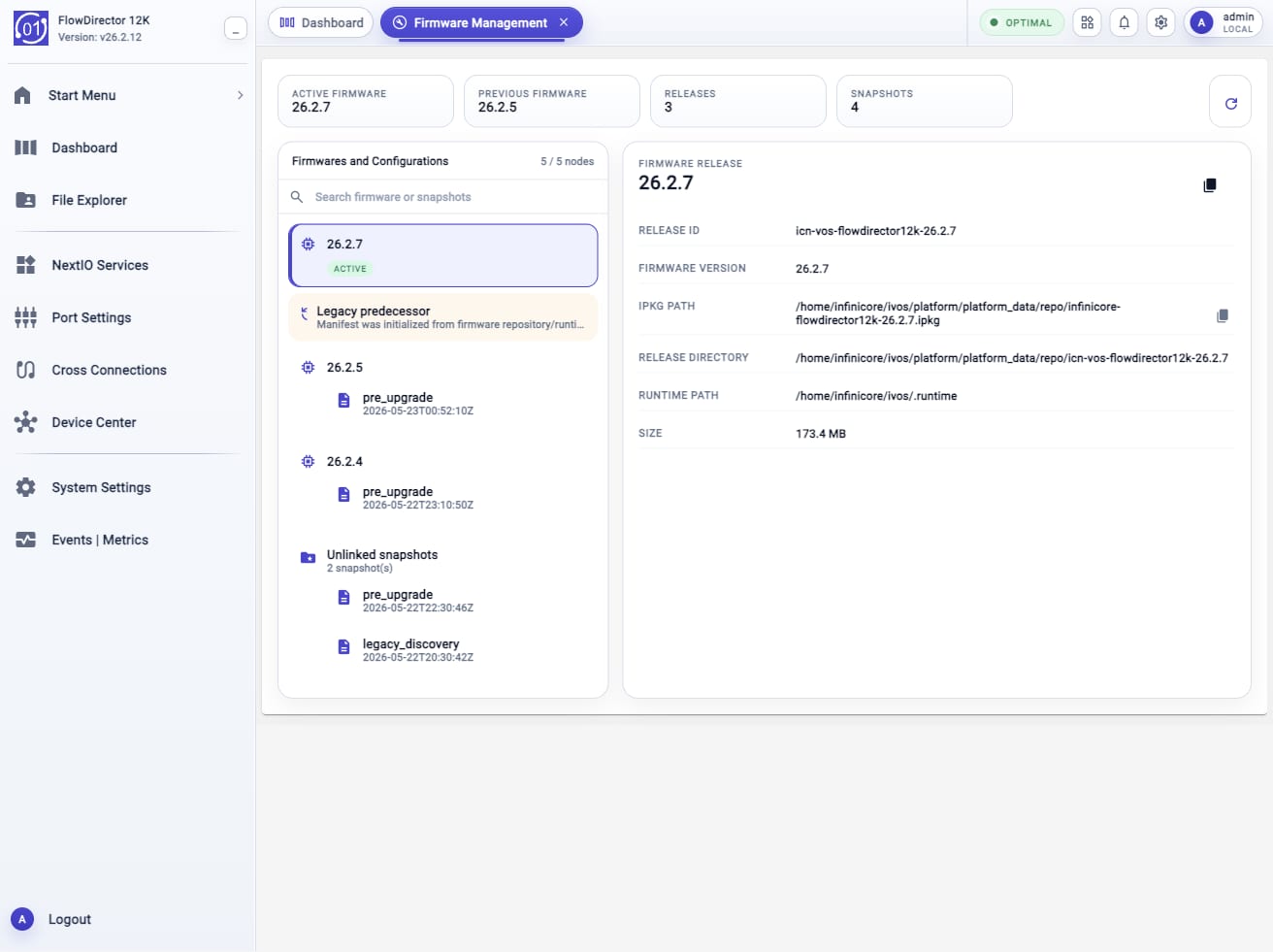
- Review Active Firmware, Previous Firmware, Releases, Snapshots, and the Firmwares and Configurations tree.
- To install a package, open Upload New Firmware, select the
.ipkgfile, review the warning, and apply the update. - After apply starts, wait for the appliance reboot and reconnect after the startup gate reports that the system is ready.
- To switch to an already installed release, use Rollback or
config system firmware activate. - Remove only inactive releases that are no longer needed.
Expected Behavior
show system firmware and config system firmware display the same firmware
management table. The table is a live view of the firmware repository and
active runtime state.
Firmware update has two phases:
- The update workflow uploads, verifies, and installs the firmware package into the firmware repository.
- The apply step switches
/home/infinicore/ivos/.runtimeto the installed release and reboots the appliance.
After reboot, the appliance should start with the target firmware version. The UI should show a reboot-in-progress or startup-checking state until the system is ready for normal interaction.
Firmware activation is different from firmware update. Activation switches to
an already installed release and reboots. It does not upload a new .ipkg
package.
Firmware removal deletes inactive firmware artifacts for the selected version. The active release is protected from removal.
In The Web UI
Display Firmware Releases
- Open System Settings.
- Choose Firmware Management.
- Review the summary counters: Active Firmware, Previous Firmware, Releases, and Snapshots.
- Use Search firmware or snapshots when the firmware/configuration tree contains many releases or snapshots.
- Select a firmware release or configuration snapshot to display its details.
- Use the copy controls when you need to copy a release ID, IPKG path, release directory, runtime path, or other displayed value.
- Use the refresh control after an update, rollback, removal, or CLI change.
- Confirm the active release before starting update, rollback, or removal.
Review Inactive Release Actions
- Open Firmware Management.
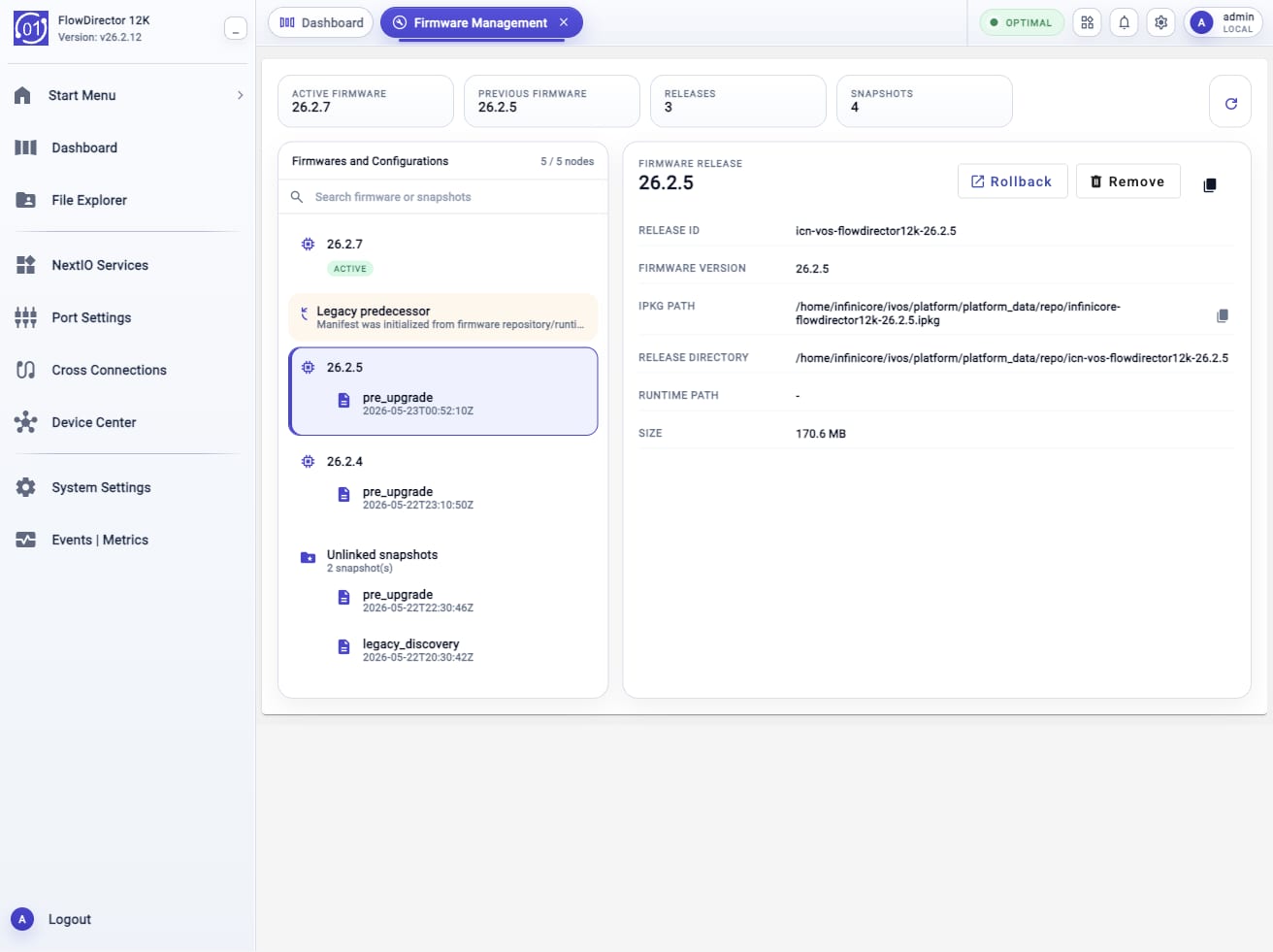
- Select an inactive firmware release in the tree.
- Review the release details before taking action.
- Use Rollback only when you are ready to switch to that installed release and reboot the appliance.
- Use Remove only when the selected inactive release is no longer needed.
Update Firmware
- Open System Settings.
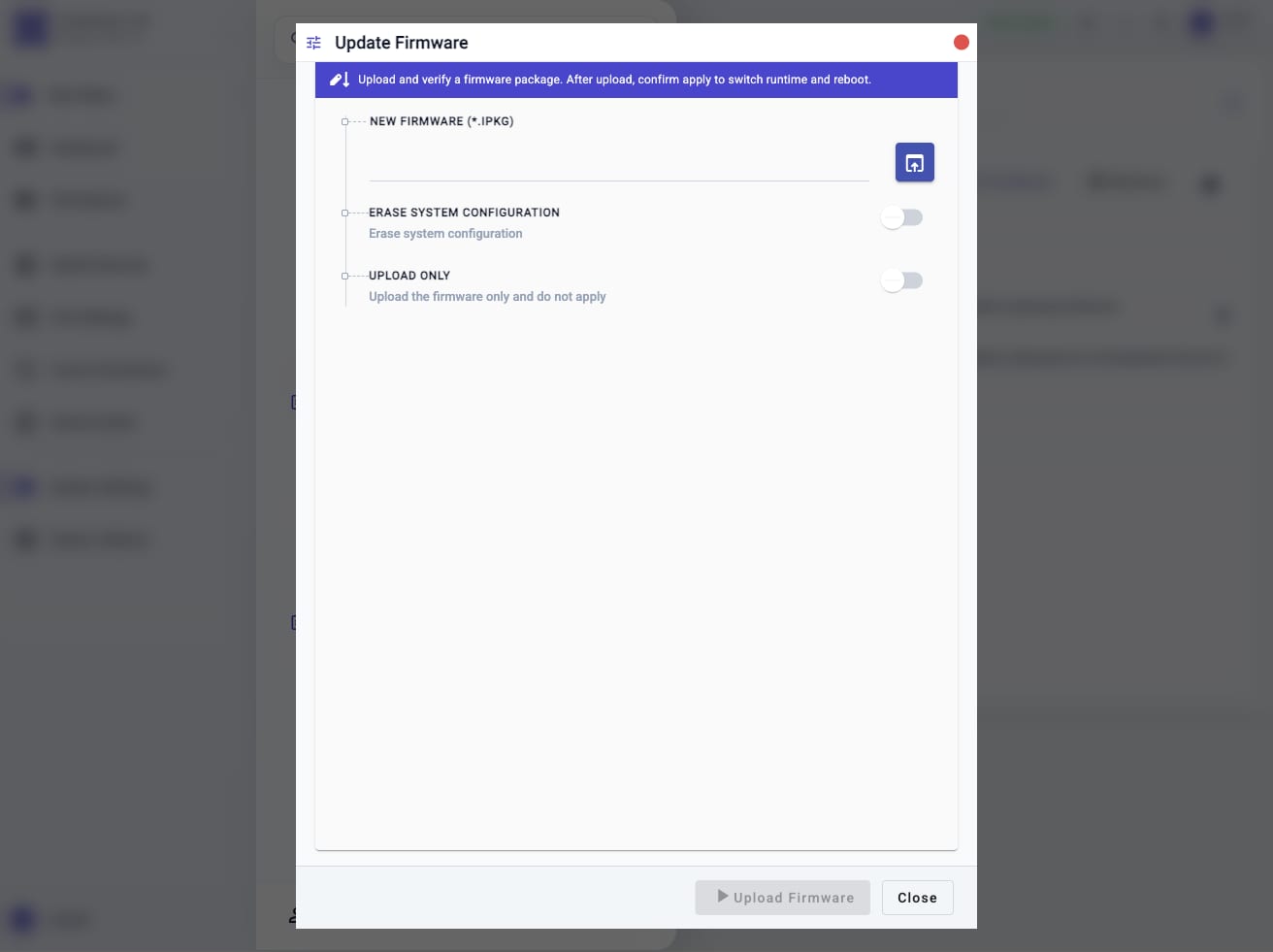
- Choose Upload New Firmware. The workflow opens as Update Firmware.
- In New Firmware (*.ipkg), select the new firmware package.
- Leave Upload only disabled when the package should be installed and applied immediately.
- Enable Upload only only when the package should be staged without switching runtime or rebooting.
- Review the warning text.
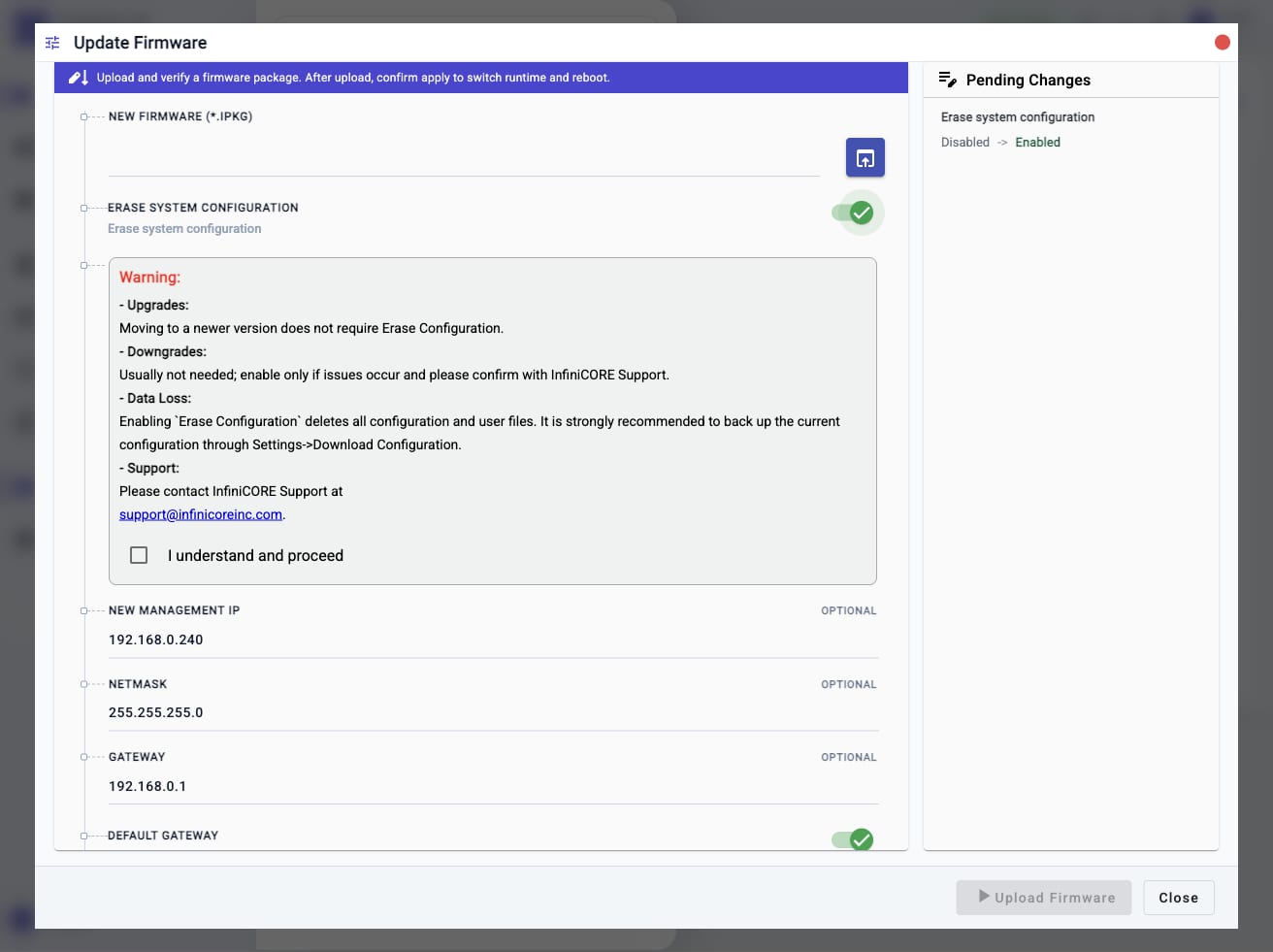
- If the update must erase configuration, enable Erase Configuration and enter the management IP, netmask, gateway, and DNS settings to use after reboot.
- Acknowledge the warning only after reviewing the upgrade, downgrade, and data-loss guidance.
- Start the update.
- When prompted to apply the staged firmware, confirm only when ready for the appliance to switch runtime and reboot.
- Wait for reboot and reconnect after the startup gate reports readiness.
- Reopen Firmware Management or run
show system firmwareto verify the active version.
Activate An Installed Release
- Open Firmware Management.
- Select an inactive installed release.
- Start Rollback in the web UI, or use
config system firmware activatefroml01sh. - Review the configuration policy, especially when activating an older release.
- Confirm activation only when ready for the appliance to reboot.
- After reboot, verify the active version.
Remove Inactive Releases
- Open Firmware Management.
- Identify inactive releases that are no longer needed.
- Select the inactive release and click Remove.
- Refresh the firmware table and confirm that removed versions no longer appear.
Check From The CLI
Display the firmware table:
show system firmware
config system firmware
The config form without action parameters is display-only. It does not modify
the system.
A typical table includes:
Version    Status    Size       Uploaded
---------  --------  ---------  --------------------
26.2.1     Active    123456789  2026-05-24T17:00:00Z
26.1.a9    Inactive  123000000  2026-05-20T12:00:00Z
The table hides repository pointer rows such as current. The Status
column identifies whether a release is active or inactive.
Display available firmware actions:
config system firmware ?
Expected actions:
<Enter>   - Display current settings
activate  - Switch firmware release
remove    - Remove a firmware release
update    - Update Firmware
CLI Update Procedure
Copy the firmware package to the appliance first. For example, from an operator workstation:
scp icn-vos-flowdirector12k-26.2.1.ipkg admin@<appliance-ip>:~/icn-vos-flowdirector12k-26.2.1.ipkg
Run the update from l01sh:
config system firmware update file /home/admin/icn-vos-flowdirector12k-26.2.1.ipkg consent true
If configuration must be erased during update, include erase true, confirm
with consent true, and provide the management settings that should be staged
for first boot:
config system firmware update file /home/admin/icn-vos-flowdirector12k-26.2.1.ipkg erase true consent true ip 192.168.0.240 mask 255.255.255.0 gw 192.168.0.1 default_gw true primary_dns 8.8.8.8 backup_dns 4.4.4.4
After update starts, wait for the appliance to reboot. Then log in again and verify:
show system version
show system firmware
CLI Activate Procedure
List installed firmware releases:
show system firmware
Display available activation versions:
config system firmware activate version ?
Activate an installed release:
config system firmware activate version 26.2.1
When activating an older release and no target-firmware configuration snapshot is available, use the latest/current configuration only if this is intentional:
config system firmware activate version 26.1.a9 use_latest_configuration true
Activation switches the runtime symlink and reboots the appliance. After reboot, verify:
show system version
show system firmware
CLI Remove Procedure
Display removable versions:
config system firmware remove version ?
Remove an inactive release:
config system firmware remove version 26.1.a9
After removal, verify that the inactive releases are gone:
show system firmware
Field Reference
Firmware Manager View
| Field Or Control | Notes |
|---|---|
| Active Firmware | Currently running firmware release. |
| Previous Firmware | Previous release recorded by the firmware repository. |
| Releases | Number of installed firmware releases discovered in the repository. |
| Snapshots | Number of configuration snapshots associated with firmware changes or discovery. |
| Firmwares and Configurations | Tree view of installed releases, attached snapshots, legacy predecessor records, and unlinked snapshots. |
| Search firmware or snapshots | Filters the firmware/configuration tree without changing repository content. |
| Release detail panel | Shows release ID, firmware version, IPKG path, release directory, runtime path, and size for the selected release. |
| Copy controls | Copy displayed release values such as release ID or IPKG path. |
| Rollback | Appears for inactive releases. Switches to the selected release after confirmation and reboot. |
| Remove | Appears for inactive releases. Deletes the selected inactive firmware release after confirmation. |
config system firmware update
| CLI Field | UI Field | Required | Notes |
|---|---|---|---|
file |
New Firmware (*.ipkg) | Yes | Path to the firmware package on the appliance. The file must be a valid .ipkg for the appliance model. |
erase |
Erase system configuration | No | Boolean value. Use true only when intentionally deleting configuration and user files. |
consent |
Warning acknowledgement | Required when erasing configuration; recommended for all updates | Boolean value. Confirms that the operator reviewed upgrade, downgrade, data-loss, backup, and support guidance. |
ip |
New Management IP | Required when erase true needs a specific IP |
Management IP to stage for first boot after erase. |
mask |
Netmask | Required when erase true needs a specific mask |
Management netmask to stage for first boot after erase. |
gw |
Gateway | Optional | Management gateway to stage for first boot after erase. |
default_gw |
Default Gateway | Optional | Boolean value. Use true when the gateway should become the default route. |
primary_dns |
Primary DNS | Optional | Primary DNS resolver staged for first boot after erase. |
backup_dns |
Secondary DNS | Optional | Secondary DNS resolver staged for first boot after erase. |
config system firmware activate
| CLI Field | UI Field | Required | Notes |
|---|---|---|---|
version |
Firmware Version | Yes | Installed firmware version to activate. Use config system firmware activate version ? to list available values. |
use_latest_configuration |
Use Latest Configuration | No | Allows activation of an older firmware while keeping the latest/current configuration when no target-firmware configuration snapshot is available. Use only when the compatibility risk is understood. |
config system firmware remove
| CLI Field | UI Field | Required | Notes |
|---|---|---|---|
version |
Firmware Version | Yes | Inactive firmware version to remove. Use config system firmware remove version ? to list available values. |
Confirmation And Rollback
Firmware update and activation are rebooting operations. Keep a recovery path available before starting.
For normal updates, the staged package is not sufficient by itself. The apply
step is the final confirmation that switches .runtime and starts the reboot.
For activation, the selected release is already installed. Activation is useful
for rollback, downgrade testing, or switching back to a known release. When
moving to an older release, configuration compatibility matters. Prefer a
target-firmware configuration snapshot when available. Use
use_latest_configuration true only when keeping the latest/current
configuration is acceptable.
To roll back after an update, activate the previous installed release if it is still present:
config system firmware activate version <previous-version> use_latest_configuration true
Save Without Confirmation
Firmware update and activation do not use the management-IP save-without-confirmation model. They rely on workflow confirmation and reboot readiness checks.
Notes
- Firmware repository artifacts live under
/home/infinicore/ivos/platform/platform_data/repo. - The active runtime is
/home/infinicore/ivos/.runtime. - In production,
.runtimeshould point to an expanded release directory under the firmware repository. - If
.runtimeis a development bind mount or otherwise does not point to a known repository release, the firmware manager may report Development Build. show system firmwareuses the same backend data as the web firmware management view.config system resource-policycontrols firmware/configuration storage allocation. It is separate fromconfig system firmware.- The active release is protected from removal.
- Do not interrupt power during firmware apply, activation, or reboot.
Troubleshooting
Firmware Package Is Rejected
Confirm that the package is a valid .ipkg for the appliance model. If the CLI
path is relative, remember that it is resolved on the appliance, not on the
operator workstation.
Use an absolute path to avoid ambiguity:
config system firmware update file /home/admin/icn-vos-flowdirector12k-26.2.1.ipkg consent true
Update Completes But Version Does Not Change
Check the firmware workflow output and the installed firmware list:
Run:
show system version
show system firmware
If the package appears as inactive, activate it explicitly only when this is an intentional rollback or local release switch.
Browser Or CLI Disconnects During Update
This can be expected after apply starts because the appliance is rebooting. Wait several minutes, then reconnect to the management IP. If management IP was changed as part of an erase operation, connect to the staged IP address.
Appliance Reports Development Build
Verify that /home/infinicore/ivos/.runtime points to the expected expanded
release directory under:
/home/infinicore/ivos/platform/platform_data/repo
If .runtime points elsewhere, the firmware manager cannot match the running
runtime to a repository release.
Remove Does Not Delete A Version
Confirm that the version is not active. Activate another installed release first, wait for reboot, then remove the old inactive release.
Downgrade Activation Is Blocked
The target older firmware may not have a matching configuration snapshot. If support has confirmed that the current configuration can be used with the older release, rerun activation with:
config system firmware activate version <older-version> use_latest_configuration true
Related Tasks
- Use System Access Methods to confirm HTTPS or SSH access before and after firmware changes.
- Use Device Management Port Settings when firmware erase requires new management IP settings.
- Use Resource Allocation Policy to manage firmware, configuration snapshot, and system log storage limits.
- Use configuration backup before firmware updates that may erase or downgrade system configuration.