
Overview
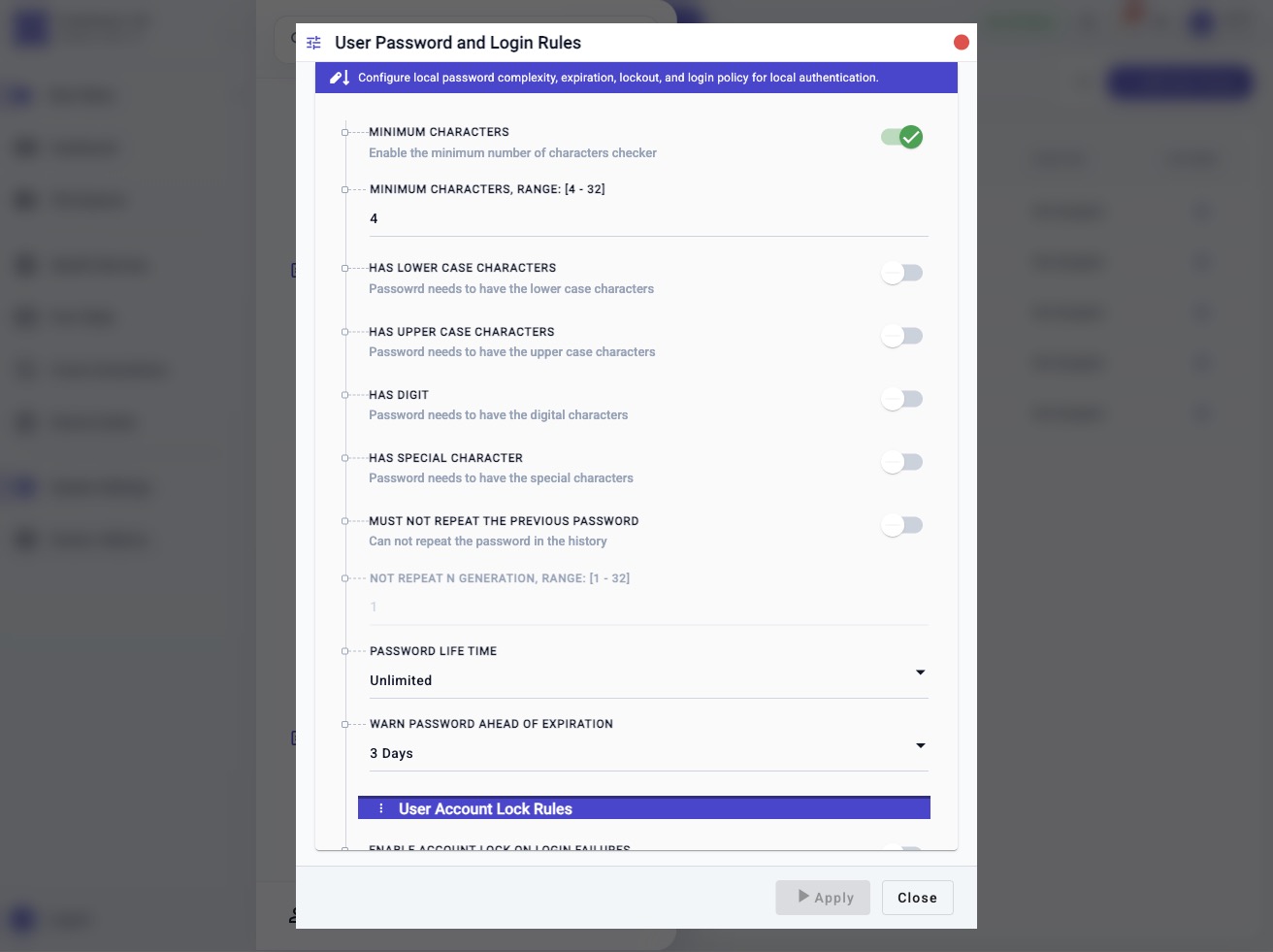
Use Password and Login Rules to configure local user password requirements and failed-login account lockout behavior. These settings control password complexity, expiration, password history reuse, and how the appliance handles repeated failed login attempts for local accounts.
The same workflow is available from the CLI through:
config system auth password-policy
show system auth password-policy
Typical Uses
Use this topic to adjust password complexity, require specific character classes, set password lifetime and expiration warning timing, prevent recent password reuse, or lock local user accounts after repeated failed login attempts.
Typical examples:
Show current policy:       show system auth password-policy
Require 12 characters:     config system auth password-policy min_character_check_enable true min_characters 12
Require character classes: config system auth password-policy require_lower_case true require_upper_case true require_digits true require_special_character true
Enable password history:   config system auth password-policy disallow_recent_reuse true password_history_count 4
Enable login lockout:      config system auth password-policy enable_login_failure_lock true max_login_failures 6 login_lock_period_minutes 15
Prerequisites
- Confirm that you have administrator permission to change authentication settings.
- Record the current policy with
show system auth password-policybefore changing production settings. - Keep at least one administrator account accessible.
- Coordinate stricter password rules with user account changes and automated account creation workflows.
- Choose lockout settings carefully so operators are not locked out during troubleshooting.
- Use quotes for enum labels or field values that contain spaces. Numeric enum values can be used instead.
Workflow
- Open System Settings.
- Choose Password and Login Rules.
- Review the password complexity, lifetime, history, and account lockout settings.
- Update only the fields that need to change.
- Apply the workflow.
- Verify the applied values in the web view or with
show system auth password-policy.
Expected Behavior
The workflow displays the current local password and login policy, then applies the selected field changes to the saved system administration settings.
Password complexity, lifetime, expiration warning, and history settings affect local password creation and password changes after the policy is applied. The workflow does not force active sessions to log out.
Account lockout settings affect local login attempts after the policy is applied. When login failure lockout is enabled, a user account is locked after the configured number of consecutive failed login attempts and remains locked for the configured duration unless an administrator unlocks it first.
In The Web UI
Review The Current Policy
- Open System Settings.
- Choose Password and Login Rules.
- Review the password rules at the top of the workflow.
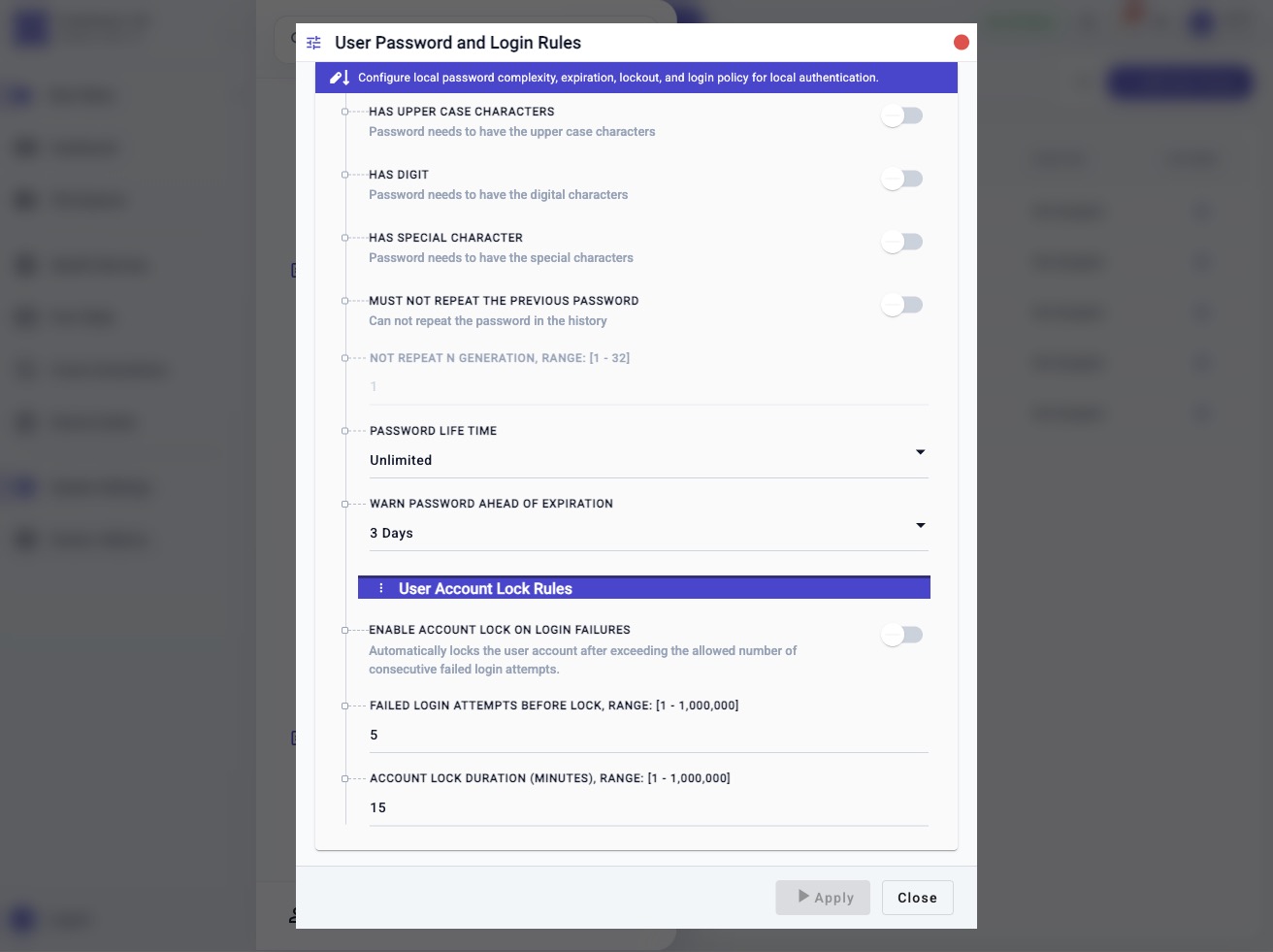
- Review User Account Lock Rules for failed-login lockout behavior.
- Apply no changes if you only need to inspect the current policy.
Update Password Rules
- Enable or disable Minimum Characters.
- Set Minimum Characters when minimum length checking is enabled.
- Enable the required character classes: Has Lower Case Characters, Has Upper Case Characters, Has Digit, and Has Special Character.
- Set Password Life Time.
- Set Warn Password Ahead of Expiration.
- Enable Must Not Repeat the Previous Password when recent password reuse should be blocked.
- Set Not Repeat N Generation when password history checking is enabled.
- Apply the workflow.
Update Account Lockout Rules
- Enable Enable Account Lock on Login Failures when failed login attempts should lock the account.
- Set Failed Login Attempts Before Lock.
- Set Account Lock Duration (Minutes).
- Apply the workflow.
- Verify the saved settings before relying on lockout behavior.
Check From The CLI
Use either command below to display the current policy:
config system auth password-policy
show system auth password-policy
The config form without additional fields is display-only. It does not modify
the configuration.
Use password-policy for this command. The older password node is not the
documented command name.
CLI Help Reference
Display the authentication command nodes:
config system auth ?
Expected command nodes:
ldap            - Setup LDAP Server
password-policy - User Password and Login Rules
radius          - Setup RADIUS Server
tacacs          - Setup TACACS+ Server
Display the password policy fields:
config system auth password-policy ?
Expected fields:
<Enter>                           - Display current settings
min_character_check_enable        - Enable the minimum number of characters checker
min_characters                    - Must have the minimum number of characters
require_lower_case                - Password needs to have lower case characters
require_upper_case                - Password needs to have upper case characters
require_digits                    - Password needs to have digit characters
require_special_character         - Password needs to have special characters
disallow_recent_reuse             - Cannot repeat a password in the configured history
password_history_count            - Number of previous password generations that cannot be reused
password_lifetime                 - Password lifetime
password_expiration_warning_ahead - Warning time before password expiration
enable_login_failure_lock         - Lock accounts after consecutive failed login attempts
max_login_failures                - Failed login count that triggers account locking
login_lock_period_minutes         - Account lock duration in minutes
Change From The CLI
Require a minimum of 12 characters:
config system auth password-policy min_character_check_enable true min_characters 12
Require lower case, upper case, digit, and special characters:
config system auth password-policy require_lower_case true require_upper_case true require_digits true require_special_character true
Set password lifetime to 90 days and warning time to 7 days before expiration. The values are minutes:
config system auth password-policy password_lifetime 129600 password_expiration_warning_ahead 10080
Disallow reuse of the previous four password generations:
config system auth password-policy disallow_recent_reuse true password_history_count 4
Lock an account after six consecutive failed login attempts for 15 minutes:
config system auth password-policy enable_login_failure_lock true max_login_failures 6 login_lock_period_minutes 15
Update only selected fields:
config system auth password-policy require_upper_case true require_digits true
Field Reference
| CLI Field | UI Field | Type Or Values | Notes |
|---|---|---|---|
min_character_check_enable |
Minimum Characters | Boolean | Enables minimum length checking. |
min_characters |
Minimum Characters | Integer from 4 to 32 |
Used when min_character_check_enable is true. |
require_lower_case |
Has Lower Case Characters | Boolean | Requires at least one lower case character. |
require_upper_case |
Has Upper Case Characters | Boolean | Requires at least one upper case character. |
require_digits |
Has Digit | Boolean | Requires at least one digit. |
require_special_character |
Has Special Character | Boolean | Requires at least one special character. |
disallow_recent_reuse |
Must Not Repeat the Previous Password | Boolean | Enables password history checking. |
password_history_count |
Not Repeat N Generation | Integer from 1 to 32 |
Used when disallow_recent_reuse is true. |
password_lifetime |
Password Life Time | 0 Unlimited; 1440, 2880, 4320, 5760, 7200, 8640, 10080, 20160, 43200, 86400, 129600, 259200, or 518400 minutes |
Controls password expiration. |
password_expiration_warning_ahead |
Warn Password Ahead of Expiration | Hourly values from 60 to 1380 minutes; day values 1440, 2880, 4320, 5760, 7200, 8640, 10080, 20160, 43200, 64800, 86400, 108000, 129600, 151200, 172800, 259200, or 518400 minutes |
Controls when expiration warnings begin. |
enable_login_failure_lock |
Enable Account Lock on Login Failures | Boolean | Enables account lockout after repeated failed login attempts. |
max_login_failures |
Failed Login Attempts Before Lock | Integer from 1 to 1000000 |
Number of consecutive failures that triggers lockout. |
login_lock_period_minutes |
Account Lock Duration (Minutes) | Integer from 1 to 1000000 |
Number of minutes the account remains locked before automatic unlock. |
Confirmation And Rollback
Applying the workflow saves the updated password and login policy. To roll back,
apply the previous values recorded from show system auth password-policy.
If the lockout policy is too strict, disable login failure lockout or increase the failure threshold and lock duration carefully. If a user is already locked, unlock the account from User Management or with:
config system user unlock name <username>
Notes
- Use
config system auth password-policy, not the olderpasswordcommand name. - User Account Lock Rules is a section label in the workflow. It is not a CLI field.
- Stricter password rules can affect account creation, password reset, and user self-service password change workflows.
- Account lockout is intended for failed-login protection. It should not be used as the primary way to disable an account.
Troubleshooting
The Password Node Is Not Found
Use config system auth password-policy. The command node is named
password-policy.
A Password Change Is Rejected
Review show system auth password-policy and confirm that the proposed
password satisfies minimum length, required character classes, password
lifetime, and recent password reuse rules.
Users Are Locked After Failed Login Attempts
Use User Management or config system user unlock name <username> to unlock
the account. Then review enable_login_failure_lock, max_login_failures, and
login_lock_period_minutes.
Help Text Wraps In A Narrow Terminal
Increase the terminal width before using command help, or use
show system auth password-policy for the current values and this manual page
for the full field reference.
Related Tasks
- Use User Management to create, edit, disable, enable, unlock, or remove local user accounts.
- Use User Groups to manage permissions assigned to local users.
- Use LDAP, RADIUS, or TACACS+ authentication pages when integrating external authentication servers.