
Overview
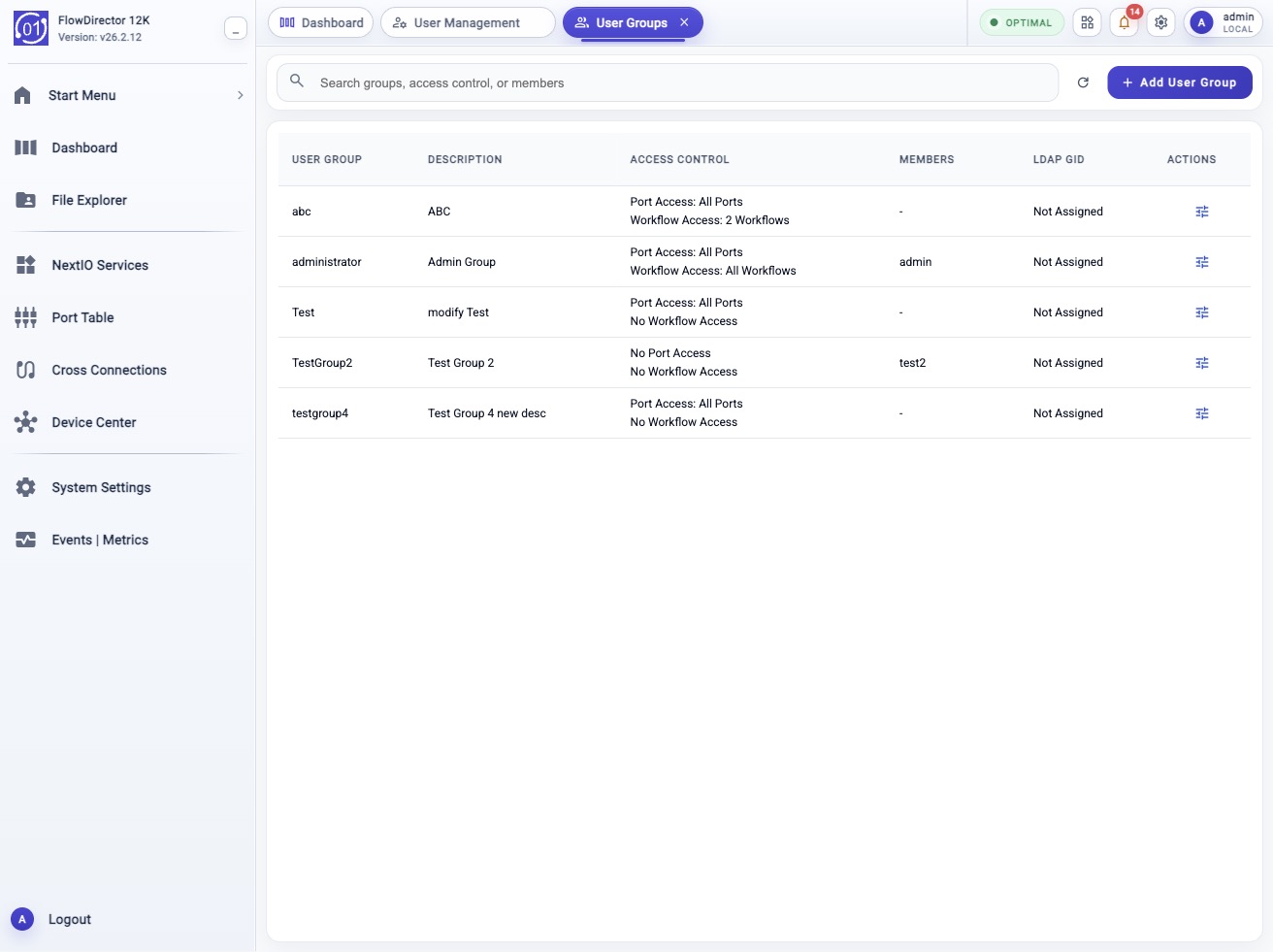
Use User Groups to manage local authorization groups. A user group defines which users belong together and which ports or workflows members of that group can access.
The same settings are available from the CLI through:
config system usergroup
show system usergroup
Typical Uses
Use this topic to create an operator group, change a group's description or access scope, review group membership, or remove a group that is no longer used.
Typical examples:
Show user groups:       show system usergroup
Create a read-only ops group:
  config system usergroup add name ops_readonly desc "Read-only operators" workflow_access_list monitorPortStatistics
Edit workflow access:
  config system usergroup edit name ops_readonly workflow_access_list monitorPortStatistics,licenseStatus
Remove a group:
  config system usergroup remove name ops_readonly
Prerequisites
- Confirm that you have administrator permission to manage local users and groups.
- Decide which workflows the group should be allowed to run.
- On FlowDirector appliances, decide whether the group should have access to all ports or only specific ports.
- Reassign or remove users from a group before deleting it.
- Do not attempt to remove the built-in administrator group. It is required for appliance administration and is not offered as a removable group.
- Use quotes for descriptions that contain spaces.
- Use the CLI
?help to list valid workflow, port, and group-name values before applying a change.
Workflow
- Open System Settings.
- Choose User Groups.
- Use the search field to find a group, or select a group from the table.
- Review Group Details, including Description, Members, Port Access List, and Workflow Access List.
- Click Add User Group to create a group, or open the row Actions menu to edit or remove a group.
- Apply the workflow and verify the updated group list.
Expected Behavior
The User Groups view displays the current local groups in a table with these columns:
- User Group
- Description
- Access Control
- Members
- LDAP GID
- Actions
Selecting a row opens the Group Details panel. The details panel shows the group name, available actions, description, members, LDAP GID, port access list, and workflow access list.
For the built-in administrator group, the backend provides edit-only group operations. It does not provide a remove operation.
In The Web UI
Review User Groups
- Open System Settings.
- Choose User Groups.
- Use Search groups, access control, or members to filter the table.
- Click a group row to open Group Details.
- Review Description, Members, LDAP GID, Port Access List, and Workflow Access List.
- Click the red close control in the details panel to close the panel.
Add A User Group
- Click Add User Group.
- Enter the group Name.
- Enter a short Description.
- Set Allow Access to Shared Directory as required.
- If LDAP or TACACS+ group mapping is used, enable the corresponding server option and enter the group ID.
- On FlowDirector appliances, select Port Access.
- Select the allowed Workflow Access List entries.
- Apply the workflow.
- Verify that the new group appears in User Groups.
Edit A User Group
- Locate the group in the table.
- Open the row Actions menu.
- Click Edit.
- Update the description, shared-directory access, external-authentication group mapping, port access, or workflow access.
- Apply the workflow.
- Reopen the group details panel and verify the updated access scope.
Remove A User Group
- Confirm that no required users depend on the group.
- Locate the group in the table.
- Open the row Actions menu.
- Click Remove.
- Confirm and apply the workflow.
- Verify that the group no longer appears in the table.
The Remove action is not shown for the built-in administrator group.
Check From The CLI
Use either command below to display the user group table:
config system usergroup
show system usergroup
The config form without parameters is display-only. It does not modify the
configuration.
A typical display includes:
User Group Name  User Group Description  LDAP GID      Workflow Access List                                   Users
administrator    Admin Group             Not Assigned  Port Access: All Ports Workflow Access: All Workflows  admin
operators        Lab operators           Not Assigned  Port Access: 2 Ports Workflow Access: 3 Workflows
CLI Help And Selectors
Display the available user group commands:
config system usergroup ?
Expected command nodes:
<Enter>                  - Display current settings
add                      - Add a new user group
edit                     - Edit user group
remove                   - Remove the user group
List valid group names for edit:
config system usergroup edit name ?
List valid group names for removal:
config system usergroup remove name ?
The removal selector excludes administrator.
List workflow choices:
config system usergroup add workflow_access_list ?
On FlowDirector appliances, list port choices:
config system usergroup add port_access ?
CLI Add, Edit, And Remove Examples
Create a group with one workflow:
config system usergroup add name lab_ops desc "Lab operators" shared_directory_access false use_ldap_server false use_tacacs_server false workflow_access_list monitorPortStatistics
Create a FlowDirector group with access to all ports:
config system usergroup add name fd_ops desc "FlowDirector operators" port_access all workflow_access_list monitorPortStatistics,licenseStatus
Create a FlowDirector group with access to selected ports:
config system usergroup add name port_ops desc "Port operators" port_access P1,P2,P3 workflow_access_list monitorPortStatistics
Edit a group description and workflow access:
config system usergroup edit name lab_ops desc "Updated lab operators" workflow_access_list monitorPortStatistics,licenseStatus
Edit FlowDirector port access:
config system usergroup edit name port_ops port_access P1,P2 workflow_access_list monitorPortStatistics,licenseStatus
Remove a group:
config system usergroup remove name lab_ops
Field Reference
| CLI Field | UI Field | Required | Notes |
|---|---|---|---|
name |
Name | Yes | User group name. For add, this is a new group name. For edit and remove, use name ? to select an existing group. |
desc |
Description | Optional | Operator-facing group description. Quote values that contain spaces. |
shared_directory_access |
Allow Access to Shared Directory | Optional | Boolean value. Use true to allow access to the system shared directory or false to deny it. |
use_ldap_server |
Allow to Use LDAP Authentication Servers | Optional | Boolean value. Enables LDAP group mapping for this group. |
ldap_group_id |
LDAP Group ID | Conditional | LDAP gidNumber. Used when LDAP group mapping is enabled. |
use_tacacs_server |
Allow to Use TACACS+ Authentication Servers | Optional | Boolean value. Enables TACACS+ group mapping for this group. |
tacacs_group_id |
TACACS+ Group ID or Blank | Conditional | TACACS+ gidNumber. Used when TACACS+ group mapping is enabled. |
port_access |
Port Access | Platform dependent | FlowDirector-only access scope. Use all for all ports or comma-separated ports such as P1,P2. |
workflow_access_list |
Workflow Access List | Yes | Comma-separated workflow keys allowed for members of the group. Use workflow_access_list ? to list valid values. |
Access Control Behavior
Port Access controls which appliance ports members of the group can use. On FlowDirector platforms, the table summarizes this as All Ports, No Port Access, or a count such as 3 Ports. The details panel lists the specific port access entries as pills.
Workflow Access List controls which workflows members of the group can run. The table summarizes this as All Workflows, No Workflow Access, or a count such as 5 Workflows. The details panel lists the specific workflow entries as pills.
User membership is shown in the Members column and in the Members section of Group Details. Membership is determined by the user account's assigned group.
Confirmation And Rollback
Adding, editing, or removing a user group starts a workflow and updates the local authentication configuration when the workflow completes successfully.
To roll back an accidental change:
- Reopen User Groups.
- Edit the group back to its previous description and access lists, or recreate a removed non-built-in group.
- Reassign affected users if membership changed because a group was removed.
- Verify with
show system usergroup.
There is no remove action for the built-in administrator group.
Notes
- Group names are the stable keys used by user accounts and access-control workflows.
config system usergroup add name ?displays the string type because a new group name is expected.config system usergroup edit name ?displays existing group names.config system usergroup remove name ?displays removable group names and excludes administrator.- Use comma-separated values for multi-select CLI fields such as
port_accessandworkflow_access_list. - Web UI row actions are backend-provided. If Remove is absent for a row, that group is not removable through the current backend operation list.
Troubleshooting
A Group Does Not Appear In Remove Help
Run:
config system usergroup remove name ?
If the group is administrator, this is expected. The built-in
administrator group is not removable. For any other group, refresh User
Groups or run show system usergroup to confirm that the group still exists.
Workflow Access List Is Empty
Run:
config system usergroup add workflow_access_list ?
If no workflow keys are shown, the workflow descriptor data is not available to
the CLI. Refresh the system services or contact support with the current
show system usergroup output and recent workflow logs.
Port Access Is Not Offered
port_access is platform dependent. It is expected on FlowDirector appliances.
If the appliance model does not support port-based group access, the field is
not shown in the user group add/edit help.
Group Removal Fails
Confirm that no required user accounts still depend on the group. Reassign users to another group, then run the remove workflow again.
Description With Spaces Is Split Incorrectly
Quote the description:
config system usergroup edit name lab_ops desc "Lab operators"
Related Tasks
- User Management: create users and assign them to groups.
- System Access Methods: configure HTTP, HTTPS, and SSH management access.
- Device Management Access ACL: restrict which client IPs can reach management services.
- Firmware Management: understand how user sessions may be affected during firmware update and reboot workflows.