
Overview
Use Time Management to view the current appliance time, manually set the clock, configure the device time zone, configure additional display time zones, and manage network time synchronization through NTP.
The same functions are available from the CLI through:
show system time now
show system time timezone
show system time ntp
config system time clock
config system time timezone
config system time ntp
Typical Uses
Common tasks include:
- Check the current appliance time, time zone, or uptime.
- Manually set the appliance clock.
- Change the device time zone.
- Add UTC or other time zones for display in UI and reports.
- Enable or disable NTP synchronization.
- Change the primary NTP server, backup NTP server, NTP version, sync interval, or authentication settings.
Typical CLI examples:
Show current time:       show system time now
Show NTP settings:       show system time ntp
Show timezone settings:  show system time timezone
Set clock manually:      config system time clock "2026-05-24 15:00:00"
Set device timezone:     config system time timezone zone America/Los_Angeles
Set NTP server:          config system time ntp enable true server time.nist.gov backup_server time.google.com test_before_apply false
Prerequisites
- Confirm that you have administrator permission to change system settings.
- Record the current settings with
show system time now,show system time timezone, andshow system time ntp. - Prefer NTP synchronization over manual clock changes when the appliance can reach trusted NTP servers.
- Use a maintenance window for manual clock changes. Large time jumps can affect logs, certificates, sessions, scheduled jobs, and time-series data.
- Confirm that DNS and routing can reach the selected NTP servers before enabling Test connectivity and settings.
- Confirm the correct IANA time zone name before changing the device time
zone, such as
America/Los_Angeles,Etc/UTC, orEurope/London. - Quote date-time values in CLI commands when they contain spaces.
Workflow
- Open System Settings.
- Choose Clock and Time, Time Zone, or Networked Time Server.
- Review the current values before changing them.
- Update only the fields that need to change.
- Apply the workflow.
- Verify the result from a new CLI command or the corresponding System Settings page.
Expected Behavior
Manual clock changes disable NTP first, set the system date and time, and then sync the hardware clock.
Time zone changes update the device time zone and save optional display time zone selections. Additional display time zones do not change the device system time zone.
NTP changes save the NTP configuration and enable or disable network time synchronization. When Test connectivity and settings is enabled, the workflow attempts to test the configured NTP servers before saving the final status.
In The Web UI
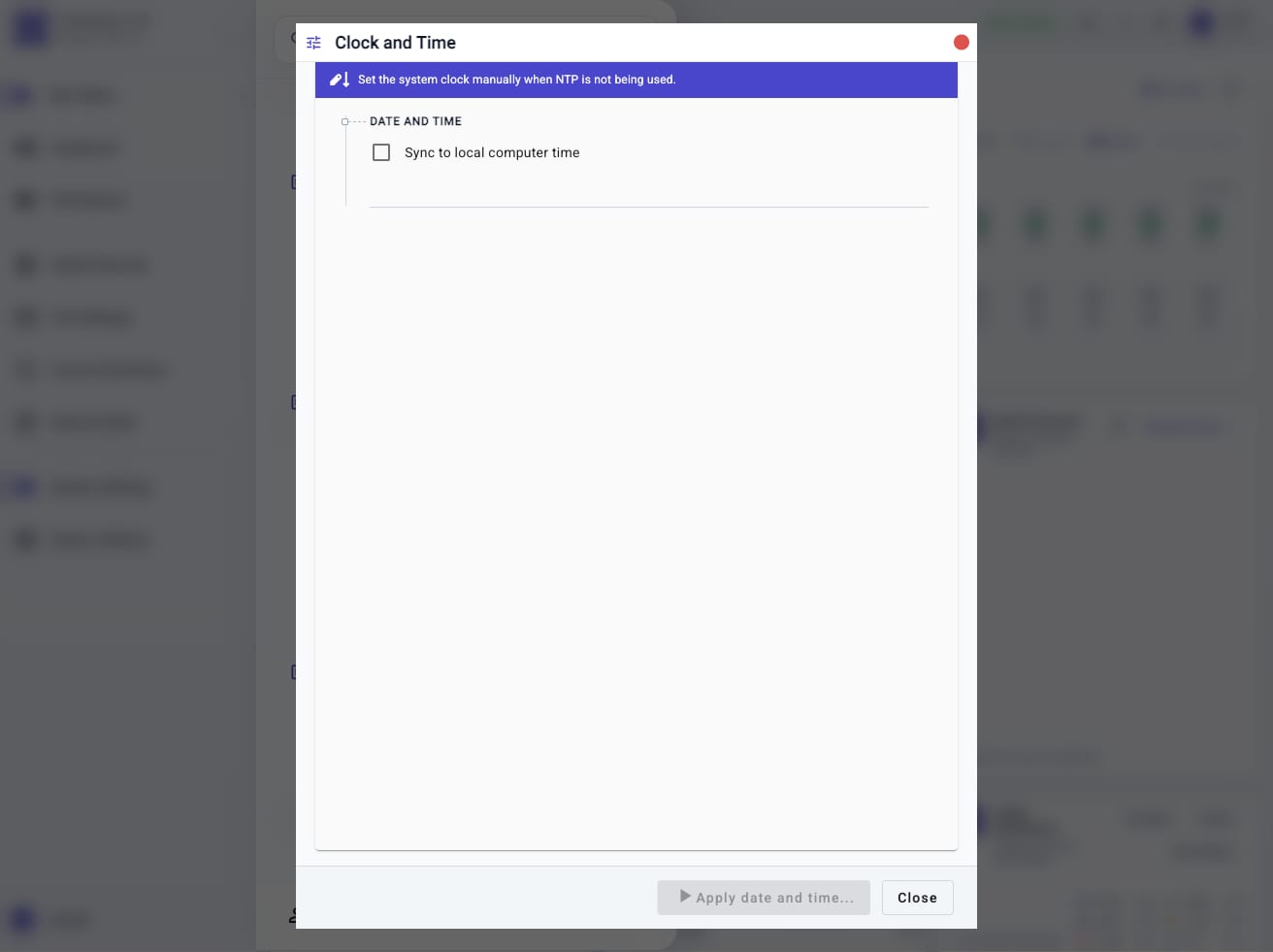
Set Clock And Time Manually
- Open System Settings.
- Choose Clock and Time.
- Enter Date and Time, or enable Sync to local computer time when the browser workstation clock should be used.
- Click Apply date and time....
- Verify the result with
show system time now.
Use this only when NTP is not available or when a manual recovery action is required.
Configure Time Zone
- Open System Settings.
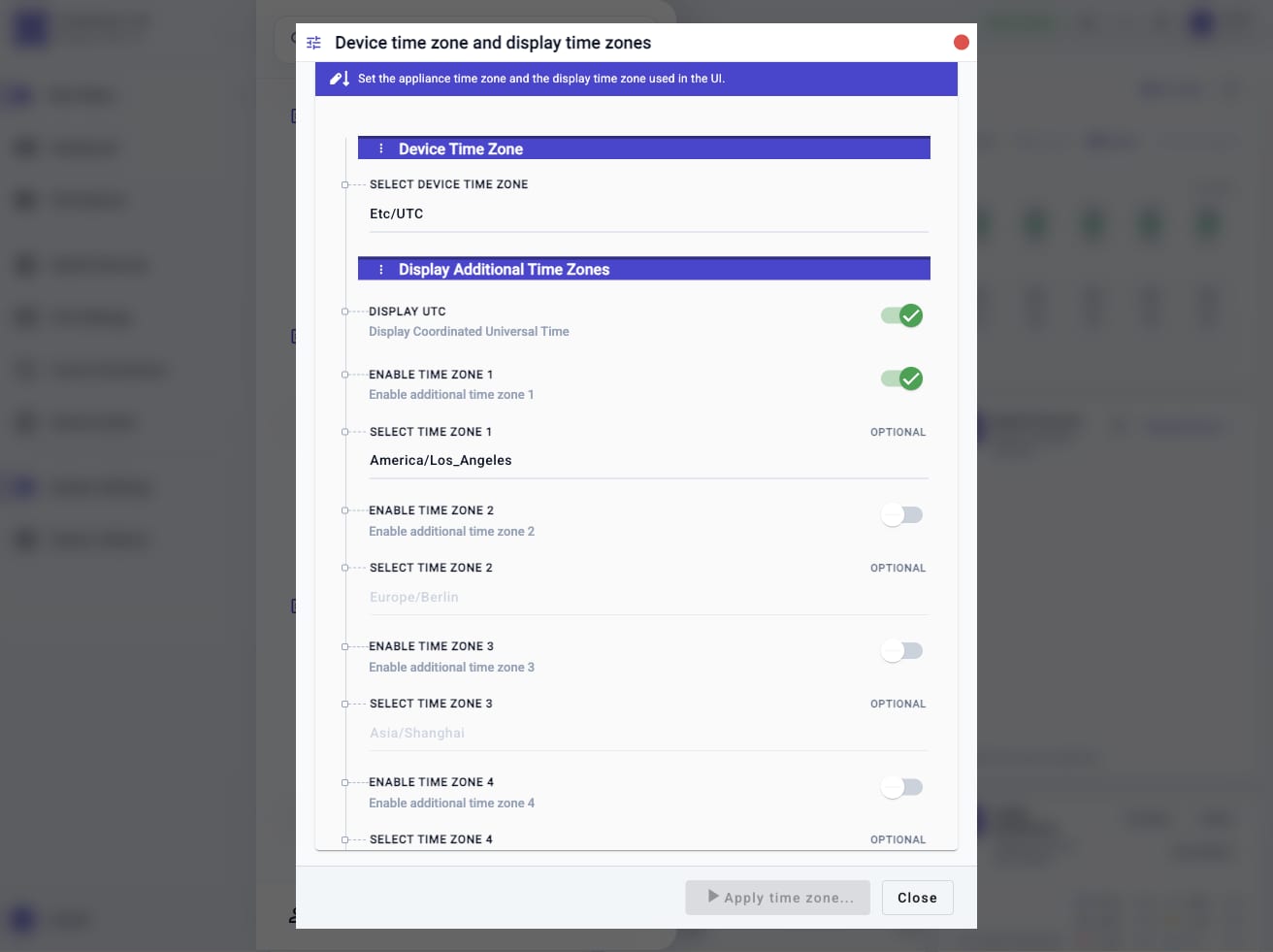
- Choose Time Zone. The workflow opens as Device time zone and display time zones.
- Set Select Device Time Zone.
- Enable Display UTC when UTC should be shown as an additional display time zone.
- Enable Enable Time Zone 1 through Enable Time Zone 4 as needed.
- Select the corresponding display time zone values.
- Click Apply time zone....
- Verify the result with
show system time timezone.
Configure Networked Time Server
- Open System Settings.
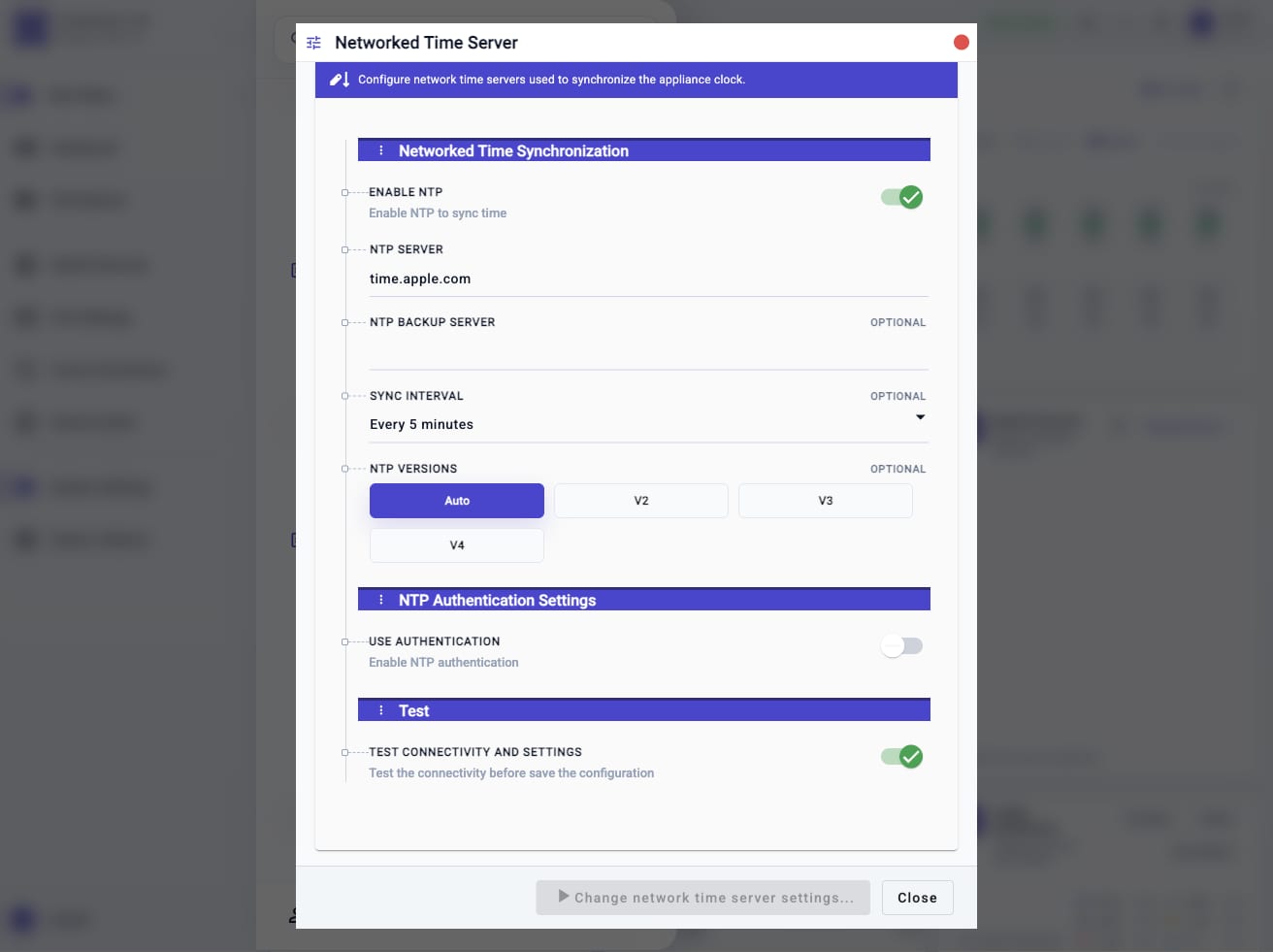
- Choose Networked Time Server.
- Set Enable NTP.
- Enter NTP Server and, optionally, NTP Backup Server.
- Select Sync Interval and NTP Versions.
- Enable Use Authentication only when the NTP service requires authentication.
- Leave Test connectivity and settings enabled when the appliance can reach the configured servers during the workflow.
- Click Change network time server settings....
- Verify the result with
show system time ntpandshow system time now.
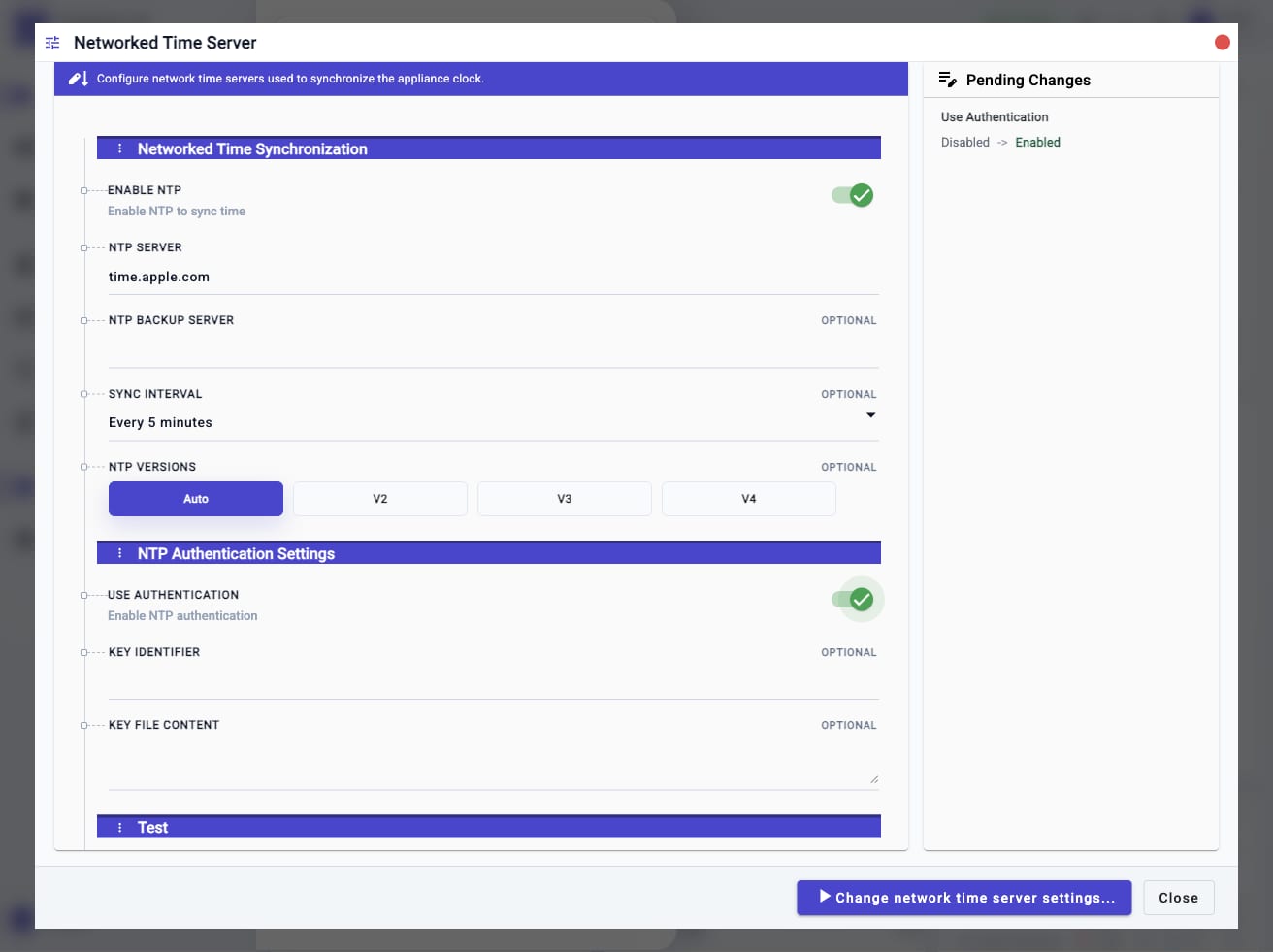
When Use Authentication is enabled, provide the Key Identifier and Key File Content required by the NTP service. Review Pending Changes before applying the workflow.
Check From The CLI
Display current time, time zone, and uptime:
show system time now
Display NTP settings:
config system time ntp
show system time ntp
Display time zone settings:
config system time timezone
show system time timezone
The config form without parameters is display-only for NTP and time zone
settings. It does not modify the configuration.
A typical NTP display includes:
Networked Time Synchronization
Enable NTP
NTP Server
NTP Backup Server
Sync Interval
NTP Versions

NTP Authentication Settings
Use Authentication
Key Identifier
Key File Content

Test
Test connectivity and settings
Change From The CLI
Set Clock And Time
Use config system time clock <date_time> to set the appliance clock manually.
The accepted format is:
YYYY-MM-DD HH:MM:SS
Example:
config system time clock "2026-05-24 15:00:00"
The CLI also accepts the date and time as a positional value:
config system time clock 2026-05-24 15:00:00
Running config system time clock without a value fails with a missing
date_time error. Use config system time clock ? to view the required
parameter and accepted format.
Configure Time Zone
Set the device time zone:
config system time timezone zone America/Los_Angeles
Set the device time zone to UTC and show an additional display time zone:
config system time timezone zone Etc/UTC enable_utc true enable_primary_timezone true primary_timezone America/Los_Angeles
Configure two display time zones:
config system time timezone zone Etc/UTC enable_primary_timezone true primary_timezone America/Los_Angeles enable_backup_timezone true backup_timezone Europe/London
Use config system time timezone zone ? or
config system time timezone primary_timezone ? to search available time zone
values.
Configure NTP
Enable NTP with primary and backup servers:
config system time ntp enable true server time.nist.gov backup_server time.google.com test_before_apply false
Disable NTP while saving server settings:
config system time ntp enable false server time.nist.gov backup_server "" test_before_apply false
Set NTP version and sync interval:
config system time ntp enable true server time.nist.gov sync_interval 300 version v4 test_before_apply false
Use config system time ntp server ? to list common NTP server values. The
server and backup_server fields are editable enums: predefined values are
shown first, and a custom server name or address can also be entered.
Field Reference
Clock Fields
| CLI Field | UI Field | Required | Notes |
|---|---|---|---|
date_time |
Date and Time | Yes | Manual clock value in YYYY-MM-DD HH:MM:SS format. Setting this disables NTP before applying the manual time. |
| n/a | Sync to local computer time | Optional | Uses the browser workstation time as the candidate manual clock value. Verify the workstation clock before applying. |
Time Zone Fields
| CLI Field | UI Field | Required | Notes |
|---|---|---|---|
zone |
Select Device Time Zone | Yes | IANA time zone name for the appliance, such as Etc/UTC or America/Los_Angeles. |
enable_utc |
Display UTC | Optional | Boolean value. Adds UTC as an additional display time zone. |
enable_primary_timezone |
Enable Time Zone 1 | Optional | Boolean value. Enables the first additional display time zone. |
primary_timezone |
Select Time Zone 1 | Optional | IANA time zone name for display time zone 1. |
enable_backup_timezone |
Enable Time Zone 2 | Optional | Boolean value. Enables the second additional display time zone. |
backup_timezone |
Select Time Zone 2 | Optional | IANA time zone name for display time zone 2. |
enable_3nd_timezone |
Enable Time Zone 3 | Optional | Boolean value. Enables the third additional display time zone. |
3rd_timezone |
Select Time Zone 3 | Optional | IANA time zone name for display time zone 3. |
enable_4th_timezone |
Enable Time Zone 4 | Optional | Boolean value. Enables the fourth additional display time zone. |
4th_timezone |
Select Time Zone 4 | Optional | IANA time zone name for display time zone 4. |
NTP Fields
| CLI Field | UI Field | Required | Notes |
|---|---|---|---|
enable |
Enable NTP | Yes | Boolean value. Use true to enable network time synchronization or false to disable it. |
server |
NTP Server | Yes | Primary NTP server. The CLI shows common values and also accepts a custom server name or address. |
backup_server |
NTP Backup Server | Optional | Backup NTP server. Use "" to clear the value from CLI. |
sync_interval |
Sync Interval | Optional | Sync interval in seconds. Use config system time ntp sync_interval ? to list available choices. |
version |
NTP Versions | Optional | Use auto, v2, v3, or v4. |
enable_auth |
Use Authentication | Optional | Boolean value. Enable only when the NTP server requires authentication. |
key_id |
Key Identifier | Optional | Authentication key identifier used when NTP authentication is enabled. |
key_file |
Key File Content | Optional | Authentication key file content used when NTP authentication is enabled. This is content, not a local file path. |
test_before_apply |
Test connectivity and settings | Optional | Boolean value. When true, the workflow tests NTP connectivity before saving final status. Use false in isolated labs where the appliance cannot reach the test server. |
Time Management Function Reference
| Workflow | Primary Function | Apply Control |
|---|---|---|
| Clock and Time | Manually set the appliance clock or sync from the local browser workstation time. | Apply date and time... |
| Time Zone | Set the device time zone and optional additional display time zones. | Apply time zone... |
| Networked Time Server | Enable NTP, set primary and backup servers, choose sync interval and NTP version, and configure optional authentication and connectivity testing. | Change network time server settings... |
Notes
show system time nowreads live appliance time and uptime.show system time ntpandshow system time timezonedisplay saved workflow defaults for their corresponding settings.- The
config system time ntpandconfig system time timezonedisplay forms are read-only until a field/value pair is provided. - Group headings such as Networked Time Synchronization, NTP Authentication Settings, and Display Additional Time Zones are section labels, not editable values.
- Additional display time zones affect display only. They do not change the system time zone.
- Manual clock changes can make log order and event timestamps harder to interpret. Use NTP whenever practical.
Troubleshooting
Clock Command Reports Missing date_time
Provide a date and time value:
config system time clock "2026-05-24 15:00:00"
Use config system time clock ? to display the accepted format.
Time Zone Value Is Rejected
Use the CLI help to list supported values:
config system time timezone zone ?
Enter an IANA time zone name exactly as shown, including capitalization and slashes.
NTP Server Value Is Not In The Help List
The NTP server field is editable. Enter the custom DNS name or IP address directly:
config system time ntp server ntp.internal.example
Confirm DNS and routing if the workflow tests connectivity.
NTP Connectivity Test Fails
Confirm that the appliance can resolve and reach the configured NTP server. Check management routing, DNS, firewall policy, and whether the server accepts the selected NTP version and authentication settings.
For a configuration-only change in an isolated environment, disable the connectivity test intentionally:
config system time ntp enable true server time.nist.gov test_before_apply false
Timestamps Look Inconsistent After A Manual Clock Change
Check show system time now, confirm whether NTP is enabled, and compare new
logs against the time at which the manual clock change was applied. If possible,
return the appliance to a trusted NTP source.
Related Tasks
- Use Device Information when changing operator-facing appliance identity fields.
- Use System Access Methods when time-related certificate or SSH issues are actually caused by access service configuration.
- Use Firmware Management when validating time settings after an update or rollback.