
Overview
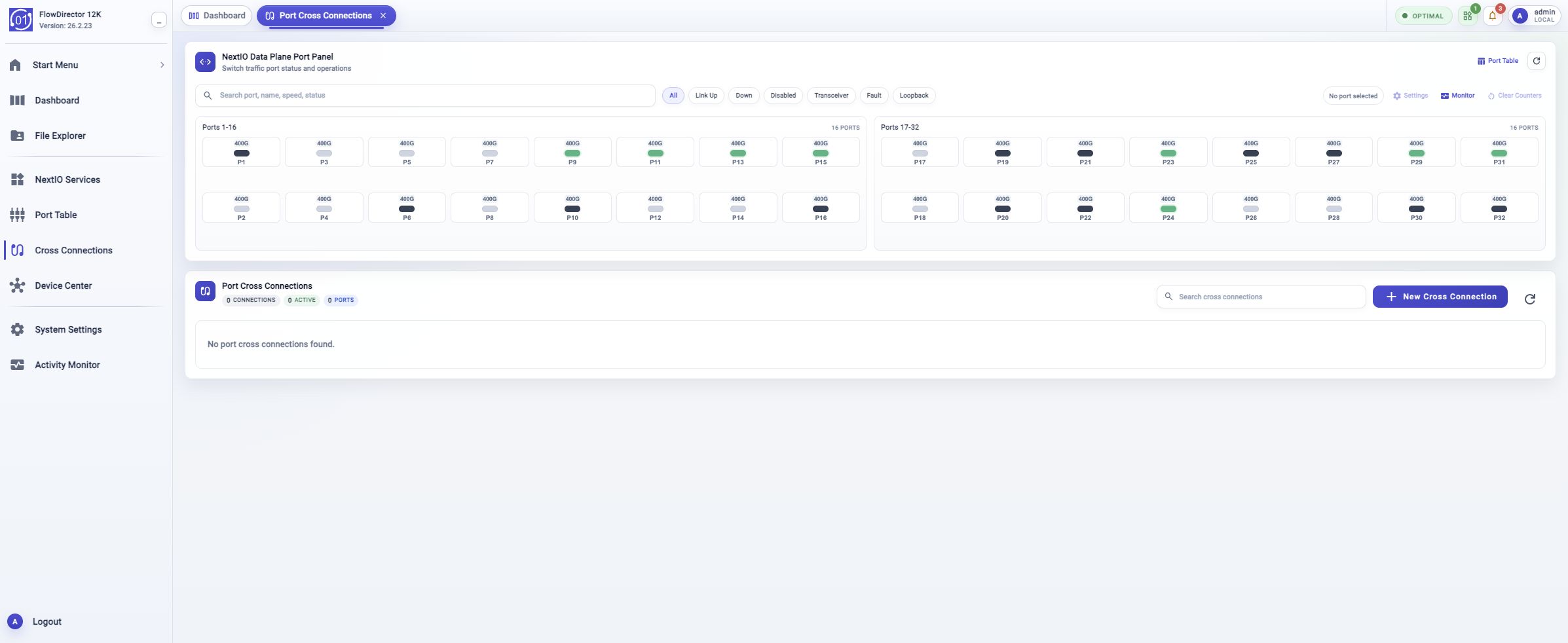
Cross Connections opens the page for simple port-to-port traffic connections. Use it when you need to review existing cross connections, search the connection list, or start a new port-pair workflow from the Web UI.
Open From Activity Bar
Click Cross Connections in the activity bar. In expanded mode, it appears below Port Table and above Device Center. In folded mode, use the same position in the activity bar.
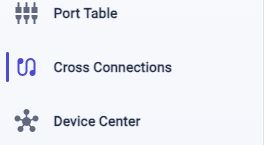
The page opens as a workspace tab named Port Cross Connections.
Port Panel And Connection List
The top of the page keeps the NextIO Dataplane Port Panel visible. Use it to check traffic-port state before creating or changing a connection. Port selection for a new cross connection happens inside the create workflow.
The lower panel is the Port Cross Connections list. It shows how many connections exist, how many are active, and how many ports are used by those connections. If no cross connections are configured, the list shows No port cross connections found.
Toolbar
Use the Cross Connections toolbar to review totals, filter the list, create a new connection, and refresh current state.

| Control | Function |
|---|---|
| Connections | Shows the total number of configured cross connections. |
| Active | Shows how many cross connections are currently active. |
| Ports | Shows how many traffic ports are used by cross connections. |
| Search cross connections | Filters the connection list by matching text. |
| New Cross Connection | Opens the create workflow. |
| Refresh | Reloads cross-connection state and the list contents. |
Create A Cross Connection
Click New Cross Connection to open the create workflow.
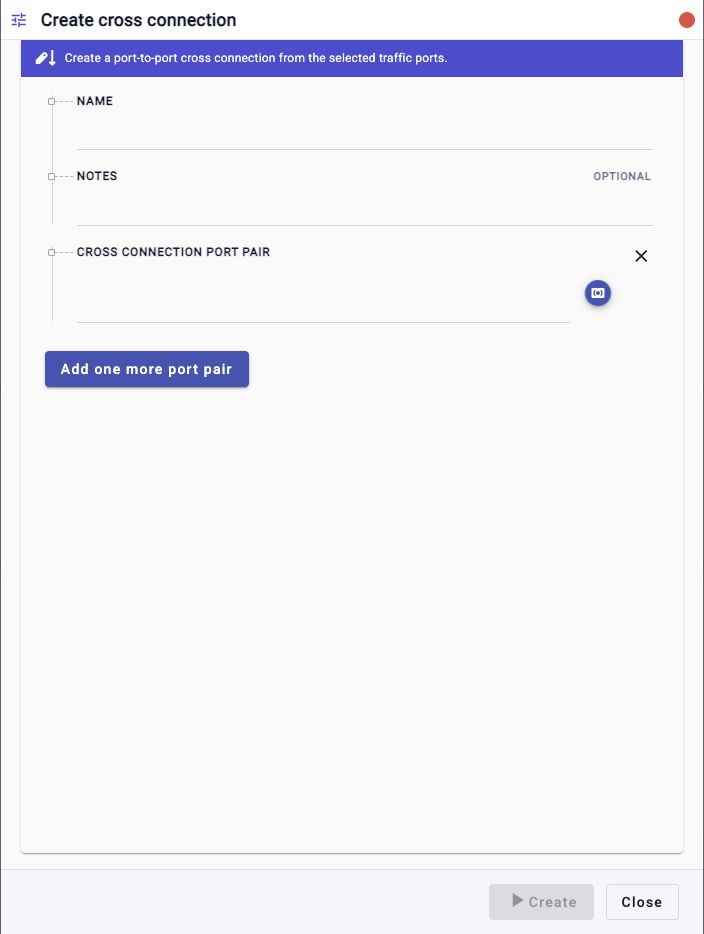
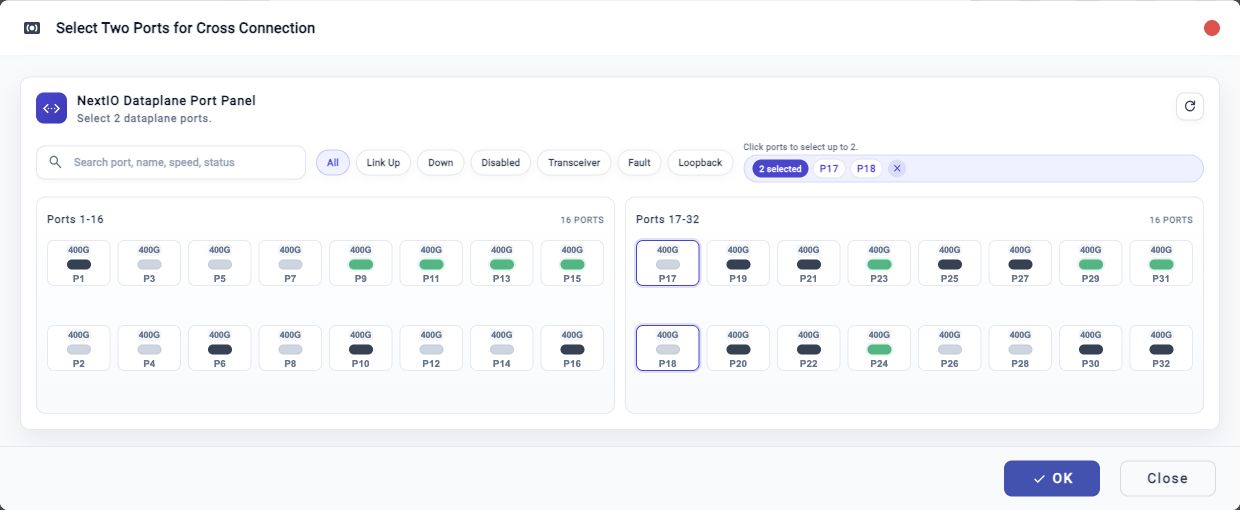
Use the selector inside the workflow to choose the two ports for the connection. This keeps the create step self-contained and avoids depending on the main port panel selection.
- Click New Cross Connection.
- In Cross Connection Port Pair, click the port-selector button.
- In Select Two Ports for Cross Connection, click exactly two available ports.
- Click OK.
- Review the generated name and selected port chips. Edit Name or add Notes when the connection needs operator context.
- Click Create.
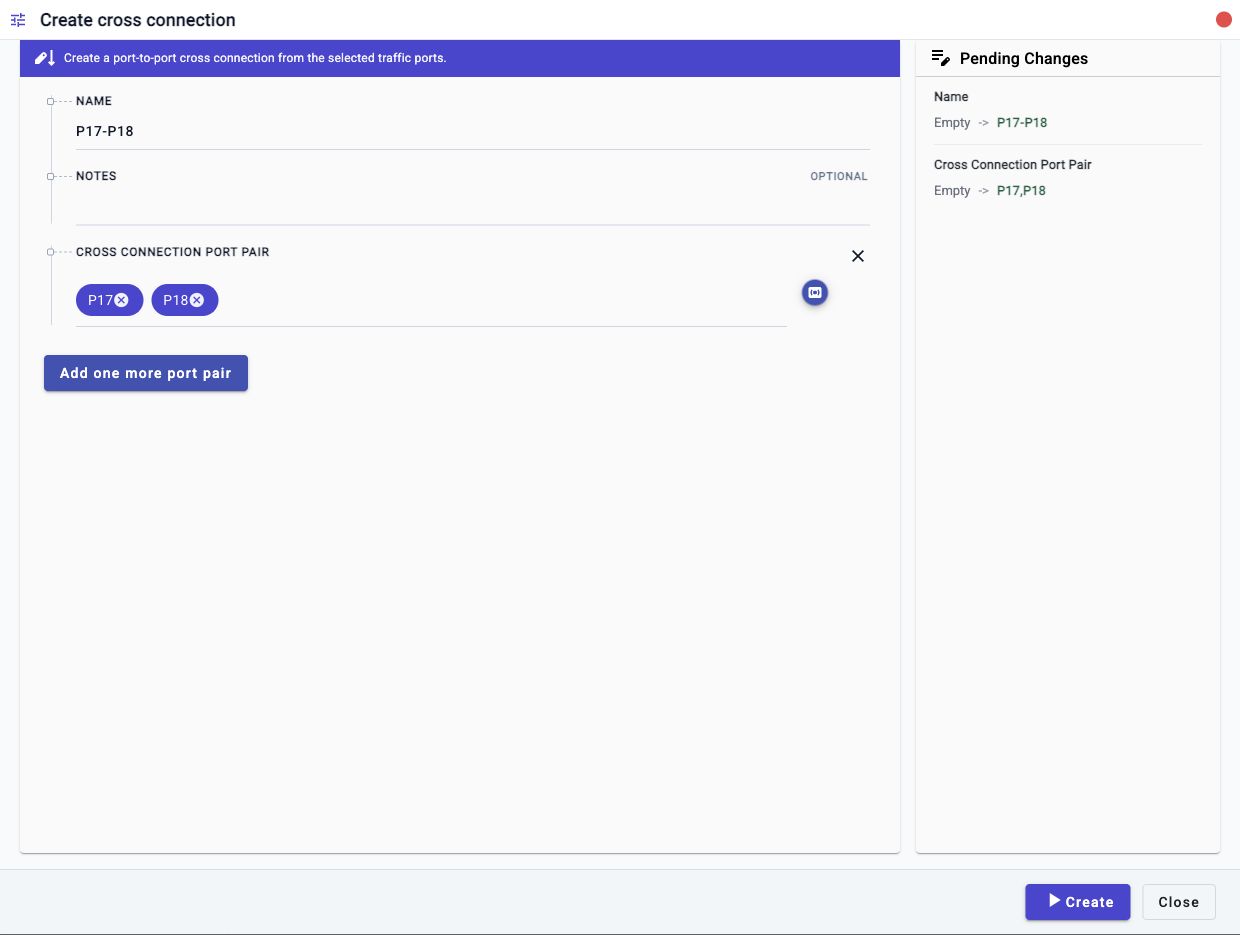
The Create button stays unavailable until the workflow has enough valid information. Use Close to leave the workflow without creating a connection.
Connection Actions
After a connection is created, it appears in the Port Cross Connections list with its name, owner, status, port pair, traffic counters, and action menu.
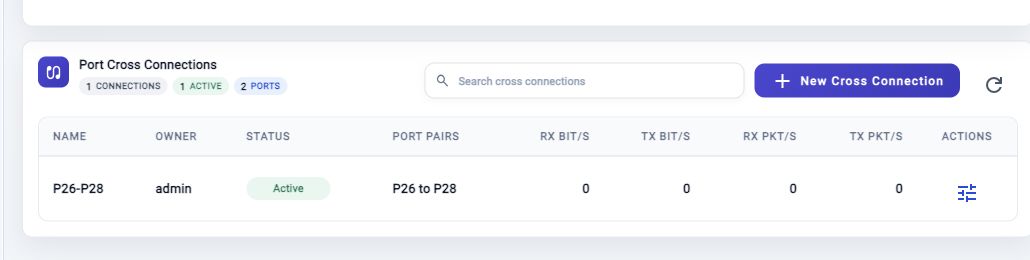
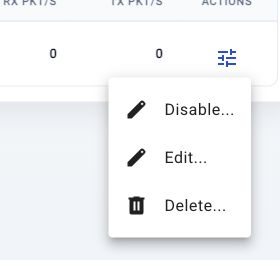
Open the row action menu when you need to change an existing connection.
| Action | Function |
|---|---|
| Disable... | Starts the workflow to disable an active cross connection without deleting its configuration. |
| Edit... | Opens the workflow for changing the connection settings. |
| Delete... | Starts the delete workflow. Use it when the connection should be removed from the appliance. |
Troubleshooting
No Connections Are Listed
No cross connections may be configured, or the current search text may hide them. Clear the search field and click Refresh.
Create Is Disabled
Confirm that the required name and port-pair fields are complete. If Create is still unavailable, the selected ports may not be valid for a cross connection, or the current account may not have permission.
Port Pair Is Empty
Click the port-selector button in Cross Connection Port Pair, choose two ports, and click OK.
Port Already Used
The workflow can fail when one of the selected ports is already used by a running service, an ingress or egress binding, or another cross connection. Choose two available ports and run the workflow again.
State Looks Stale
Click Refresh. If a create or delete workflow just ran, open Activity Monitor > Workflows and review the workflow status.
Related Tasks
- Use Port Table for sortable dataplane port rows and port actions.
- Use Port Panel for compact port tiles and port tooltips.
- Use NextIO Services for service runtime management.
- Use Activity Monitor > Workflows to review cross-connection operations.