
Overview
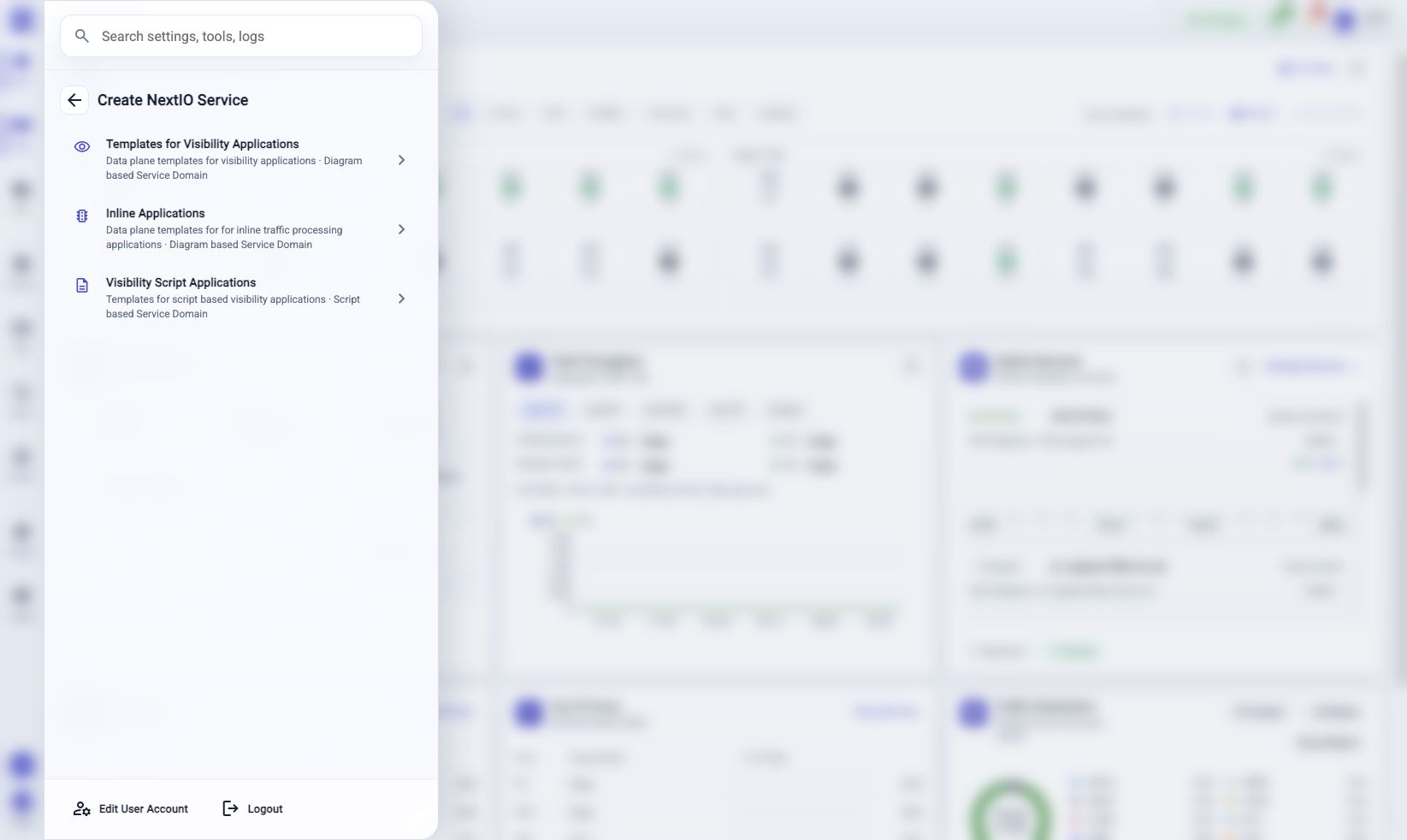
Use Create NextIO Service when you want a new .nio design and do not want
to start from a blank canvas. The template browser helps you choose a template, name the
file, pick the save location, and create the design.
After creation, the new file opens in NextIO Diagram Editor for review, editing, saving, verification, and runtime use.
Open The Template Browser
You can open the browser from several places:
| Entry Point | When To Use It |
|---|---|
| Start Menu > Create NextIO Service | Fastest path when you are starting a new design. |
| NextIO Services > Create Service | Best when you are already managing service runtime. |
| File Explorer create menu | Best when you are already working in the destination folder. |
Create A Service Design
- Enter Service File Name.
- Choose Save Location.
- Select the service type if multiple types are available.
- Search or choose a template category.
- Select a template card.
- Review the Details panel.
- Use Preview when the template provides one.
- Click Create.
Use a short, meaningful file name. Do not use \ / : * ? " < > | in the file
name. If the extension is omitted, the Web UI adds the expected extension for
the selected service type.
Browse Templates
The template browser is organized for quick selection:
| Area | Function |
|---|---|
| Service File Name | Names the design file that will be created. |
| Save Location | Selects the destination folder, usually Workspace. |
| Search Templates | Searches template name, description, category, source, template ID, and service type. |
| Service Type | Narrows the browser to a service-design type. |
| Categories | Groups templates by common use. |
| Template cards | Select the design pattern to create. |
| Details | Shows selected template metadata, source, location, and preview status. |
| Preview | Opens the template preview when one is available. |
| Create | Creates the design file and opens it in the Diagram Editor. |
After Create
Review the new design before starting it:
- Confirm that the file opened in NextIO Diagram Editor.
- Check the service name and diagram layout.
- Edit components, ports, or attributes as needed.
- Click Save.
- Click Verify.
- Start or apply the service only after the design verifies.
If creation runs through a workflow, use Activity Monitor > Workflows to review the result if the browser reports an error.
Troubleshooting
| Situation | What To Do |
|---|---|
| Create is disabled | Enter a valid file name and select a template. |
| No templates are shown | Clear the search field, select a different category, or refresh the Web UI. |
| Preview is disabled | The selected template does not provide preview content. You can still create it if Create is enabled. |
| The created file does not open | Open File Explorer, go to the selected save location, and open the file manually. |