
Overview
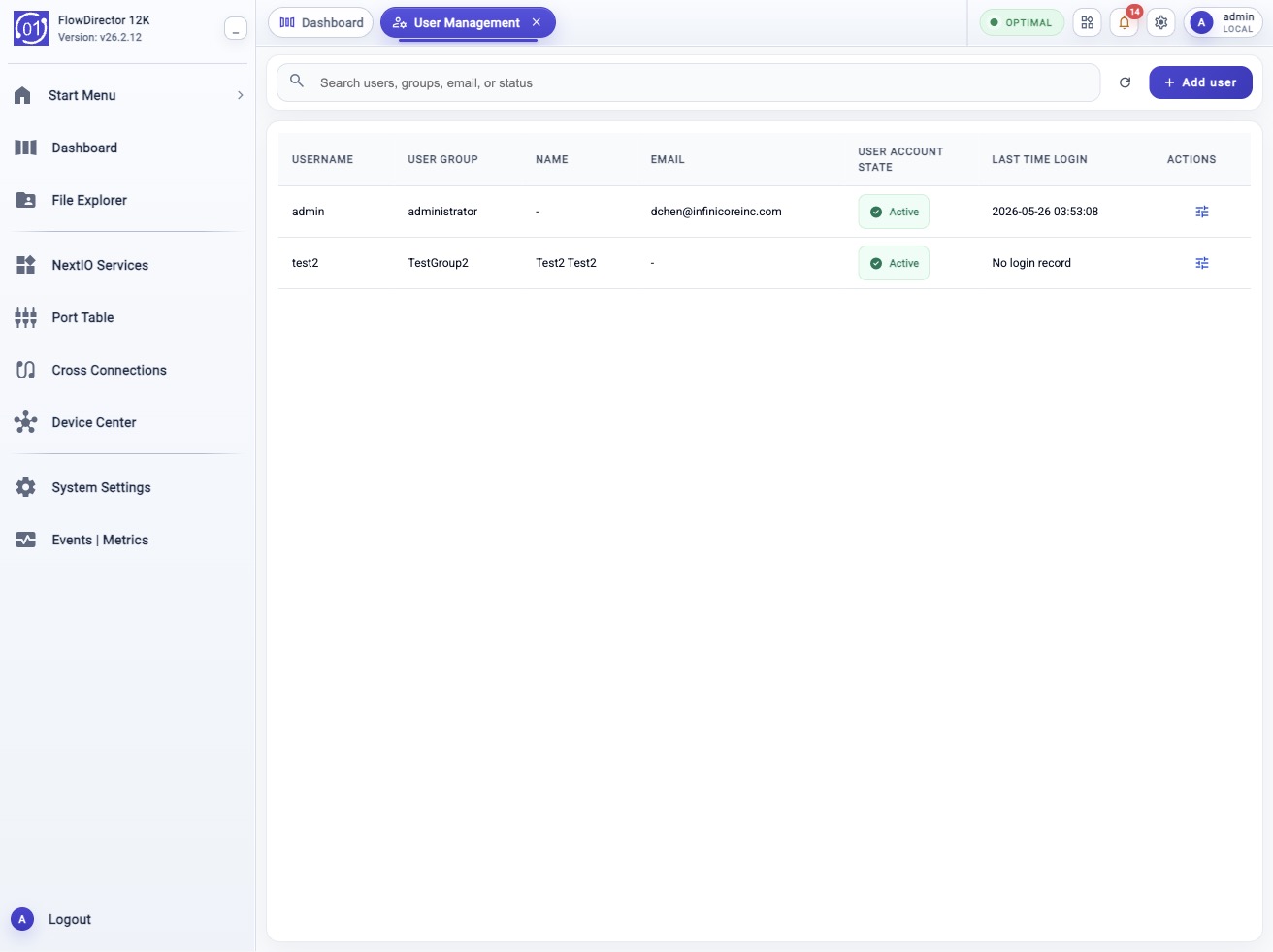
Use User Management to manage local user accounts. A user account controls who can sign in, which user group is assigned, basic profile fields, session timeout, password settings, and the current account state.
The same account table and account workflows are available from the CLI through:
config system user
show system user
Typical Uses
Use this topic to create a local operator account, edit user profile fields, change a user's group, disable or re-enable an account, unlock an account, remove an account, or edit your own account.
Typical examples:
Show users:                 show system user
Show current user settings: config system user self
List editable users:        config system user edit name ?
Edit a profile field:       config system user edit name qa_operator email qa_operator@example.test
Disable an account:         config system user disable name qa_operator
Enable an account:          config system user enable name qa_operator
Unlock an account:          config system user unlock name qa_operator
Remove an account:          config system user remove name qa_operator remove_user_data false
Prerequisites
- Confirm that you have administrator permission to manage local users.
- Create or review the target user group before assigning a user to it.
- Record the current user table with
show system userbefore large account changes. - Keep at least one administrator account active and accessible.
- Do not remove the last usable administrator account.
- Use
name ?to list valid existing users before editing, disabling, unlocking, enabling, or removing an account. - Use quotes for field values that contain spaces.
- Treat password values as sensitive. Do not paste passwords into shared terminals, logs, or support tickets.
Workflow
- Open System Settings.
- Choose User Management.
- Search or select a user account from the table.
- Review the assigned group, profile fields, account state, and last login time.
- Click Add User to create an account, or use the row Actions menu to edit, disable, unlock, enable, or remove an existing account.
- Apply the workflow and verify the updated account list.
Expected Behavior
The User Management view displays local users in a table with these columns:
- Username
- User Group
- First Name
- Last Name
- Phone
- User Account State
- Last Time Login
Selecting a row or using row actions opens the corresponding workflow. The available actions depend on the account and backend safeguards. For example, the last required administrator account should not be removed.
The Edit My Account workflow uses the current authenticated session as the
target user. The CLI form is config system user self; it intentionally hides
the name parameter because the current user is implicit.
In The Web UI
Review Users
- Open System Settings.
- Choose User Management.
- Use the search field to filter by user name, group, email, phone, state, or last login time.
- Review the row values for User Group, User Account State, and Last Time Login.
- Use row actions only after confirming the target user.
Add A User
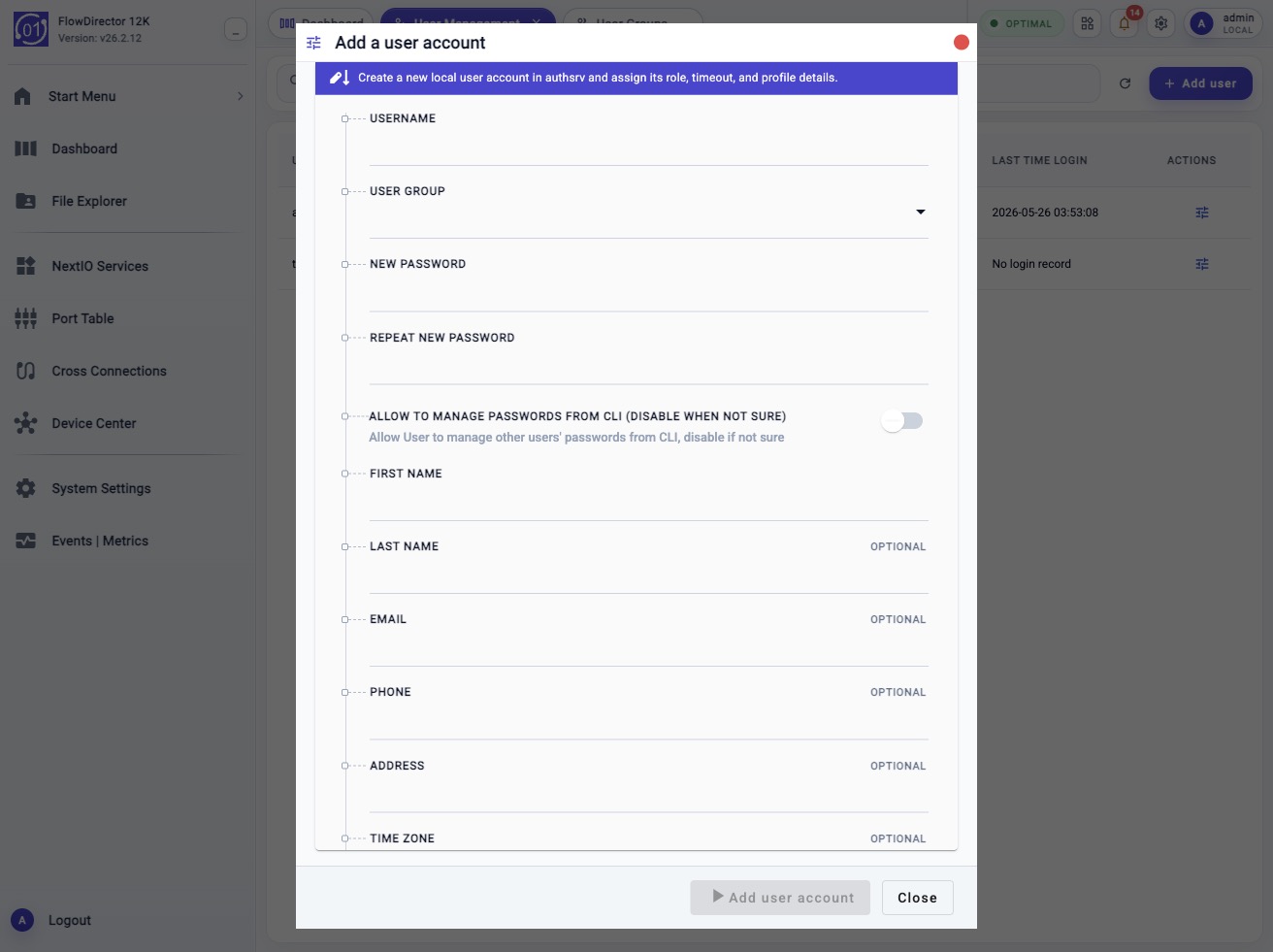
- Click Add User.
- Enter the user Name.
- Select the User Group.
- Enter New Password and Repeat New Password.
- Set Allow to Manage Passwords from CLI only when that user should be allowed to manage other users' passwords through CLI workflows.
- Enter optional profile fields such as First Name, Last Name, Email, Phone, Address, and Time Zone.
- Set Session Timeout.
- Apply the workflow.
- Verify that the new user appears in User Management.
Edit A User
- Locate the user in the table.
- Open the row Actions menu.
- Click Edit.
- Update the group, profile fields, password fields, time zone, or session timeout as required.
- Apply the workflow.
- Reopen the user row or run
show system userto verify the update.
Edit Your Own Account
- Open Edit My Account from the user account action or profile entry point.
- Review the current values.
- Update profile fields, password fields, time zone, or session timeout as required.
- Apply the workflow.
- If you change your password, expect to sign in again.
Disable, Unlock, Or Enable A User
- Locate the user in the table.
- Open the row Actions menu.
- Choose Disable, Unlock, or Enable.
- Apply the workflow.
- Verify the User Account State in the table.
Remove A User
- Confirm that the user account is no longer required.
- Confirm that removing the user will not remove the last usable administrator account.
- Locate the user in the table.
- Open the row Actions menu.
- Click Remove.
- Choose whether to remove the user's home-directory data.
- Apply the workflow.
- Verify that the user no longer appears in User Management.
Check From The CLI
Use either command below to display the user account table:
config system user
show system user
The config form without a subcommand is display-only. It does not modify the
configuration.
A typical display includes:
Username  User Group     First Name  Last Name  Email                  Phone  User Account State  Last Time Login
admin     administrator                         admin@example.test            Active              2026-05-25 23:53:33
qa_ops    operators      QA          Operator   qa_ops@example.test           Active              No login record
CLI Help And Selectors
Display the available user commands:
config system user ?
Expected command nodes:
<Enter>                  - Display current settings
add                      - Add a user account
disable                  - Disable user account
edit                     - Edit selected user account
enable                   - Enable user account
remove                   - Remove the selected user account
reset                    - Reset stalled UI session state
self                     - Edit my account
unlock                   - Unlock user account
List valid user names for edit:
config system user edit name ?
List valid user names for account state changes:
config system user disable name ?
config system user unlock name ?
config system user enable name ?
List valid user names for removal:
config system user remove name ?
List valid user groups:
config system user add group ?
config system user edit group ?
config system user self group ?
Display your own current account settings:
config system user self
The self command supports bare Enter and displays current settings. The
edit, add, remove, disable, unlock, and enable action commands
require arguments and do not offer bare Enter in help.
CLI Account Examples
Edit non-password profile fields:
config system user edit name qa_ops first_name QA last_name Operator email qa_ops@example.test phone 555-0101 timezone UTC timeout 30
Edit your own non-password profile fields:
config system user self first_name QA last_name Operator email qa_ops@example.test timezone UTC timeout 30
Disable an account:
config system user disable name qa_ops
Unlock an account:
config system user unlock name qa_ops
Enable an account:
config system user enable name qa_ops
Remove an account and keep the user's data:
config system user remove name qa_ops remove_user_data false
Remove an account and request user-data removal:
config system user remove name qa_ops remove_user_data true
Password Handling
Password fields are encrypted before workflow execution. In the web UI, the browser encrypts Current Password, New Password, and Repeat New Password before sending the workflow request.
Do not paste plaintext passwords into non-interactive CLI commands for encrypted password fields. If a password field is submitted without the workflow encryption payload, the workflow rejects it with an encryption error. Use the web UI for routine user creation and password changes unless your automation explicitly obtains the current workflow password key and submits the encrypted value.
Password-related CLI fields are still shown in help because they are workflow fields:
config system user add password ?
config system user edit current_password ?
config system user self password ?
Field Reference
| CLI Field | UI Field | Required | Notes |
|---|---|---|---|
name |
Name / Username | Yes for targeted actions | For add, this is a new user name. For edit, remove, disable, unlock, and enable, use name ? to select an existing local user. Hidden for self because the current session user is implicit. |
group |
User Group | Yes for add | User group assigned to the account. Use group ? to list valid groups. |
current_password |
Current Password | Conditional | Used when changing the current user's own password or when required by the workflow. Encrypted before workflow execution. |
password |
New Password | Required for add; optional for edit/self | New password. Must match repeat_password. Encrypted before workflow execution. |
repeat_password |
Repeat New Password | Required when password is set |
Confirmation value for New Password. Encrypted before workflow execution. |
allow_cli_password_change |
Allow to Manage Passwords from CLI (disable when not sure) | Optional | Boolean value. Use true only for users that should be allowed to manage other users' passwords from CLI workflows. |
first_name |
First Name | Optional | User first name. |
last_name |
Last Name | Optional | User last name. |
email |
Optional | User email address. | |
phone |
Phone | Optional | User work phone number. |
address |
Address | Optional | User address or location text. Quote values that contain spaces. |
timezone |
Time Zone | Optional | User time zone. Use timezone ? to list valid IANA time zone values. |
timeout |
Session Timeout | Optional | Idle session timeout. Use timeout ? to list valid values such as 15 minutes, 30 minutes, or 1 hour. |
remove_user_data |
Remove user data under user's home directory | Optional for remove | Boolean value. Use false to keep data or true to request removal of the user's home-directory data. |
Account State Behavior
Disable prevents the selected local user from authenticating. Existing sessions may end according to normal session handling and service policy.
Unlock clears the lock state and re-enables authentication for the selected user.
Enable re-enables authentication for a disabled user.
The account table reports state as Active, Disabled, or Locked.
Use show system user after a state workflow to verify the result.
Confirmation And Rollback
Adding, editing, removing, disabling, unlocking, or enabling a user starts a workflow. The local authentication database is updated when the workflow completes successfully.
To roll back an accidental profile edit, run the edit workflow again with the previous values. To roll back an accidental disable action, run:
config system user enable name <username>
To recover from an accidental removal, recreate the user and assign the
correct group. User data is only kept if removal was run with
remove_user_data false and the underlying data still exists.
Notes
- User names are stable account identifiers. Choose concise names that are easy to type in CLI commands.
config system user add name ?displays the string type because a new user name is expected.config system user edit name ?displays existing user names.config system user self ?displays<Enter>and account fields, but does not displayname.config system user editwithout arguments is rejected because it has no target user.config system user selfwithout arguments is valid because the target user is the current authenticated session.- The Reset stalled UI session state command is intended for clearing stale UI session state. It does not edit user profile fields.
- Use User Groups to create or edit authorization groups before assigning users to them.
Troubleshooting
Edit Command Prints An Argument Error
Run:
config system user edit name ?
Choose a user name, then include the name field in the edit command:
config system user edit name qa_ops email qa_ops@example.test
The bare config system user edit command is intentionally rejected because it
does not identify a target user.
Self Command Does Not Show Name
This is expected. config system user self uses the current authenticated
session as the target user. The name field is hidden from CLI help for this
workflow.
Password Workflow Reports Encryption Error
Use the web UI for password changes, or use automation that submits the current workflow-encrypted password payload. Plaintext password strings in non-interactive CLI commands are rejected by the password workflow.
User Does Not Appear In Name Help
Run:
show system user
If the user is not in the table, refresh the web UI or confirm that the user
still exists. If the user exists in the table but not in name ? help, refresh
the command session or check backend workflow discovery.
Group Does Not Appear In Group Help
Run:
show system usergroup
config system user add group ?
Create the missing group from User Groups before assigning a user to it.
Account State Did Not Change
Run:
show system user
Confirm that the workflow completed successfully and that the target user name matches the row in the table. If the state is still unchanged, review the workflow log shown by the CLI or web UI.
Related Tasks
- User Groups: create groups and assign workflow or port access.
- System Access Methods: configure HTTP, HTTPS, and SSH management access.
- Device Management Access ACL: restrict which client IPs can reach management services.
- Firmware Management: understand session impact during firmware update and reboot workflows.