
Overview
Use System Access Methods to view or update the management access services used by operators: HTTP, HTTPS, and SSH.
The same settings are available from the CLI through:
config system access
show system access
Typical Uses
Use this topic to enable or disable a management service, change a management service port, restrict HTTPS TLS versions, or restrict SSH ciphers, MACs, and key exchange algorithms.
Typical examples:
Show current access methods: show system access
Move HTTP and HTTPS ports:   config system access http true http_port 18080 https true https_port 18443
Disable SSH access:          config system access ssh false ssh_port 22
Set SSH algorithms:          config system access ssh true ssh_cipher aes128-ctr ssh_mac hmac-sha2-256 ssh_key_exchange curve25519-sha256
Prerequisites
- Confirm that you have administrator permission to change system access settings.
- Record the current settings with
show system access. - Keep at least one known-good access path available. For example, verify HTTPS login before disabling SSH, or verify SSH before disabling HTTP and HTTPS.
- Confirm that the management ACL allows your client IP address or management subnet.
- Confirm that firewall rules, jump hosts, and monitoring systems know about any new service ports.
- Confirm that operator browsers and SSH clients support the TLS versions and SSH algorithms you plan to enable.
- Use a maintenance window when changing ports, disabling services, or narrowing algorithms, because active management sessions can disconnect.
Workflow
- Open System Settings.
- Under Device IP and Access Services, choose System Access Methods.
- Review HTTP Service, HTTPS Service, and SSH Service.
- Change only the access method, port, TLS version, or algorithm selections that need to change.
- Click Apply.
- Verify access from a new browser tab or a new SSH session before closing the original session.
Expected Behavior
When the workflow starts, 01Layer saves the access method settings and reconciles the affected services.
- HTTP and HTTPS changes reconfigure the web gateway.
- SSH changes reconfigure the SSH service.
- Changing a port requires reconnecting to the new port.
- Disabling the service used by your current session can disconnect that session.
- Narrowing TLS or SSH algorithm lists can block older clients that do not support the selected values.
In The Web UI
- Open System Settings.
- Under Device IP and Access Services, choose System Access Methods.
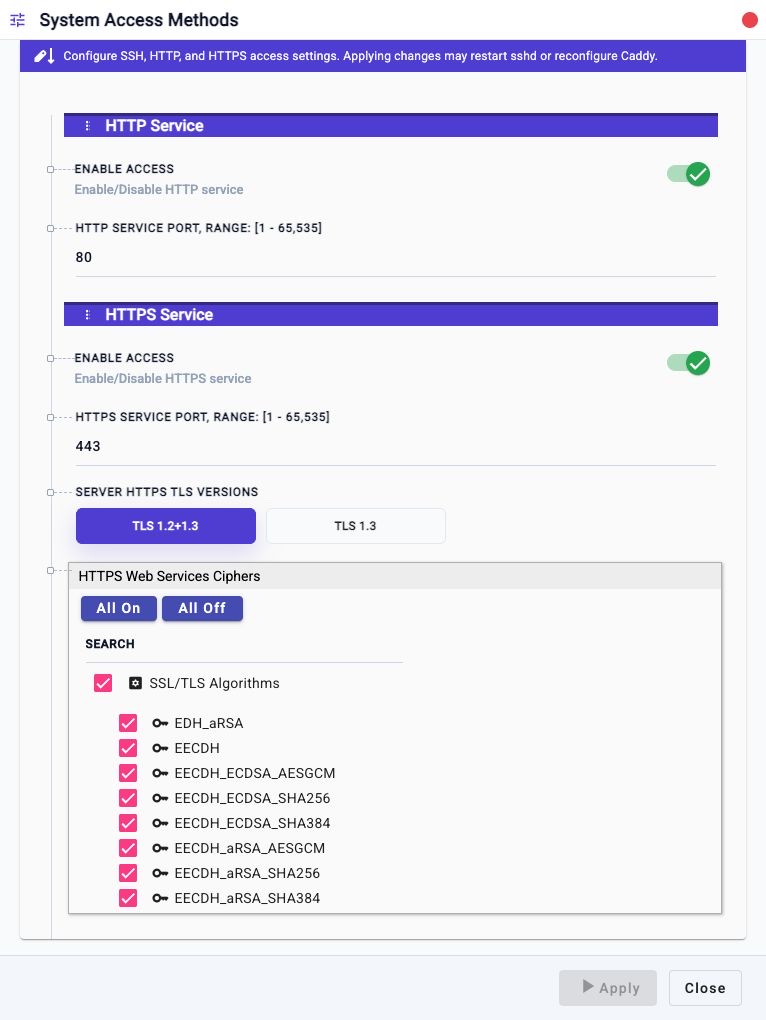
- In HTTP Service, review Enable Access and HTTP Service Port.
- In HTTPS Service, review Enable Access, HTTPS Service Port, Server HTTPS TLS Versions, and HTTPS Web Services Ciphers.
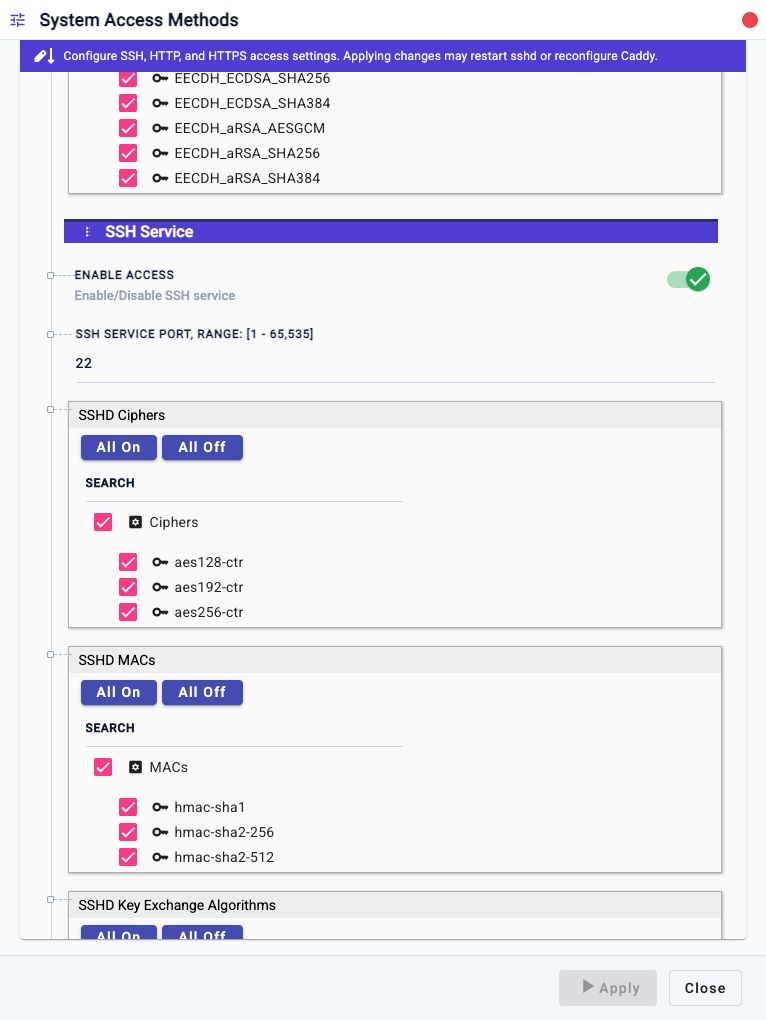
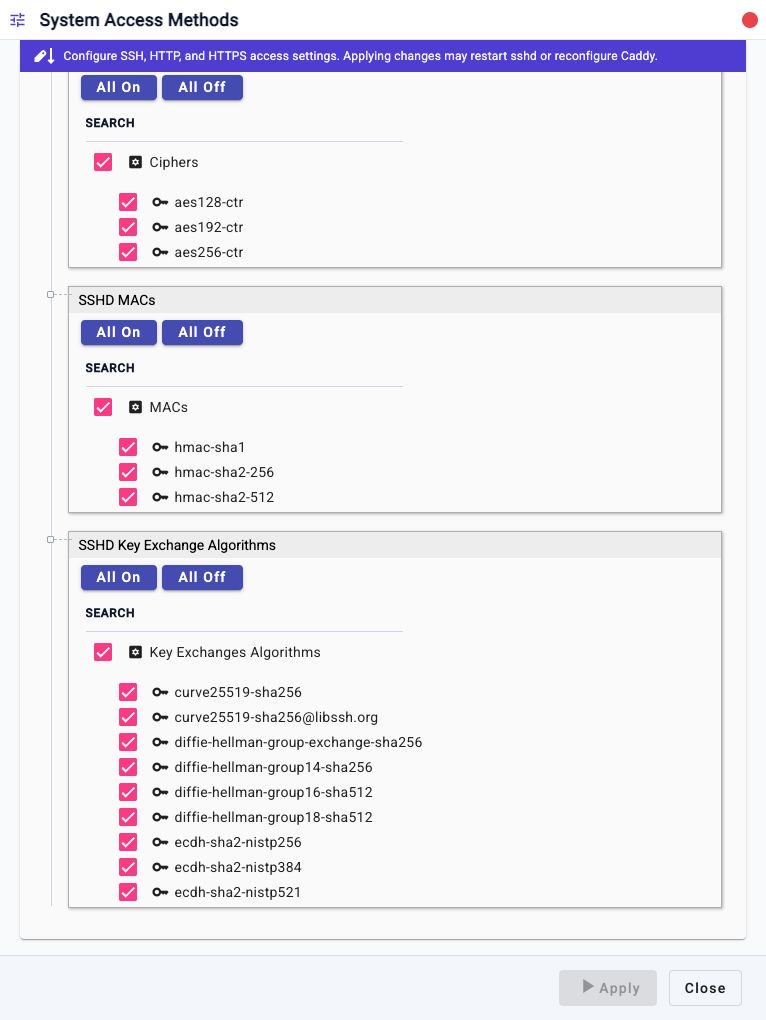
- In SSH Service, review Enable Access, SSH Service Port, SSHD Ciphers, SSHD MACs, and SSHD Key Exchange Algorithms.
- Update only the fields that need to change.
- Click Apply.
- Verify the new settings with a new browser tab, a new SSH session, or
show system access.
The workflow groups HTTP, HTTPS, and SSH into separate collapsible service sections. The HTTPS section includes service enablement, port, TLS version, and cipher controls. The SSH section includes service enablement, port, cipher, MAC, and key exchange controls.
Check From The CLI
Use either command below to display the full current access method configuration:
config system access
show system access
The config form without parameters is display-only. It does not modify the
configuration.
A typical display includes these sections and fields:
HTTP Service
Enable Access
HTTP Service Port

HTTPS Service
Enable Access
HTTPS Service Port
Server HTTPS TLS Versions
HTTPS Web Services Ciphers

SSH Service
Enable Access
SSH Service Port
SSHD Ciphers
SSHD MACs
SSHD Key Exchange Algorithms
Change From The CLI
Use config system access <field> <value> to update one or more
fields.
Enable HTTP and HTTPS on non-default ports:
config system access http true http_port 18080 https true https_port 18443
Disable HTTP while keeping HTTPS enabled:
config system access http false https true https_port 443
Disable SSH:
config system access ssh false ssh_port 22
Do this only after verifying another management access path, such as HTTPS or a local console.
Set SSH algorithms:
config system access ssh true ssh_cipher aes128-ctr,aes256-ctr ssh_mac hmac-sha2-256,hmac-sha2-512 ssh_key_exchange curve25519-sha256,ecdh-sha2-nistp256
Set HTTPS TLS version and cipher groups:
config system access tls tlsv1213 https_cipher EECDH+ECDSA+AESGCM,EECDH+aRSA+AESGCM
Field Reference
| CLI Field | UI Field | Service | Notes |
|---|---|---|---|
http |
Enable Access | HTTP | Boolean value. Use true to enable HTTP or false to disable it. |
http_port |
HTTP Service Port | HTTP | TCP port for HTTP management access. Valid range is 1 to 65535. |
https |
Enable Access | HTTPS | Boolean value. Use true to enable HTTPS or false to disable it. |
https_port |
HTTPS Service Port | HTTPS | TCP port for HTTPS management access. Valid range is 1 to 65535. |
tls |
Server HTTPS TLS Versions | HTTPS | HTTPS TLS version policy. The default is tlsv1213, shown in the UI as TLS 1.2+1.3. |
https_cipher |
HTTPS Web Services Ciphers | HTTPS | HTTPS cipher group selection. CLI values can be comma-separated. |
ssh |
Enable Access | SSH | Boolean value. Use true to enable SSH or false to disable it. |
ssh_port |
SSH Service Port | SSH | TCP port for SSH management access. Valid range is 1 to 65535. |
ssh_cipher |
SSHD Ciphers | SSH | SSH cipher selection. CLI values can be comma-separated, such as aes128-ctr,aes256-ctr. |
ssh_mac |
SSHD MACs | SSH | SSH MAC selection. CLI values can be comma-separated, such as hmac-sha2-256,hmac-sha2-512. |
ssh_key_exchange |
SSHD Key Exchange Algorithms | SSH | SSH key exchange algorithm selection. CLI values can be comma-separated. |
Common Algorithm Values
HTTPS cipher group examples:
EECDH+ECDSA+AESGCM
EECDH+aRSA+AESGCM
EECDH+ECDSA+SHA384
EECDH+ECDSA+SHA256
EECDH+aRSA+SHA384
EECDH+aRSA+SHA256
EECDH
EDH+aRSA
SSH cipher examples:
aes128-ctr
aes192-ctr
aes256-ctr
SSH MAC examples:
hmac-sha1
hmac-sha2-256
hmac-sha2-512
SSH key exchange examples:
curve25519-sha256
curve25519-sha256@libssh.org
ecdh-sha2-nistp256
ecdh-sha2-nistp384
ecdh-sha2-nistp521
diffie-hellman-group-exchange-sha256
diffie-hellman-group14-sha256
diffie-hellman-group16-sha512
diffie-hellman-group18-sha512
Confirmation And Rollback
This workflow applies changes directly. It does not use the two-phase reconnect-and-confirm safety flow used by Device Management IP Address.
Before applying access changes, keep the original session open and verify the new access path from a separate browser tab, terminal, jump host, or console. If the new path fails, use the original session to restore the previous settings.
If the current session is disconnected, recover through another enabled access method:
- If SSH was disabled or restricted, use HTTPS or the local console to re-enable SSH.
- If HTTP or HTTPS was moved to a new port, reconnect with the new port in the URL.
- If HTTP and HTTPS are unavailable, use SSH or the local console to restore web access.
- If all remote access methods are unavailable, use the appliance local console or out-of-band recovery path.
Save Without Confirmation
System Access Methods does not provide a Save without confirmation option. The workflow applies the requested service changes when Apply is clicked.
Notes
- HTTP and HTTPS access is served through the web gateway.
- SSH access is served through the appliance SSH service.
- Device Management Access ACL can still block a client even when the service itself is enabled.
- User authentication and authorization are separate from service reachability.
- Avoid disabling both HTTPS and SSH unless a local console or another recovery path is confirmed.
- Prefer changing one access area at a time when troubleshooting, for example first change the HTTPS port, verify it, then change SSH algorithms.
Troubleshooting
Browser Cannot Reach The Web UI After A Port Change
Reconnect using the new port:
http://<appliance-ip>:<http_port>/
https://<appliance-ip>:<https_port>/
Also verify upstream firewall rules, management ACL entries, and browser proxy settings.
Browser Reports A TLS Or Cipher Error
The browser may not support the selected Server HTTPS TLS Versions or HTTPS Web Services Ciphers. Use another management path, such as SSH or console, and restore a broader HTTPS TLS or cipher selection.
SSH Client Cannot Connect After Algorithm Changes
The SSH client may not support the selected SSHD Ciphers, SSHD MACs, or SSHD Key Exchange Algorithms. Test with explicit client options:
ssh -o Ciphers=aes128-ctr -o MACs=hmac-sha2-256 -o KexAlgorithms=curve25519-sha256 admin@<appliance-ip>
If the test fails, use HTTPS or console access to restore compatible SSH algorithm settings.
SSH Is Disabled And CLI Access Is Needed
Use HTTPS to open System Access Methods and enable SSH Service again. If HTTPS is not available, use the appliance local console or out-of-band recovery path.
Service Is Enabled But Still Not Reachable
Check these items in order:
- Confirm the service is enabled with
show system access. - Confirm the port value is the port being tested.
- Confirm Device Management Access ACL allows the client source IP.
- Confirm any external firewall or jump host allows the port.
- Confirm the client supports the selected TLS or SSH algorithms.
Related Tasks
- Device Management IP Address changes the management interface address, netmask, gateway, and DNS settings.
- Device Management Access ACL restricts which client IP addresses or subnets can reach management services.
- Device Information updates appliance identity fields and login banner text.
- Upload HTTPS Cert updates the certificate and private key used by HTTPS web access.