
Overview
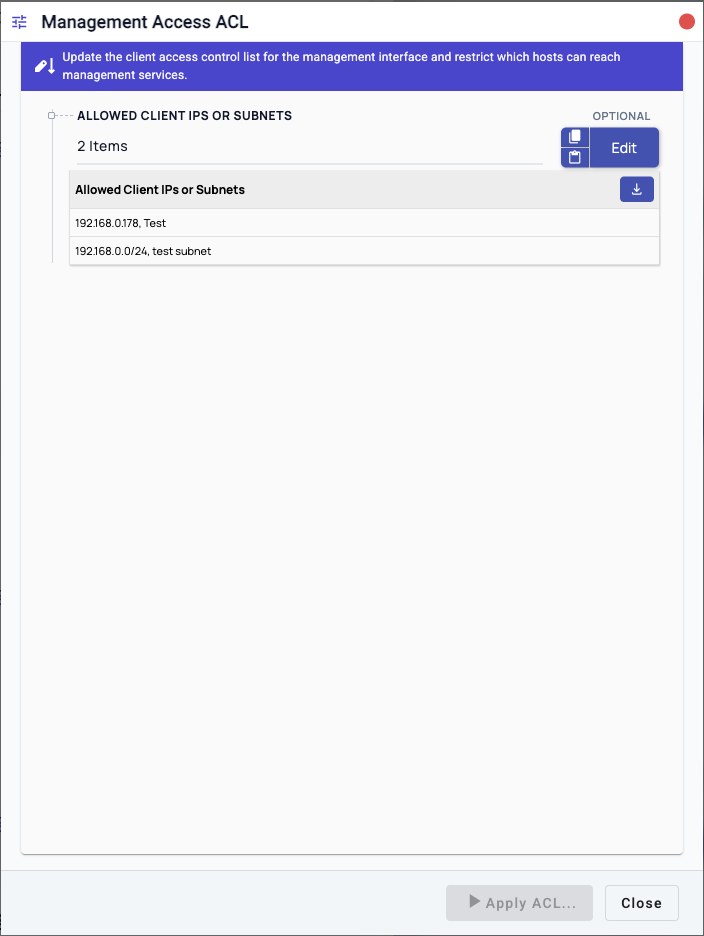
Use Device Management Access ACL to control which client IP addresses or subnets can connect to the appliance management interface and management services. Before a non-empty ACL is saved or activated, 01Layer verifies that it allows the server-recorded source address of the connection applying the change. A proposed ACL that would exclude that connection is rejected without changing the saved ACL or firewall rules.
Typical Uses
Use this topic when management access should be limited to trusted administrator workstations, jump hosts, or management subnets.
Typical examples:
Allow one administrator workstation: 10.0.0.25
Allow a management subnet:           10.0.10.0/24
Allow all clients:                   0.0.0.0/0
An empty ACL removes the management client restriction and allows management access from any reachable client.
Prerequisites
- Identify the source address that the appliance records for your current
session. Use
show system mgmt sessionsfrom 01sh when you need to inspect active session source addresses. - Include that observed source address or a matching management subnet in the ACL before applying the change.
- Confirm that another allowed administrator path exists, such as a jump host, local console, or out-of-band management path.
- Coordinate the change with other administrators who may be connected through different client networks.
- Use CIDR notation for subnets, for example 10.0.10.0/24.
Workflow
- Open System Settings.
- Choose Device Management Access ACL. The workflow opens as Management Access ACL.
- In Allowed Client IPs or Subnets, click Edit.
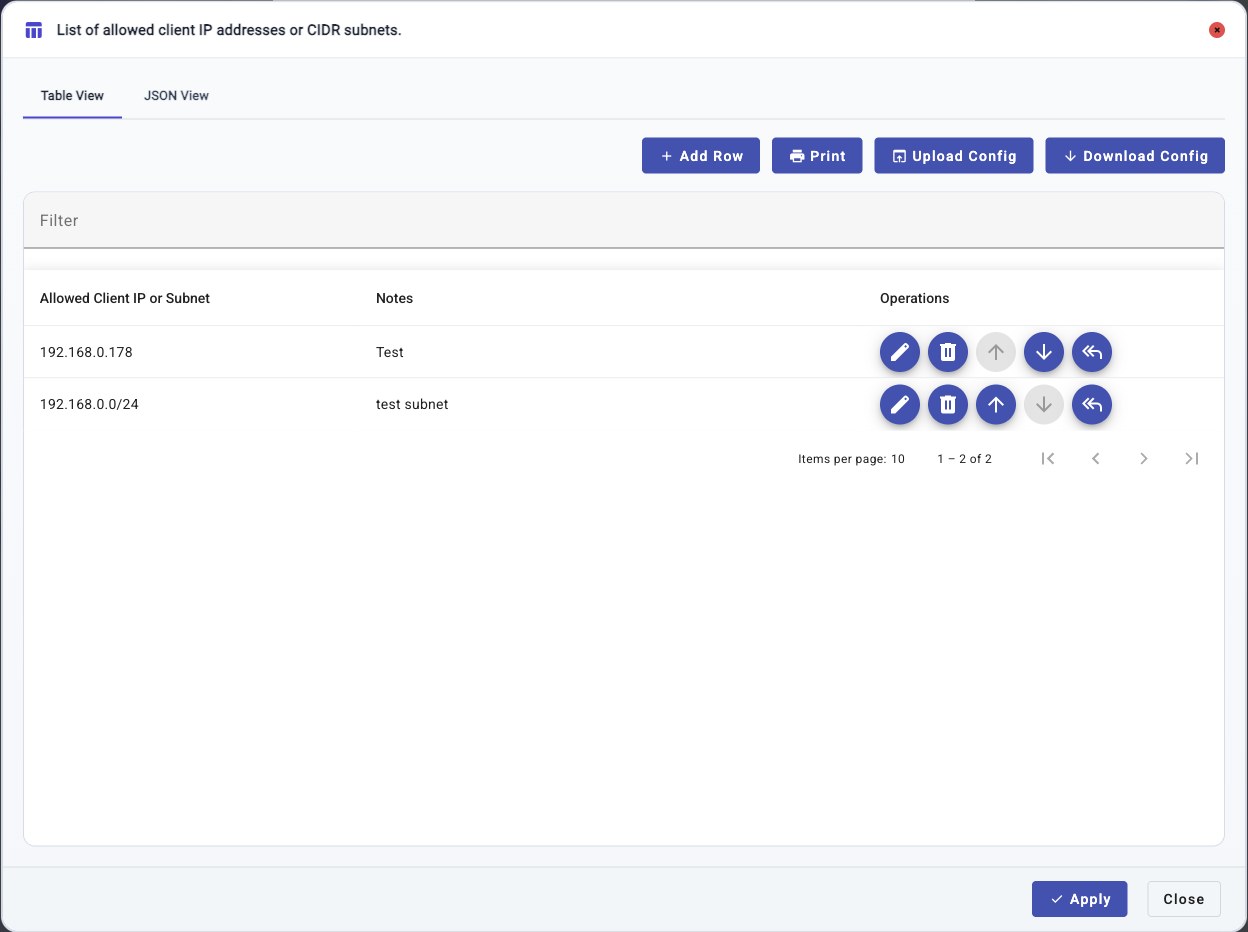
- In Table View, add or update the allowed client entries. Include the source address or subnet observed by the appliance for the connection running this workflow.
- Click Apply in the table editor.
- Click Apply ACL... in the workflow.
- If 01Layer reports that the current connection source is not allowed, add a matching host or subnet rule and apply the ACL again.
- Verify management access from the current client and another intended management path.
Expected Behavior
When the workflow starts, 01Layer first checks a proposed non-empty allow-list against the authenticated workflow session's server-recorded source address.
- If a rule contains that address, the workflow can continue.
- If no rule contains that address, the workflow is rejected before changing the saved configuration, firewall rules, or active sessions.
- If the current source cannot be verified, a non-empty ACL is rejected.
- A local loopback session is exempt so that the appliance console remains a recovery path.
- An empty ACL continues to mean allow all and does not require a matching source rule.
After the current-connection check succeeds, 01Layer applies the allow-list to the management interface firewall policy.
If the ACL contains entries:
- Each non-empty Allowed Client IP or Subnet entry is added as an allowed source.
- A single IP address is treated as a host entry.
- Other management clients are blocked by the default drop rule.
- Active remote management sessions outside the new allow-list are invalidated.
- The ACL is saved after the workflow completes successfully.
If the ACL is empty, the management client restriction is removed and management access is allowed from any reachable client.
Procedure
Add Or Update ACL Entries
- Open System Settings.
- Open Device Management Access ACL.
- Locate Allowed Client IPs or Subnets.
- Click Edit.
- In Table View, click Add Row or choose a provided row template.
- Enter the allowed client address in Allowed Client IP or Subnet.
- Enter a short operator note in Notes.
- Use the row operation buttons to edit, delete, or reorder entries.
- Click Apply to close the table editor.
- Review the workflow field and click Apply ACL....
- If the workflow rejects the list, add the reported current source address as a host rule or add a subnet that contains it, then apply the ACL again.
Add A Row From A Template
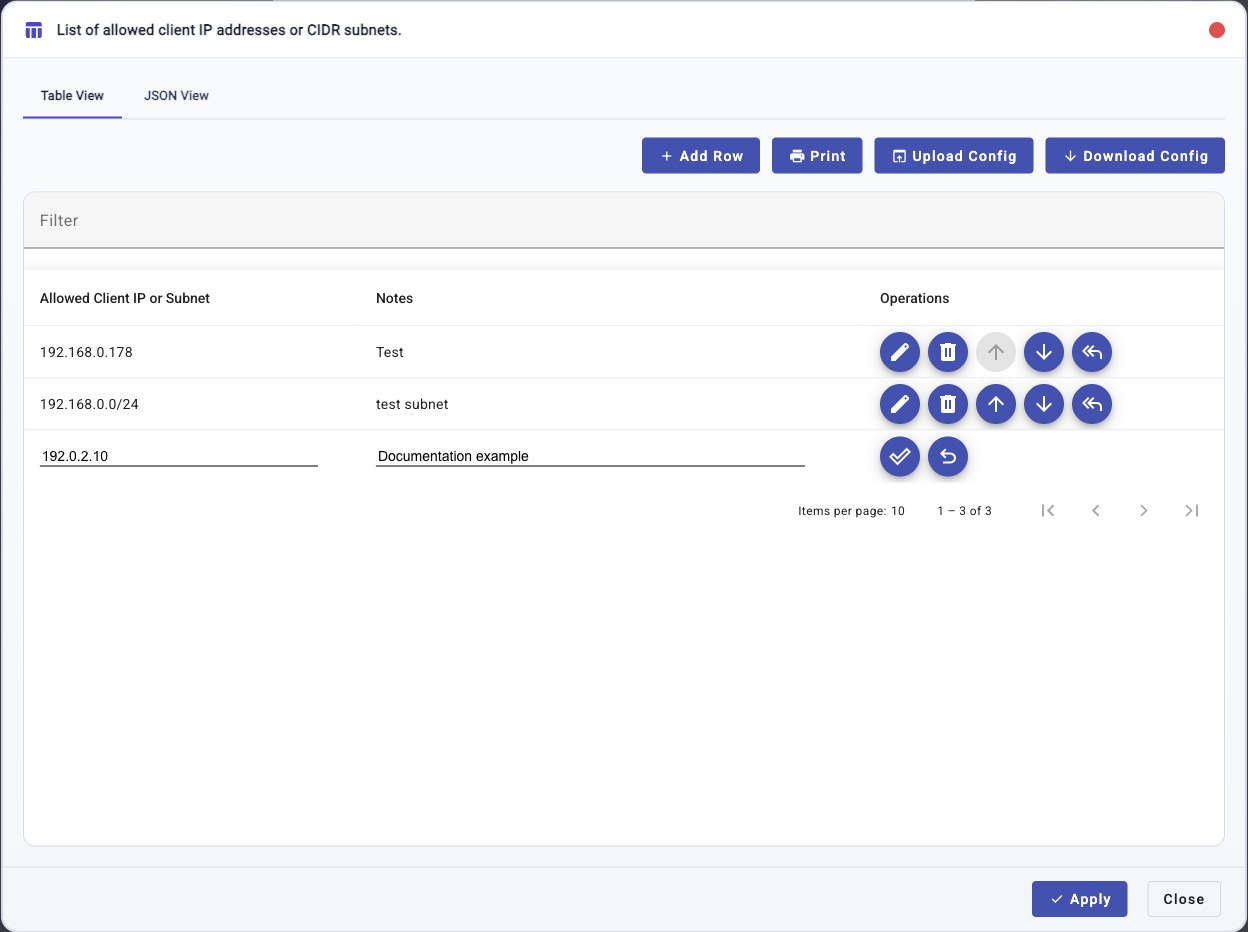
- Click Add Row.
- Choose a row template: Empty Row, Allow a single client IP, Allow a client subnet, or Allow all clients.
- Edit Allowed Client IP or Subnet.
- Edit Notes.
- Click the check control to commit the row in the table editor, or click the undo control to discard the active row edit.
- Click Apply in the table editor to return the table value to the workflow.
- Review the workflow value, then click Apply ACL... only when you are ready to activate the ACL on the appliance.
The example below uses 192.0.2.10, a documentation-only address from the TEST-NET-1 range. Replace it with the actual administrator client address or management subnet before applying an ACL.
Use JSON View
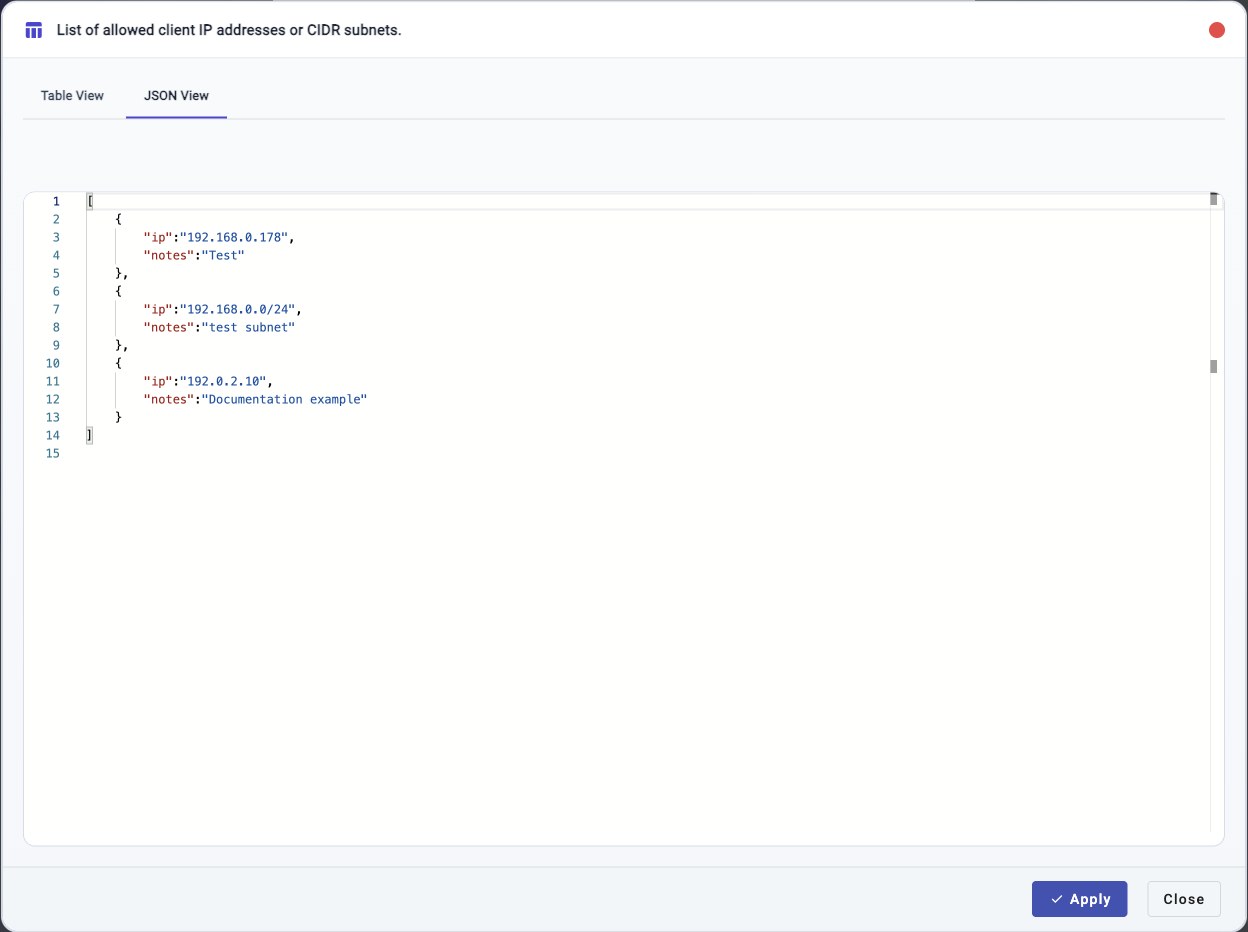
Open JSON View when you need to review or edit the ACL as structured JSON. Each ACL entry is an object with:
- ip: IPv4 address or CIDR subnet.
- notes: Operator-facing description.
After editing JSON, click Apply in the table editor to return the updated value to the workflow. The ACL is not activated on the appliance until Apply ACL... is clicked in the workflow.
Remove The ACL Restriction
To remove management client filtering, leave the ACL table empty and click Apply ACL.... This allows management access from any reachable client.
Use this intentionally. An empty ACL is open access from the management network perspective, not a deny-all policy.
Field Reference
| Field | Required | Notes |
|---|---|---|
| Allowed Client IP or Subnet | Yes, when using an allow-list | IPv4 client address or CIDR subnet that can reach management services. A single IP address is treated as a host entry. |
| Notes | Optional | Operator-facing description such as the owner, site, ticket, or purpose of the ACL entry. |
ACL Editor Function Reference
| Control | Function | Notes |
|---|---|---|
| Table View | Edit ACL entries as rows. | Default editor view. Use this for normal add, edit, delete, reorder, and review tasks. |
| JSON View | Edit ACL entries as JSON. | Uses an array of objects with ip and notes fields. |
| Add Row | Add a new ACL entry. | Opens templates for an empty row, one client IP, one client subnet, or all clients. |
| Filter | Filter the visible table rows. | Useful when the ACL has many entries. Filtering does not remove rows from the ACL. |
| Allowed Client IP or Subnet column header | Sort the table by address/subnet text. | Sorting changes the view order shown by the table. Use row arrows when the saved order itself should change. |
| Notes column header | Sort the table by note text. | Sorting changes the view order shown by the table. |
| Row edit control | Edit an existing row. | The row becomes editable. Click the check control to keep the row edit or undo to discard the active edit. |
| Row delete control | Remove an entry from the table editor. | Review the table before clicking Apply. |
| Row up/down controls | Reorder entries. | Up is disabled for the first row. Down is disabled for the last row. |
| Row copy/reuse control | Reuse an existing row as the starting point for another entry. | Edit the copied values before committing the row. |
| Print the current editor view. | Use when a hardcopy or print-to-PDF review is required. | |
| Upload Config / Choose File | Load ACL table content from a file. | Review imported rows before applying the editor value to the workflow. |
| Download Config | Download the current ACL table content. | Useful for offline review or reuse. |
| Apply | Return the editor value to the workflow. | This does not activate the appliance ACL by itself. The workflow still requires Apply ACL.... |
| Close | Close the editor. | Close without Apply when table-editor changes should be discarded. |
Confirmation And Rollback
This workflow applies an accepted ACL directly. It does not use the two-phase reconnect-and-confirm safety flow used by Device Management IP Address.
The current-connection guard provides the minimum self-lockout protection: the initiating remote connection must remain allowed at the moment the ACL is applied. A rejected proposal leaves the saved ACL, active firewall policy, and sessions unchanged.
The guard does not prove that a NAT, VPN, or routed path will keep the same source address later, and it does not preserve other active sessions that fall outside the accepted ACL. Keep a local console or out-of-band recovery path for changes involving unstable network paths. If access is lost after an accepted change, recover from another allowed client or the local console, then add the required source or clear the list to restore allow-all behavior.
Notes
- The ACL controls client reachability to management services on the management interface. It does not define user authentication or authorization.
- User login policy is still controlled by the configured user and authentication settings.
- System access methods such as HTTP, HTTPS, and SSH are managed separately in System Access Methods.
- The source checked by the guard is the address observed by the appliance, not necessarily the address configured on the administrator workstation.
- Use specific client addresses or management subnets instead of 0.0.0.0/0 unless open management access is intentional.
Troubleshooting
Current Browser Loses Access After Applying ACL
On software with the current-connection guard, an ACL that excludes the initiating browser source is rejected before activation. If access is still lost, the observed source may have changed after the check, another administrator may have applied a different ACL, or a separate access-service change may be involved. Try another allowed client or management subnet. If no allowed network path is available, use the appliance local recovery path to restore or clear the ACL.
ACL Update Is Rejected For The Current Connection
Read the source address in the workflow error, or use
show system mgmt sessions to inspect active session source addresses. Add a
host rule for that address or a subnet rule that contains it, then apply the ACL
again.
Do not substitute the workstation's local address when NAT, a VPN, or a jump
host causes the appliance to observe a different source. For example, if a
workstation has 192.168.10.179 but the appliance records 192.168.10.1, the
proposed ACL must contain 192.168.10.1/32 or a subnet that includes it.
A Trusted Admin Host Cannot Connect
Confirm the source address that reaches the appliance. NAT, VPN, and jump-host paths may cause the appliance to see a different source IP than the operator's workstation address. Add the observed source IP or the correct management subnet.
The ACL Appears To Allow Everyone
Check for an empty ACL or a broad entry such as 0.0.0.0/0. An empty ACL removes the management client restriction, and 0.0.0.0/0 explicitly allows all IPv4 clients.
Apply ACL Does Not Start
Review the table for incomplete edits. Finish or cancel the active row edit, click Apply in the table editor, then start Apply ACL... again.
Related Tasks
- Use Device Management IP Address when changing the management interface address, netmask, gateway, or DNS values.
- Use System Access Methods when enabling or disabling HTTP, HTTPS, or SSH.
- Review user and authentication settings when changing who can log in after a client reaches the management interface.
- Use
show system mgmt sessionsto inspect current source addresses andexec system mgmt sessions disconnect <session-id>to invalidate an individual management session.