
Overview
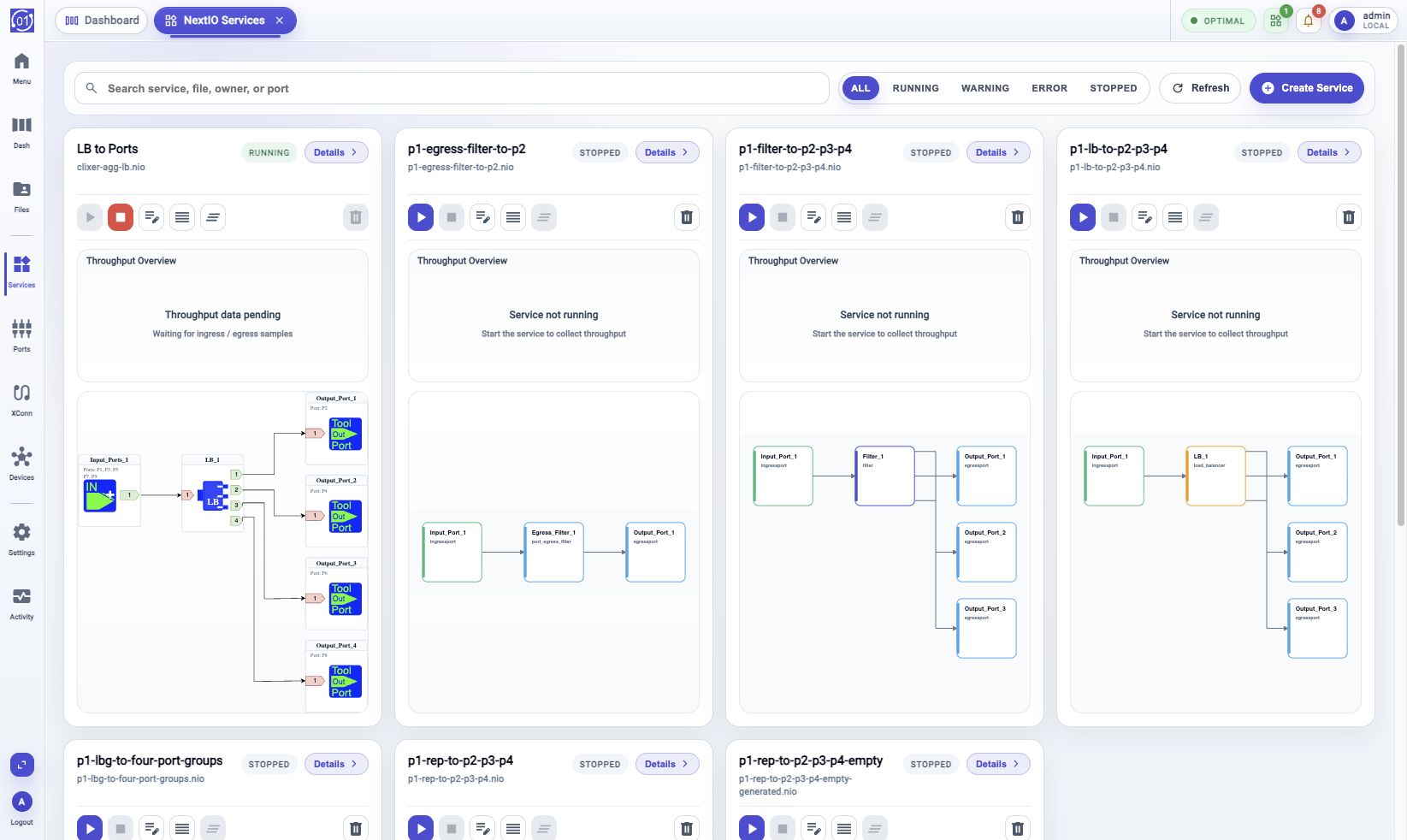
NextIO Services is the runtime view for services created from NextIO service designs. Use it to see which services are running, start or stop a service, open the design, inspect logs, and review traffic or counters from one place.
Service Toolbar
The toolbar controls the service gallery below it. Use it first when you need to narrow a long list, refresh service state, or create a new service design.

| Control | Function |
|---|---|
| Search service, file, owner, or port | Filters the gallery by service name, design file, owner, or port. |
| All | Shows every matching service and clears status-only filtering. |
| Running | Shows services currently running. |
| Warning | Shows services that need attention but are not fully failed. |
| Error | Shows services in an error or critical state. |
| Stopped | Shows services that are registered but not running. |
| Refresh | Reloads the current service list and runtime state. |
| Create Service | Opens the NextIO service template browser to create a new service design. |
Service Cards
Each service card summarizes one service. A card can show the service name, runtime state, design file, owner, uptime, action buttons, traffic preview, and a saved data-path diagram when one is available.
The card toolbar appears below the service name and status area. Buttons are enabled or disabled based on the current service state.
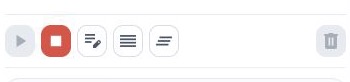
Read the toolbar from left to right:
| Action | Function |
|---|---|
| Start | Starts a stopped service. |
| Stop | Stops a running service. |
| Edit design | Opens the service design in the NextIO diagram editor. |
| View log | Opens the service log workflow or log view for startup and runtime messages. |
| Clear port counters | Clears counters for ports used by the service. |
| Delete | Deletes the service record after confirmation. Stop a running service before deleting it. |
Use Details in the card header when you need the full service page with traffic, counters, diagram, logs, and service record.
Actions that change runtime state open workflows. Disabled actions are not valid for the current service state or the service is missing required data, such as a design file path.
Service Details
Open Details when a card does not give enough information. The detail page keeps the service header, runtime actions, traffic range controls, counters, diagram, logs, and service record in one view.
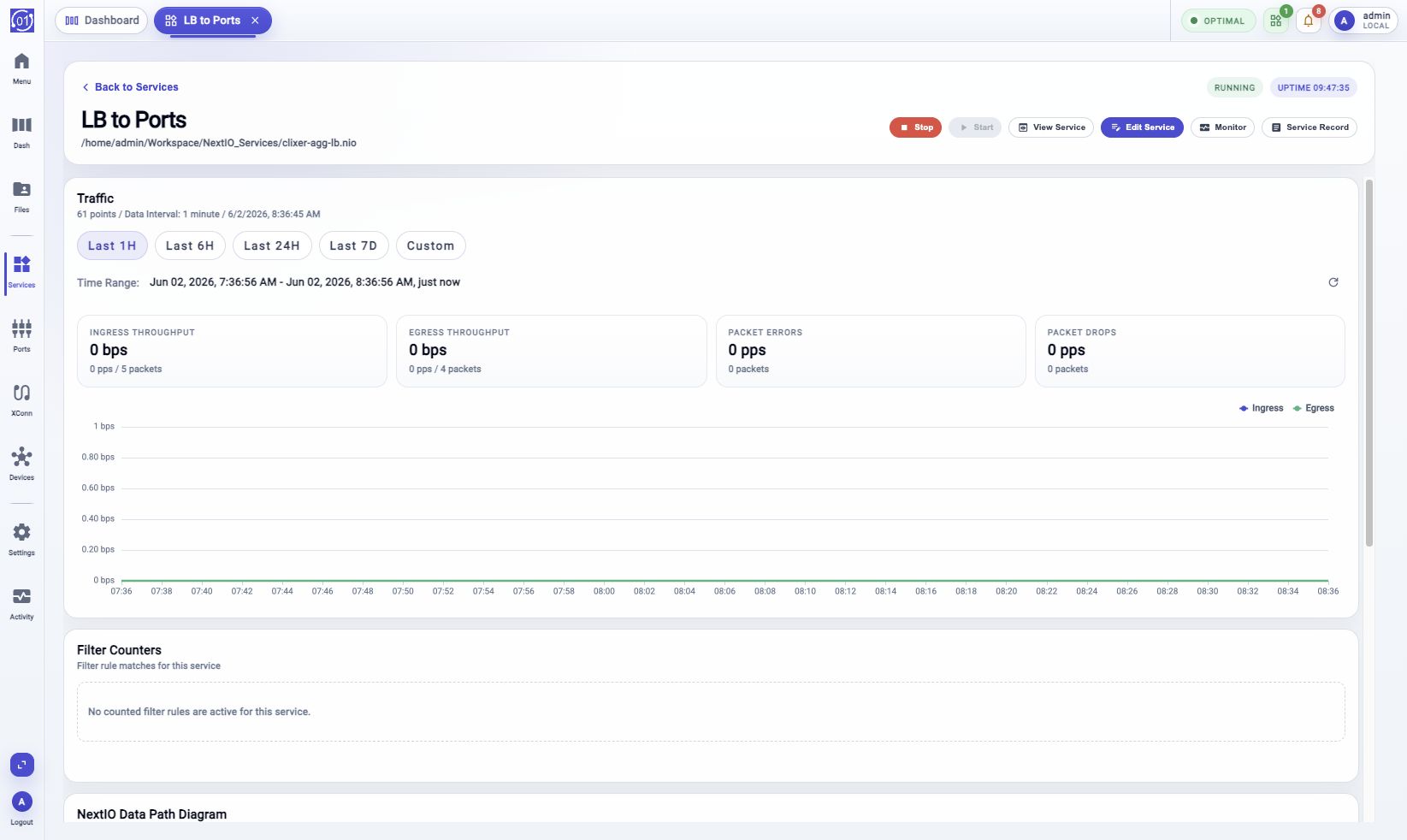
Use Back to Services to return to the gallery. Use the runtime buttons, such as Start, Stop, View Service, Edit Service, Monitor, and Service Record, when they are available for the selected service.
Traffic And Counters
In service details, use Last 1H, Last 6H, Last 24H, Last 7D, or Custom to review traffic over the right window. Use Custom when you are matching a known event time.
The traffic section can show ingress throughput, egress throughput, packet errors, packet drops, and a chart for the selected range. The refresh control moves a relative time range to the current time.
Use Filter Counters to inspect counted rules for the service. Counter rows can include component, rule, action, packets, bytes, average bytes per packet, and state.
Diagram, Logs, And Service Record
The detail page shows a NextIO Data Path Diagram when a saved diagram snapshot exists. If only a fallback sketch is available, the title can change to NextIO Data Path Sketch.
Use View log when service startup or runtime output needs review. Use Service Record when you need copyable identity, runtime, metric, and log details for troubleshooting or support.
Service Operations And Workflows
Starting, stopping, deleting, clearing counters, monitoring ports, and viewing logs are workflow-backed actions. If an operation fails or takes longer than expected, open Activity Monitor > Workflows and review the workflow trace.
Before stopping or deleting a production service, confirm the service is no longer carrying required traffic. Before starting or applying a service, confirm the design has been saved and the required ports are available.
Troubleshooting
Service Is Missing
Clear search and status filters, then refresh the page. Confirm the service design has been started or registered.
Start Or Stop Fails
Open Activity Monitor > Workflows and inspect the matching workflow trace. Check that the design file exists, required ports are available, and the runtime service is ready.
Diagram Snapshot Is Unavailable
Open the design in the diagram editor and save it. If the service is running, restart or apply the service so the backend can refresh its stored diagram visual.
Metrics Are Empty
Choose a wider time range and refresh. If samples remain unavailable, open Activity Monitor > Metric Browser and check collector and vfabric metrics.
Related Tasks
- Use Start With Activity Bar for activity-bar navigation.
- Use NextIO Service Template Browser to create a service design.
- Use NextIO Diagram Editor to edit the service data path.
- Use File Explorer to locate or rename
.nioservice design files. - Use Activity Monitor > Workflows to review service operation history.