
Overview
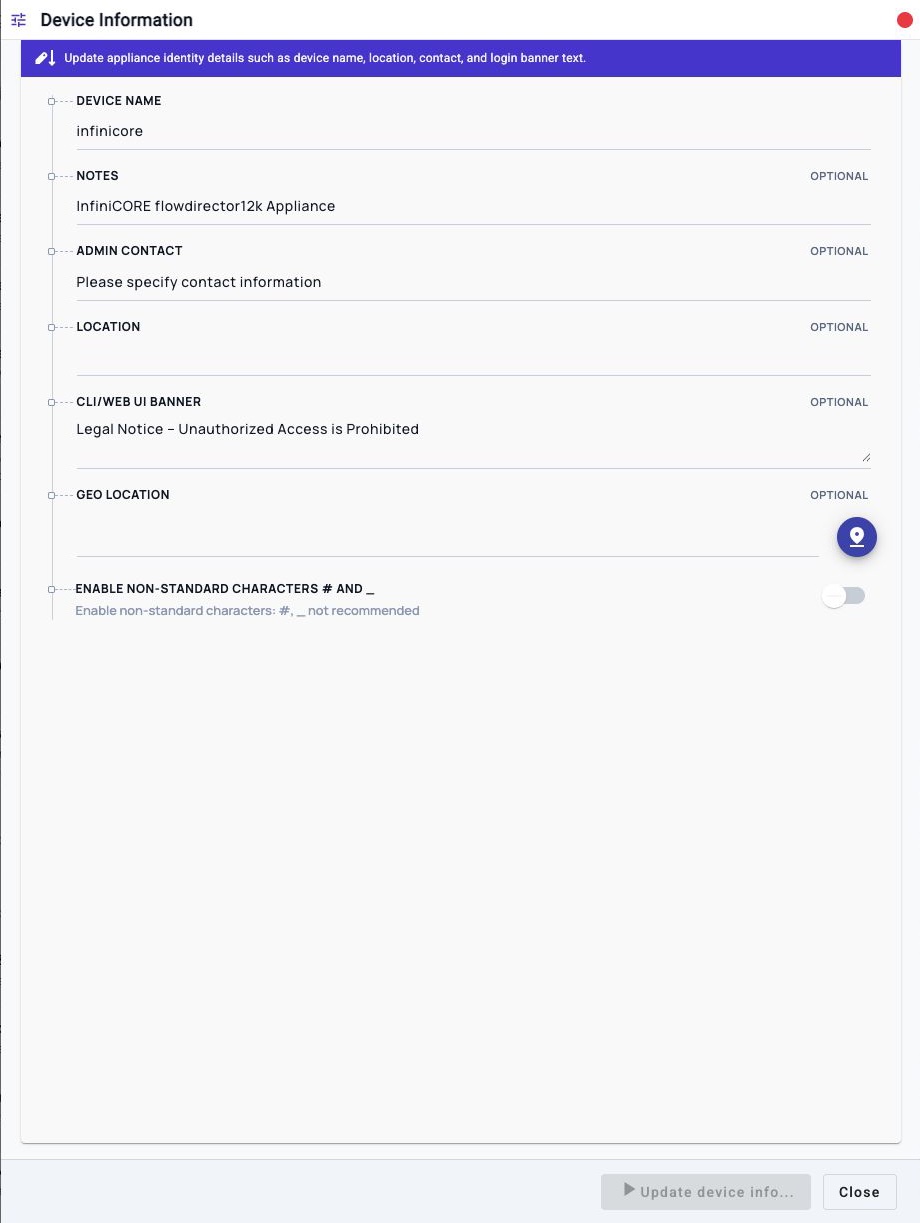
Use Device Information to view or update the appliance identity fields used by the web UI, CLI, reports, and operator-facing workflows.
The same settings are available from the CLI through:
config system device_info
show system device_info
Typical Uses
Use this topic to change the displayed appliance name, operator notes, administrator contact, site location, login banner, geo location, or the special-character policy for the device name.
Typical examples:
Set a device name:         config system device_info name fd12k-lab-1
Set an admin contact:      config system device_info contact noc@example.com
Set a site location:       config system device_info location "Lab Rack 3"
Clear a geo location:      config system device_info geo ""
Show only the login banner: show system device_info login_banner
Prerequisites
- Choose a device name that is meaningful to operators and support engineers.
- Keep Enable Non-Standard Characters # and _ disabled unless the
environment requires characters such as
#or_in the device name. - Quote values that contain spaces.
- Use
""when an optional string field should be cleared from the CLI. - Confirm the login banner text before applying it, because it is shown to CLI and web UI users.
Workflow
- Open System Settings.
- Choose Device Information.
- Review the current values.
- Edit the fields that need to change.
- Click Update device info....
- Verify the settings in the workflow output or with
show system device_info.
In The Web UI
- Open System Settings.
- Under Device IP and Access Services, choose Device Information.
- Review the current Device Name, Notes, Admin Contact, Location, CLI/Web UI Banner, Geo Location, and Enable Non-Standard Characters # and _ values.
- Update only the fields that need to change.
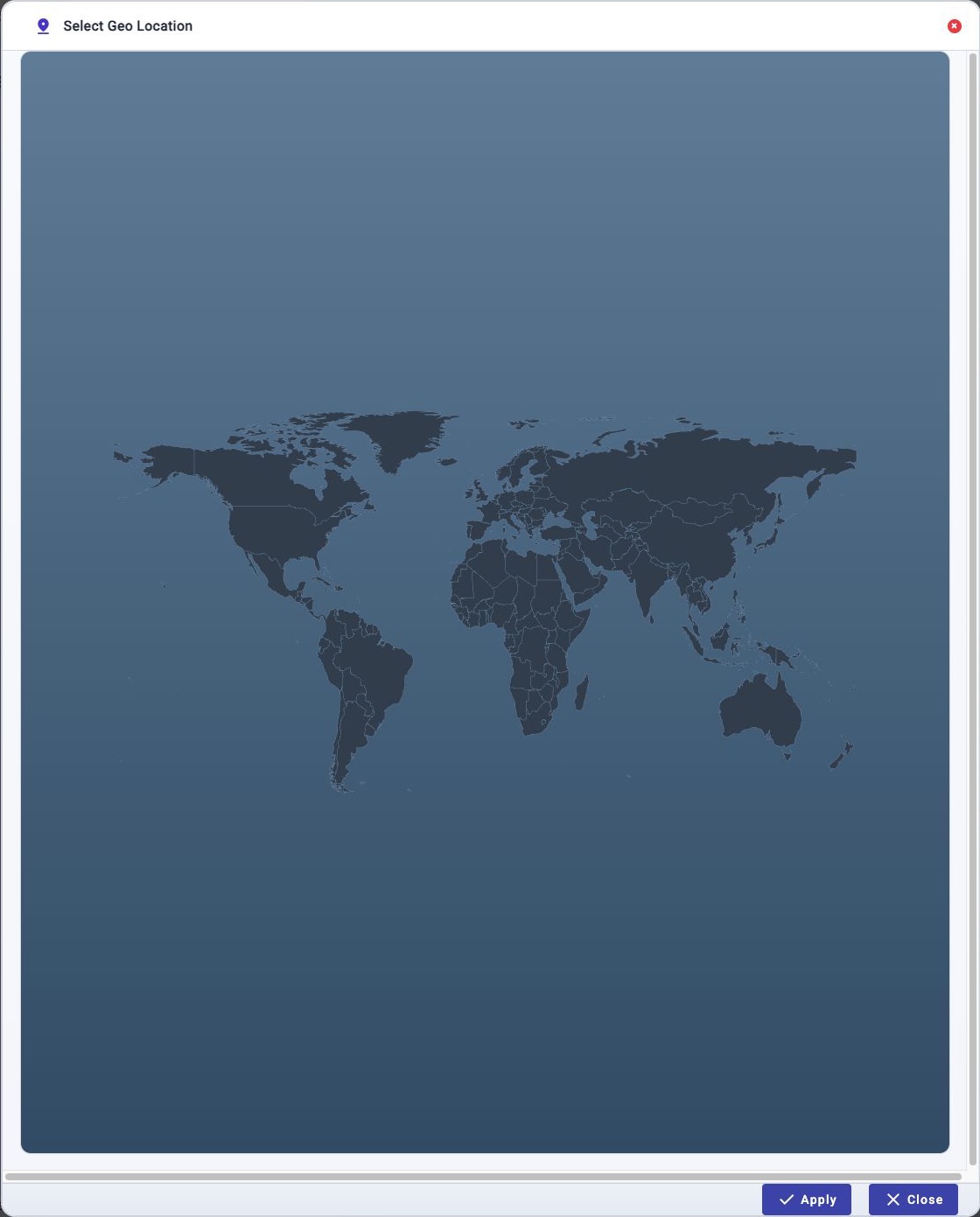
- To choose a geo location from the selector, click the map-pin button beside Geo Location, select the location, and click Apply. Click Close to leave the geo location unchanged.
- Click Update device info....
- Reopen Device Information or run
show system device_infoto verify the saved values.
Check From The CLI
Use either command below to display the full current device information:
config system device_info
show system device_info
A verified display output from a FlowDirector 12K running 01Layer v26.2.12 includes:
Device Name                            : infinicore
Notes                                  : InfiniCORE flowdirector12k Appliance
Admin Contact                          : Please specify contact information
Location                               :
CLI/Web UI Banner                      : Legal Notice – Unauthorized Access is Prohibited
Geo Location                           :
Enable Non-Standard Characters # and _ : false
The config form without parameters is display-only. It does not modify the
configuration.
CLI Selector Commands
Use field selectors to display one setting at a time:
show system device_info name
show system device_info note
show system device_info contact
show system device_info location
show system device_info login_banner
show system device_info geo
show system device_info allow_special_chars
The same selectors can be used after config system device_info when you want
to inspect the current value while already working in the configuration command
area.
Change From The CLI
Use config system device_info <field> <value> to update one field.
config system device_info name fd12k-lab-1
config system device_info note "Main lab packet visibility appliance"
config system device_info contact noc@example.com
config system device_info location "Lab Rack 3"
config system device_info login_banner "Authorized access only"
config system device_info geo "San Jose Lab"
config system device_info allow_special_chars false
Multiple fields can be updated in one command, but one field per command is usually easier to review and troubleshoot:
config system device_info name fd12k-lab-1 location "Lab Rack 3"
Clear Optional Values From CLI
Use an empty quoted string to clear an optional string value:
config system device_info location ""
config system device_info geo ""
config system device_info note ""
Do not omit the value. For example, config system device_info location is a
missing-value command, not a request to clear the location.
Field Reference
| CLI Field | UI Field | Required | Notes |
|---|---|---|---|
name |
Device Name | Yes | Appliance display name. Parentheses are removed. When allow_special_chars is disabled, the name must pass the standard system-name validation. |
note |
Notes | Optional | Operator-facing notes about the appliance. Use quotes for spaces. |
contact |
Admin Contact | Optional | Administrator contact text, commonly an email address or operations group. |
location |
Location | Optional | Physical or logical site location. Use "" to clear. |
login_banner |
CLI/Web UI Banner | Optional | Banner shown to users during CLI or web UI access. Use quotes for multi-word text. |
geo |
Geo Location | Optional | Site geo-location text or map-backed value. Use "" to clear when setting from CLI. |
allow_special_chars |
Enable Non-Standard Characters # and _ | Optional | Boolean value. Use true to allow non-standard name characters such as # and _; use false for the normal validation policy. |
Notes
show system device_inforeads the current saved configuration defaults for this workflow.config system device_info <field> <value>runs the device information workflow and saves the updated field.- The web UI uses Device Information as the workflow title and Update device info... as the apply action.
- The Geo Location selector opens in a separate Select Geo Location dialog with Apply and Close controls.
- Empty optional values are displayed as blank values after the colon.
- Keep the device name stable when possible because it can appear in reports, logs, dashboards, and support data.
Troubleshooting
Value With Spaces Is Split Incorrectly
Quote the value:
config system device_info location "Building A Rack 7"
Optional Field Does Not Clear
Use an empty quoted string:
config system device_info location ""
Device Name Is Rejected
Use a simpler name with standard characters, or explicitly enable the special-character option when the environment requires it:
config system device_info allow_special_chars true
config system device_info name fd12k_lab_1
Use this intentionally. Allowing non-standard characters can make hostnames, scripts, and external integrations harder to handle consistently.