
Overview
Welcome to the NextIO Diagram Editor, the visual editor for .nio service
designs. A diagram describes how traffic enters the service, which NextIO
functions process it, and where the traffic exits.
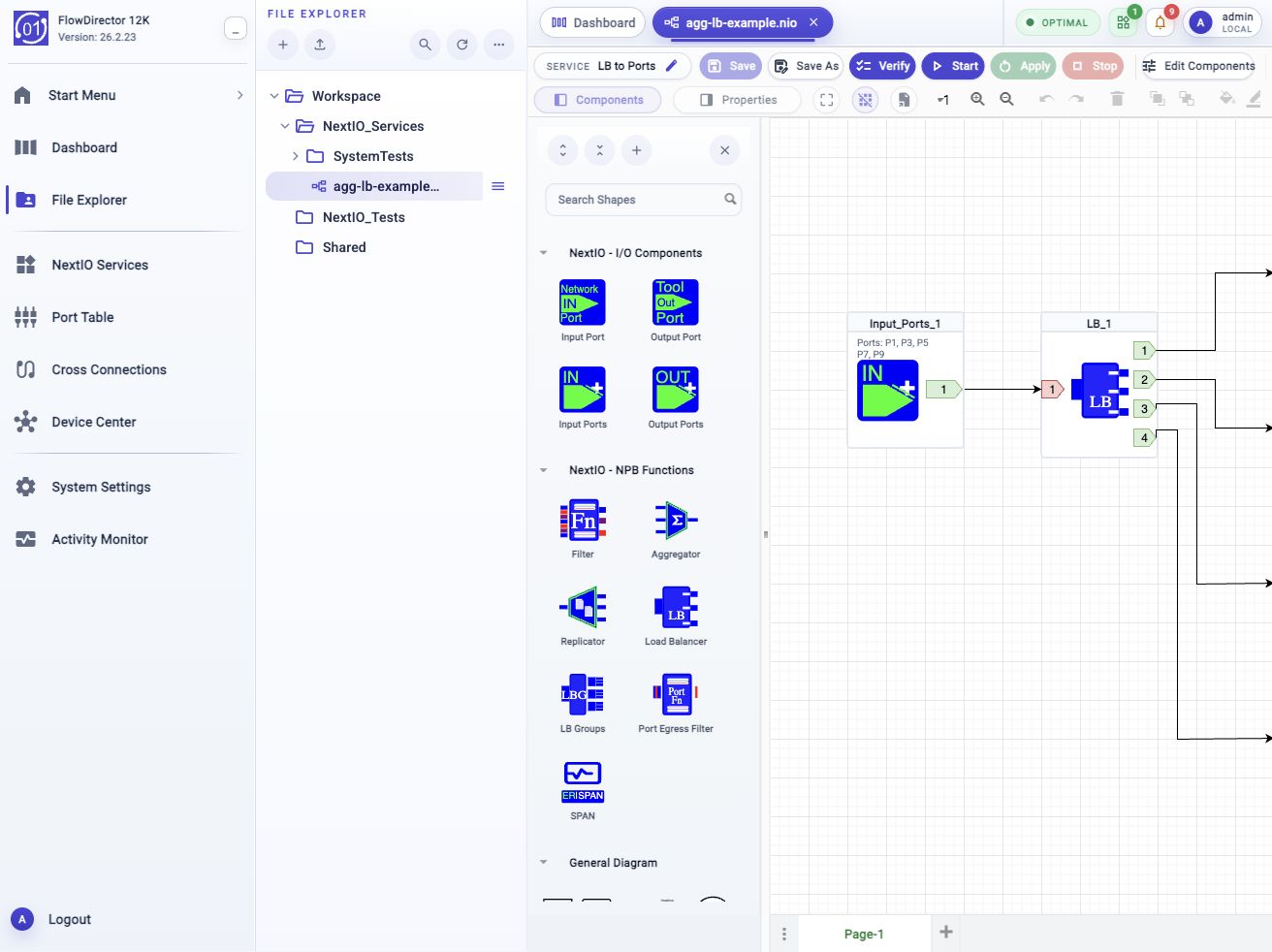
The example in this page uses agg-lb-example.nio. In the screenshot, the
service is named LB to Ports. The diagram shows an input-port group feeding
a load balancer, then branching toward output paths.
Open The Example Diagram
Open the example from File Explorer:
- Open File Explorer from the activity bar.
- Expand Workspace.
- Open NextIO_Services.
- Open
agg-lb-example.nio.
The file opens in a Web UI tab. The tab name shows the file name, while the toolbar shows the service name stored in the design.
If the file is already open in another session, the Web UI may ask whether to cancel or force open the file. Cancel when another person may be editing it. Force open only when you are sure the other session no longer needs the file.
Editor Toolbar
The first toolbar row is the part to read before making changes. It tells you which service you are editing and gives you the file, validation, and runtime actions.

| Control | Function |
|---|---|
| Service name | Shows the service name stored in the diagram. Use the pencil when the name needs to change. |
| Save | Writes the current design back to the same .nio file. Use this before Verify, Start, or Apply. |
| Save As | Saves a copy of the design to another file. Use this before experimenting with a working design. |
| Verify | Checks the diagram before runtime use. Run this after edits and before starting a service. |
| Start | Starts the service from the design when the service is stopped. |
| Apply | Applies saved changes to a running service. Use it after Save when the service is already active. |
| Stop | Stops the service. |
| Edit Components | Opens the component and attribute editor for reviewing or editing diagram objects in a structured table. |
The second toolbar row controls the editing surface. Use Components to show or hide the shape palette, Properties to show the selected component's settings, and the zoom controls to adjust the canvas view. The row also includes common diagram controls such as grid visibility, export to SVG, undo, redo, delete, layering, fill, line, and connector styling.
Components And Canvas
The left side of the editor is the component palette. Search when you know the component name, or browse the groups when you are building a diagram from the available NextIO functions.
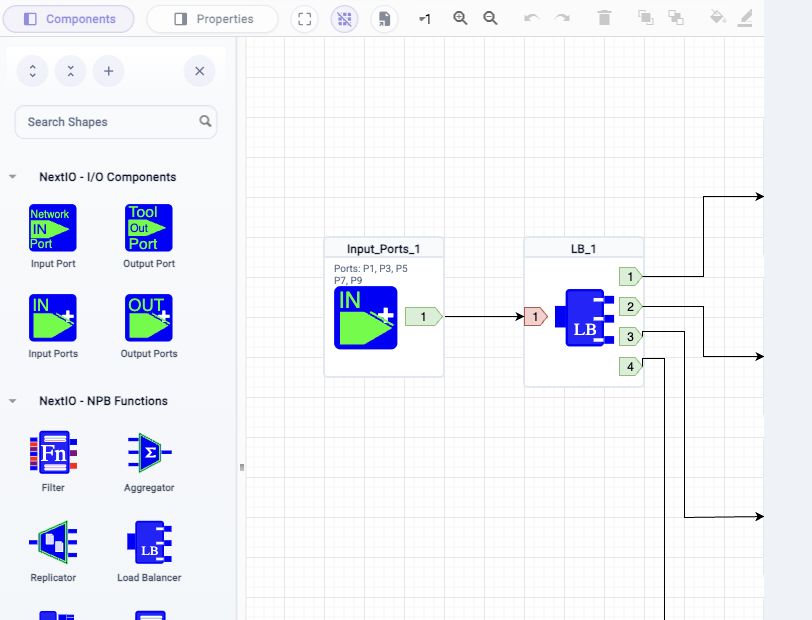
Common component groups include:
| Group | What It Contains |
|---|---|
| NextIO - I/O Components | Input ports, output ports, input-port groups, and output-port groups. |
| NextIO - NPB Functions | Traffic functions such as Filter, Aggregator, Replicator, Load Balancer, LB Groups, Port Egress Filter, and SPAN. |
| General Diagram | General drawing elements used for layout or annotation. |
The component palette depends on the product family. Use the FlowMagic NextIO Components or FlowDirector NextIO Components reference for the complete group list, component purpose, connectivity, and configuration fields.
Drag a component onto the canvas to add it. Select a component to review its
ports and attributes. In agg-lb-example.nio, selecting Input_Ports_1 or
LB_1 is a quick way to understand the traffic path: the input group feeds
the load balancer, and the load balancer exposes numbered outputs.
Use Properties when you need to edit the selected component. Use the canvas connections to check whether traffic paths are wired to the expected inputs and outputs.
Edit And Verify A Diagram
Use a short edit cycle:
- Open the
.niofile. - Select the component or connection that needs review.
- Change the component properties or wiring.
- Click Save.
- Click Verify.
- Use Start for a stopped service or Apply for a running service.
Saving writes the file. It does not, by itself, guarantee that a running service has adopted the new design. Use Apply or the runtime controls in NextIO Services when the service needs to use the saved change.
Create From A Template
Use NextIO Service Template Browser when you want to start from a known
service pattern instead of an existing file. Choose the service type, template,
file name, and save location; after creation, the new .nio design opens in
the Diagram Editor.
Troubleshooting
| Situation | What To Do |
|---|---|
| The file is already open elsewhere | Cancel if another user may be editing. Force open only when the other session is stale or no longer needed. |
| The diagram opens but looks incomplete | Refresh the Web UI and reopen the file. The editor needs the NextIO component catalog to load correctly. |
| Save fails | Confirm the file still exists, the account can write to the folder, and the filename is valid. |
| Verify fails | Read the verification output, fix invalid component properties or wiring, save, and verify again. |
| Start or Apply fails | Open Activity Monitor > Workflows and review the failed workflow output before editing again. |
Related Tasks
- Use NextIO Service Template Browser to create a new design from a template.
- Use File Explorer to locate, duplicate, rename, download, or verify
.niofiles. - Use NextIO Services to manage runtime state and inspect service details.
- Use FlowMagic NextIO Components or FlowDirector NextIO Components to look up component settings and initial values.