
Abstract
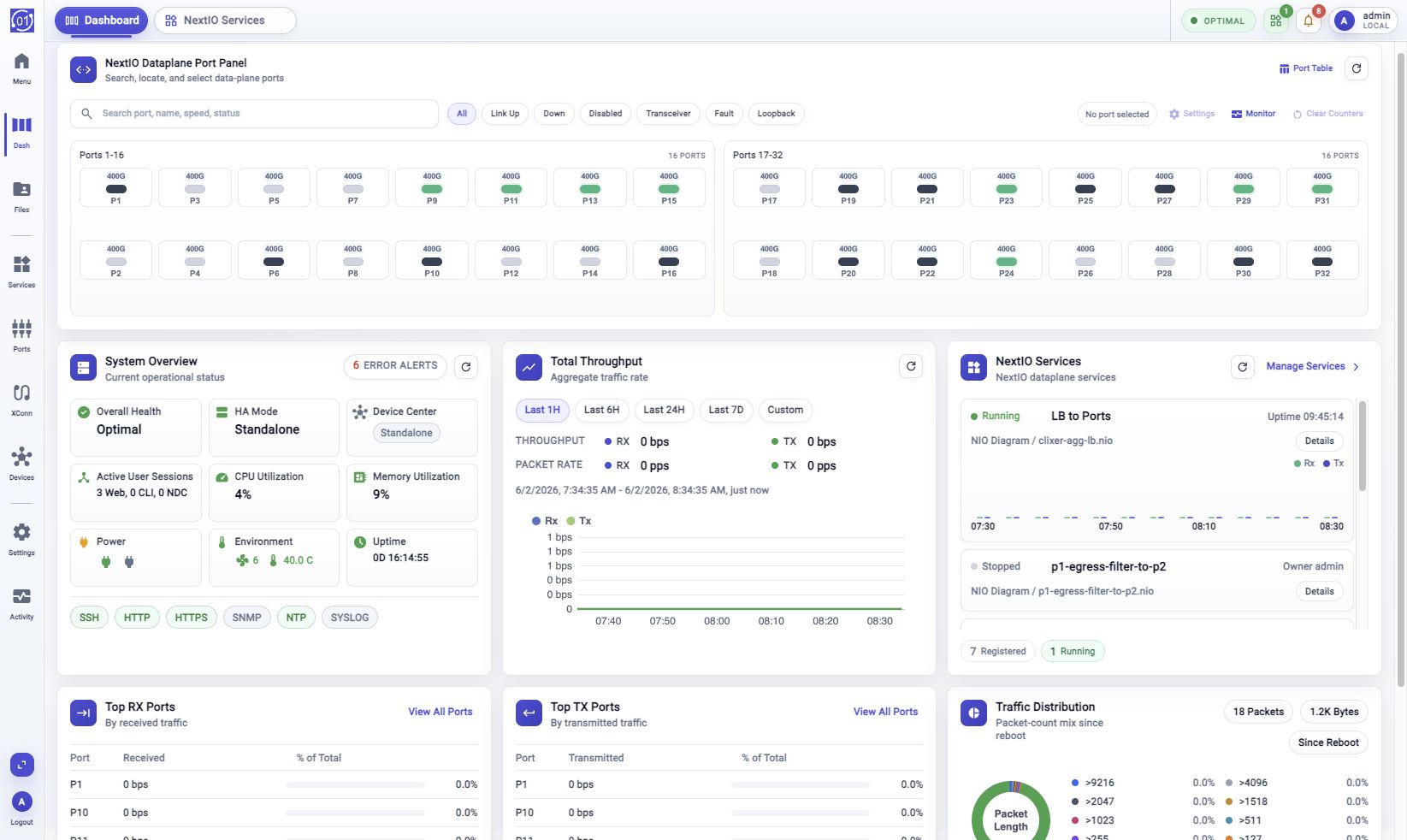
This volume describes the browser-based interface used to sign in, navigate the workspace, configure appliance settings, manage files, create and operate NextIO services, review activity, and monitor the Dashboard.
This manual is written for operators and administrators who use the web UI for day-to-day operation, configuration, troubleshooting, and service management.
This volume covers the following areas:
- Web UI login, readiness check, activity bar navigation, and workspace layout.
- Activity bar destinations in the same order they appear in the Web UI.
- Workspace file management and system settings workflows.
- NextIO service template selection, service runtime operation, and diagram editing.
- Activity Monitor views for events, metrics, workflow history, and system health.
- FlowDirector dashboard views and Device Center views when supported by the appliance model, license, or deployment role.
Contents
Orientation
- Web UI Login And Logout - Sign in, complete the readiness check, and end the web session with Logout.
- Web UI Workspace - Understand the main Web UI layout, including the activity panel, tab strip, workspace content, status area, dialogs, and detail panels.
- Start With Activity Bar - Use folded and expanded activity-bar modes, open About This Device, and use Start Menu items.
Activity Bar Destinations
- FlowDirector Dashboard - Use the Dashboard activity-bar item to review appliance health, dataplane ports, throughput, services, and traffic cards.
- File Explorer - Browse Workspace files, open files, manage directories, and start file-backed tasks.
- NextIO Services - Manage service runtime, start and stop services, inspect service traffic, view logs, and copy service records.
- Port Table - Search, sort, compare, and select dataplane port rows.
- Cross Connections - Review, search, refresh, and create port-to-port cross connections.
- Device Center - Monitor member appliances, use routed member views, copy Center ID, and inspect member port panels.
- System Settings - Locate appliance configuration workflows and management views.
- Activity Monitor - Use the unified investigation view for events, metrics, workflows, and health.
NextIO Service Operation
- NextIO Diagram Editor - Edit, save, verify, and use service design diagrams. Use the Template Browser to create a new diagram from a template.
Activity Monitor Details
- Event Browser - Review event logs, filter alert history, inspect event details, and clear attention flags after review.
- Metric Browser - Browse sampled metrics, plot metric history, and inspect collector warehouse data.
- Workflows - Review workflow history, status, saved inputs, errors, and traces.
- System Health - Review appliance activity, collector footprint, and collection pipeline health.
Notes
- Screenshots show a representative appliance state. Counts, port states, service names, and timestamps can differ on another appliance.
- Product-specific controls can vary by appliance model and licensed feature.
- Configuration and operational changes are normally recorded as workflows. Use Activity Monitor > Workflows for audit and troubleshooting.