
Overview
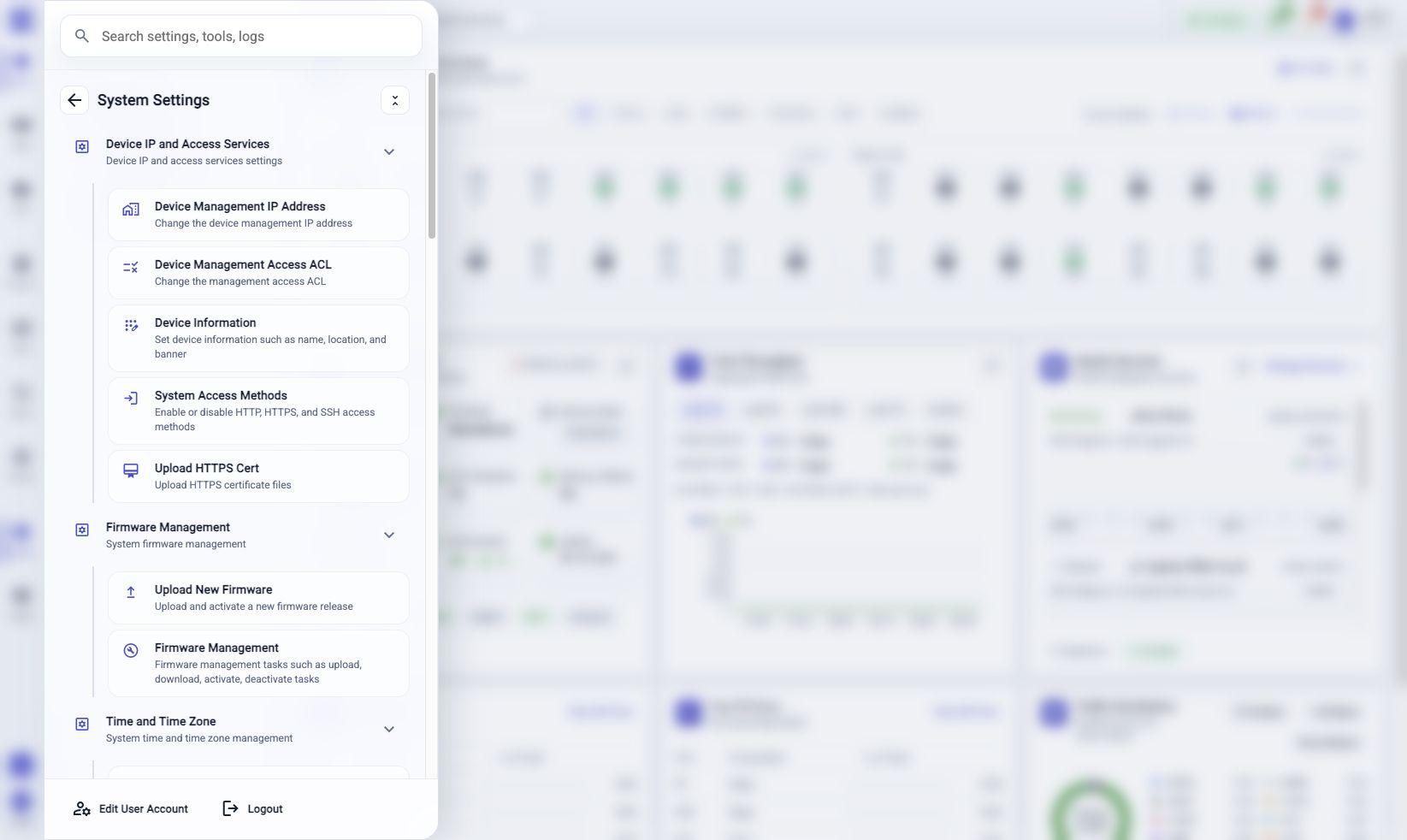
System Settings is the Web UI entry point for appliance configuration. Use it when you need to find a setting, open a configuration workflow, or start a management task such as users, firmware, Device Center membership, or device operations.
This page explains how to move around System Settings. Detailed procedures for individual settings are covered in the System Management manual pages.
Open From Activity Bar
Click System Settings in the activity bar. In expanded mode, it appears below Device Center and above Activity Monitor. In folded mode, use the same position in the icon column.
You can also open System Settings from Start Menu.
Search Settings
Use the search field at the top when you already know the setting or task name. Search is usually faster than browsing the full grouped list.
- Open System Settings.
- Click Search settings, tools, logs.
- Type a setting name, task name, or related keyword.
- Open the matching setting entry.
Search is useful for tasks such as finding management IP, access controls, firmware, users, time, syslog, SNMP, Device Center, backup, restore, reboot, or shutdown without remembering which group contains the item.
Browse Setting Groups
Use the grouped list when you want to explore related settings. Groups may include management access, firmware, time, user management, notifications, high availability, Device Center, configuration operations, device operations, activity and logs, and model-specific tools.
The exact list can vary by appliance model, installed capabilities, and user permissions.
Open A Setting
Click a setting entry to open its workflow or management view.
| Entry type | What to expect |
|---|---|
| Workflow | A dialog for changing configuration or running an operational task. Review the fields, enter values, and start the workflow. |
| Management view | A list-oriented page for records such as users, groups, firmware releases, tokens, or member devices. Use toolbar and row actions inside the view. |
| Tool or log view | A destination for inspection, diagnostics, activity records, or operational output. |
After a change starts, review the workflow result and confirm the new state in the setting view or in Activity Monitor.
Safety Checks
Some settings can affect the current Web UI session or appliance availability. Be more deliberate with management IP, access services, certificates, HA, restore, reset, reboot, shutdown, and similar operational tasks.
Before running those workflows, keep a known management path available and confirm the expected maintenance window.
Troubleshooting
Search Does Not Find A Setting
Try a shorter keyword, clear the search field, or browse the grouped list. Some settings only appear when the appliance model and current account support them.
A Setting Is Not Visible
Confirm the appliance model, installed capabilities, and current user permissions. Product-specific settings may not appear on every appliance.
A Workflow Does Not Start
Check required fields in the workflow. If the workflow starts and fails, open Activity Monitor > Workflows and review the matching record.
A Network Change Disconnects The Browser
Reconnect using the new address or access method. If the setting uses a confirmation workflow, complete confirmation from the expected address before the confirmation window expires.
Related Tasks
- Use System Management pages for setting-specific procedures.
- Use Activity Monitor > Workflows to audit setting changes.
- Use Device Center for member appliance monitoring and member management.
- Use Start With Activity Bar for the full activity-bar order.