
Overview
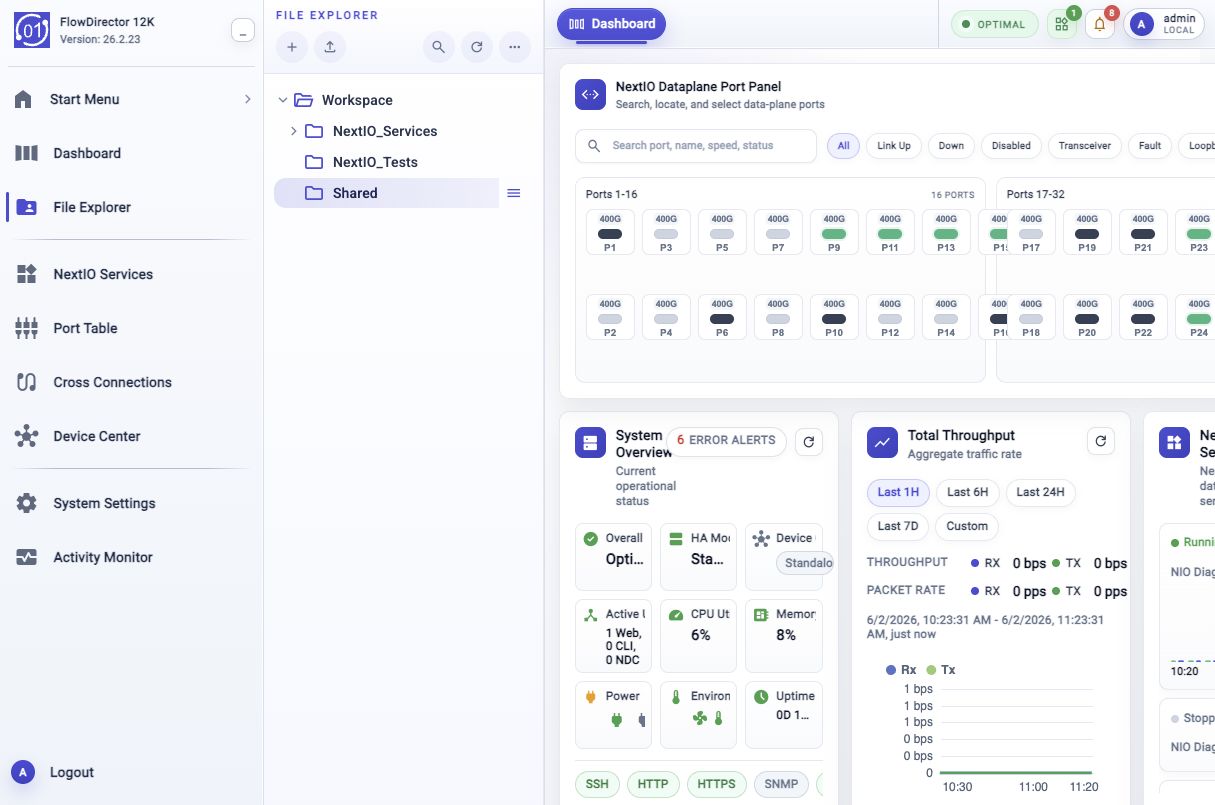
The activity bar is the left-side navigation area used to open common Web UI destinations. It stays visible while the workspace changes, so users can move from Dashboard to files, services, settings, monitoring, and account actions without losing their place.
This page focuses on the activity bar itself: folded and expanded modes, the About This Device dialog, and the Start Menu.
Expand And Fold Mode
The activity bar can appear in a narrow folded mode or a wider expanded mode. Folded mode keeps the page compact. Expanded mode shows full labels beside the icons, which is easier for new users and for screenshots.
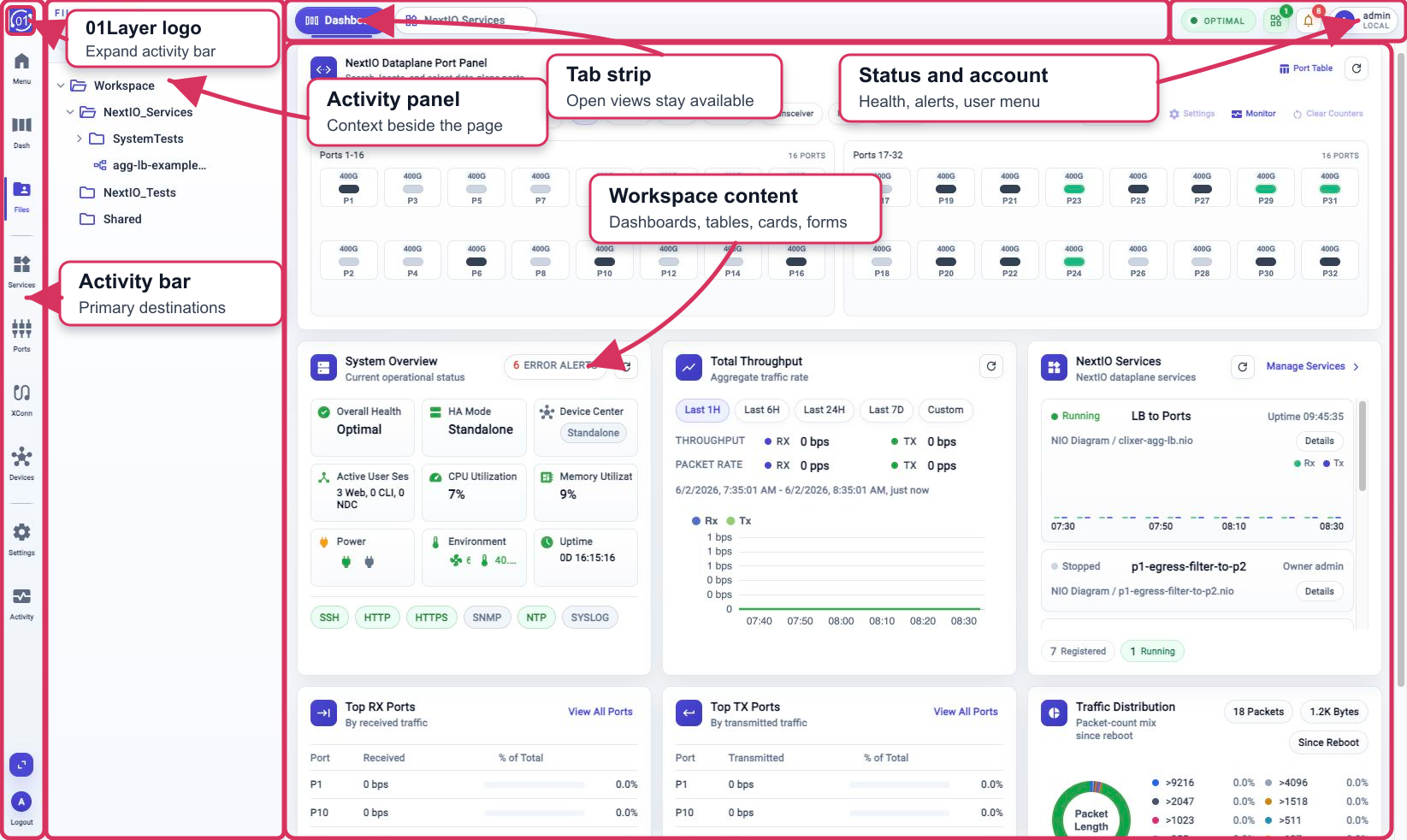
In folded mode, click the 01Layer logo at the top left to expand the activity bar. In expanded mode, click the minimize control near the top of the activity bar to fold it again.
The expanded activity bar shows these primary destinations:
- Start Menu
- Dashboard
- File Explorer
- NextIO Services
- Port Table
- Cross Connections
- Device Center
- System Settings
- Activity Monitor
- Logout
The manual uses this order for the destination chapters that follow this page. Start Menu is covered here. Logout is covered with sign-in because both actions belong to session management.
| Activity-bar item | Manual chapter |
|---|---|
| Start Menu | This chapter |
| Dashboard | FlowDirector Dashboard |
| File Explorer | File Explorer |
| NextIO Services | NextIO Services |
| Port Table | Port Table |
| Cross Connections | Cross Connections |
| Device Center | Device Center |
| System Settings | System Settings |
| Activity Monitor | Activity Monitor |
| Logout | Web UI Login And Logout |
About This Device
In expanded mode, the product and version area at the top of the activity bar opens About This Device.
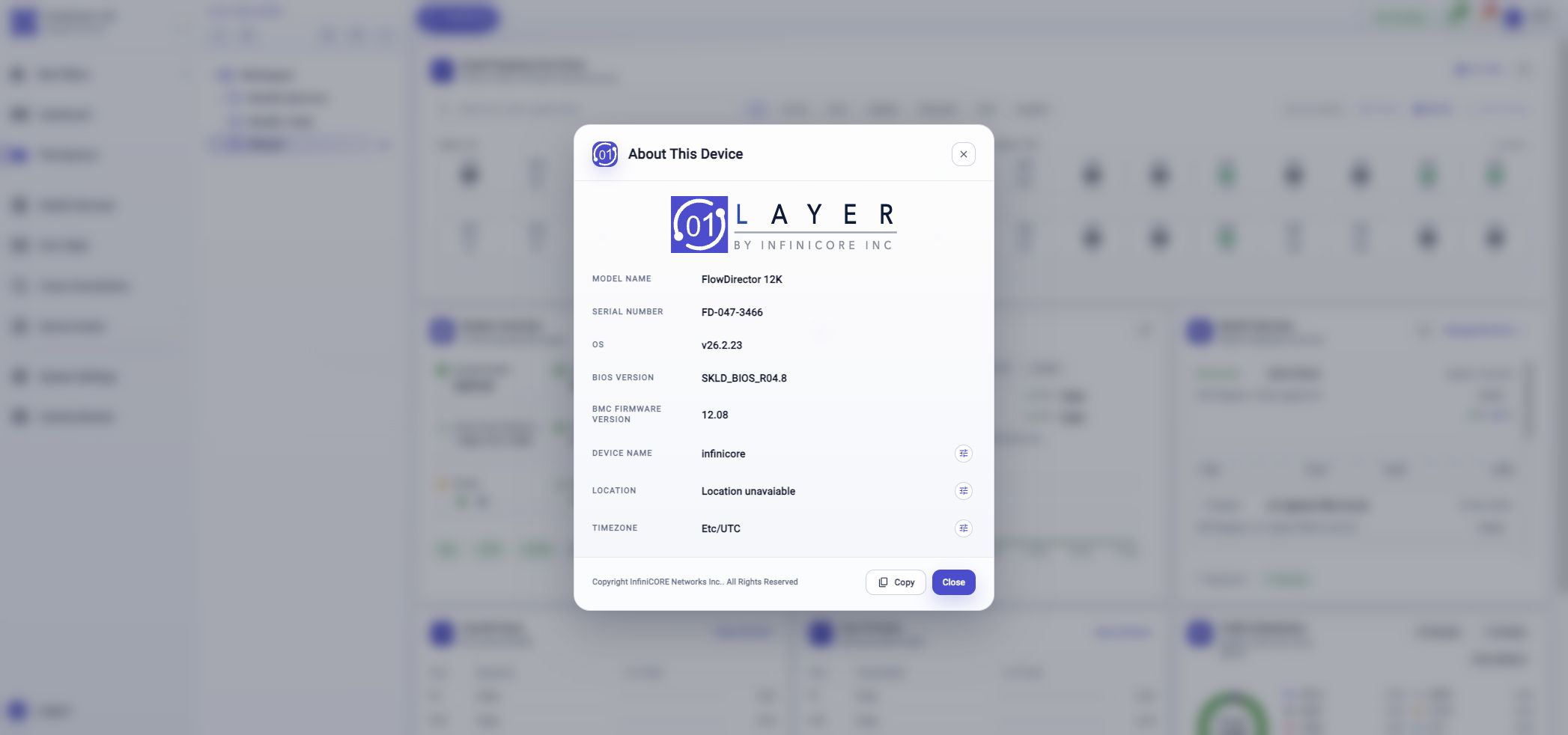
Use this dialog when you need to confirm appliance identity or share device details with support. The dialog shows model name, serial number, OS version, BIOS version, BMC firmware version, device name, location, and timezone. Use Copy to copy the device summary, or Close to return to the Web UI.
Start Menu Items
Click Start Menu in the activity bar to open common tools and account actions.
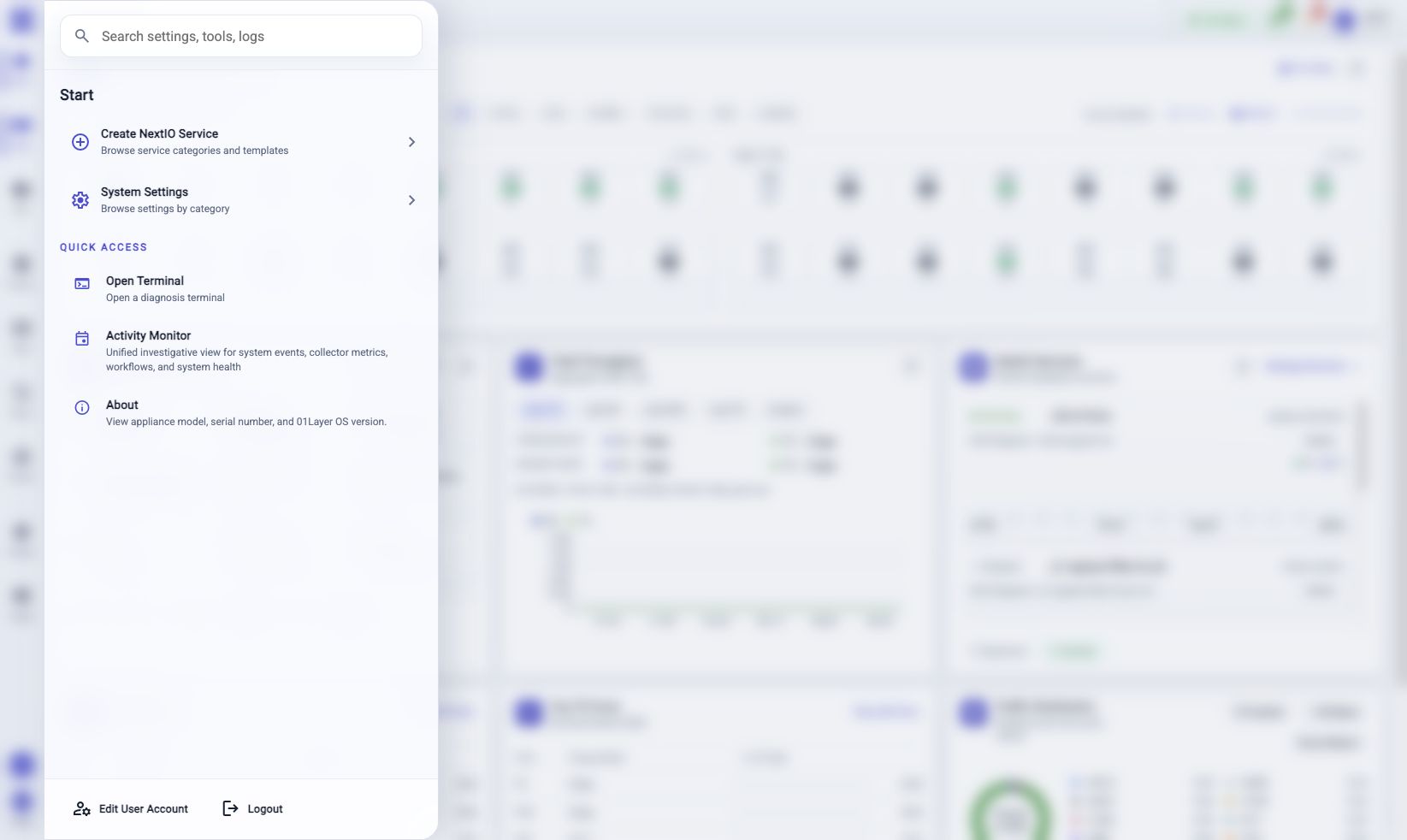
The Start Menu contains:
| Area | Items |
|---|---|
| Search | Search settings, tools, logs for finding destinations by name. |
| Start | Create NextIO Service and System Settings. |
| Quick Access | Open Terminal, Activity Monitor, and About. |
| Account actions | Edit User Account and Logout. |
Some Start Menu items open another level, such as service templates or grouped settings. Others open a tool, dialog, or account action directly.
Related Tasks
- Use Web UI Workspace for the full layout map.
- Use FlowDirector Dashboard for appliance status, traffic, and service cards.
- Use File Explorer to browse Workspace files and start file-backed tasks.
- Use NextIO Services for service runtime management.
- Use Port Table for sortable dataplane port rows and port actions.
- Use Cross Connections for port-to-port connection workflows.
- Use Device Center for member appliance views when available.
- Use System Settings for appliance configuration workflows.
- Use Activity Monitor to inspect events, workflows, metrics, and health.