
Overview
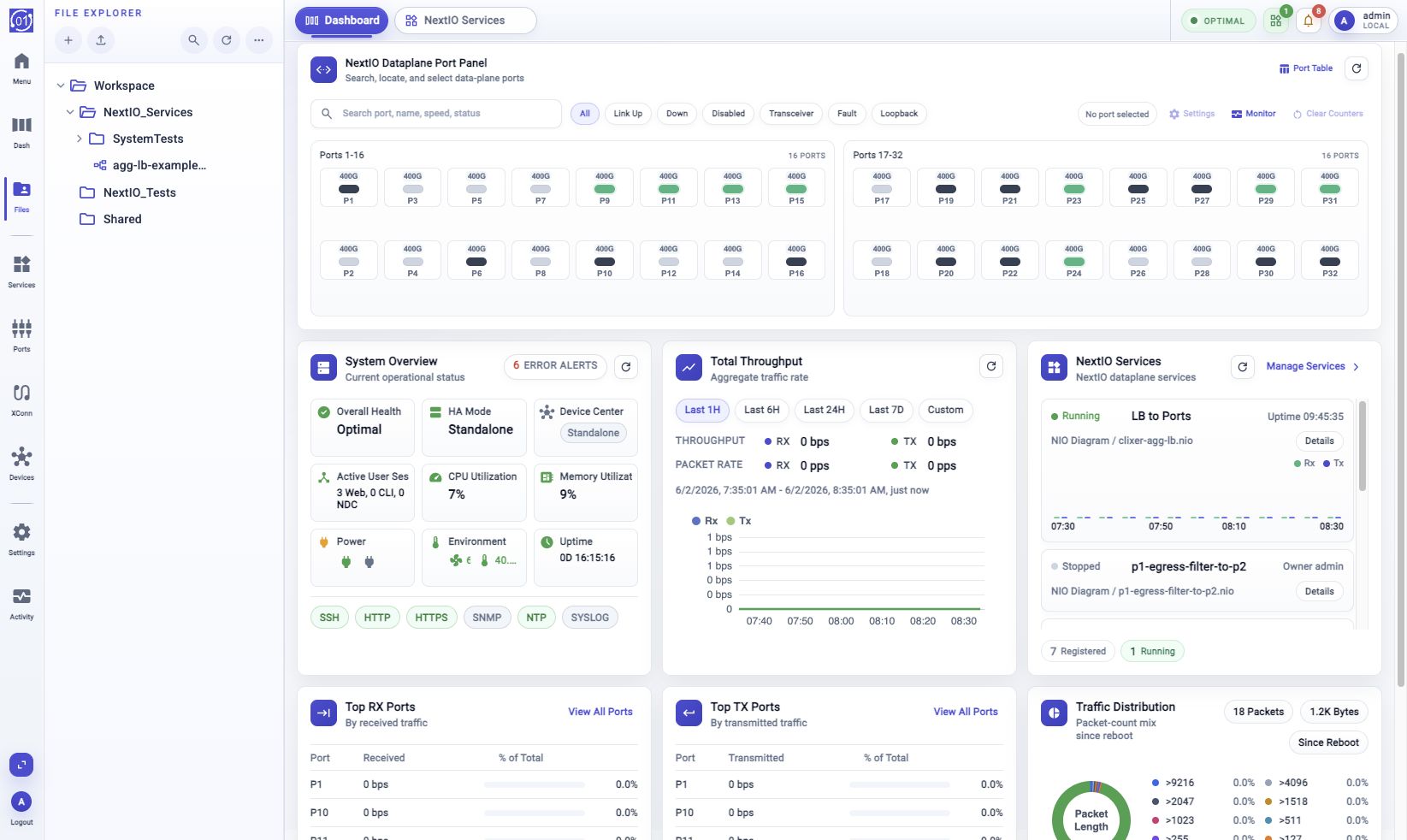
File Explorer opens the 01Layer workspace where operator files are stored and managed. Use it for NextIO service designs, scripts, packet captures, notebooks, and other files that belong with appliance work.
Toolbar Buttons
The File Explorer toolbar is at the top of the activity panel.
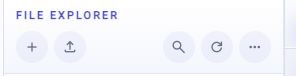
Read the buttons from left to right:
| Button | Function |
|---|---|
| + | Opens the create menu. Use it to create a NextIO service design, create a file, or create a directory when those actions are available. |
| Upload | Starts an upload workflow for the current folder or selected location. |
| Search | Shows or hides the file search field. Use it when the current folder view is not enough and you need to search by file name. |
| Refresh | Reloads the folder tree and current folder contents. Use it after a file workflow completes or when another user changed the workspace. |
| More | Opens additional File Explorer actions. The available actions depend on the current folder, selected item, file type, and permission. |
Browse And Open Files
Open File Explorer from the activity bar. Select Workspace or another available location, then use the folder tree or breadcrumb row to move through directories.
Use Quick Filter to narrow the current folder. Use Search when you need to find files below the selected folder. Switch between icon view and list view when the file details are easier to read in a table.
Double-click a file to open it. Use the context menu when you need a specific open mode, such as Open in Text Editor....
NextIO service design files open in the NIO diagram editor unless text mode is selected.
File Context Menu
Each file row can show a menu button beside the file name. Click that button to open actions for the selected file.
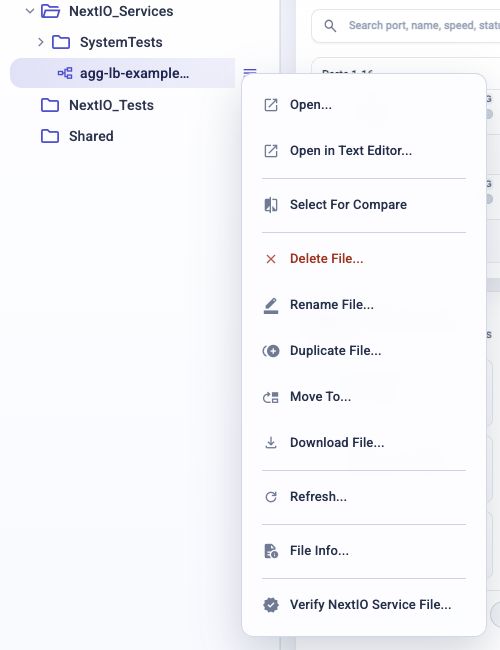
The menu changes with file type and permission. For a NextIO service design file, common actions include:
| Action | Function |
|---|---|
| Open... | Opens the file in its normal editor or viewer. For a .nio file, this opens the diagram editor. |
| Open in Text Editor... | Opens the raw file in text mode instead of the default editor. |
| Select For Compare | Marks the file for a comparison workflow when compare support is available. |
| Delete File... | Starts a delete workflow for the selected file. Review the prompt before continuing. |
| Rename File... | Starts a rename workflow for the selected file. |
| Duplicate File... | Creates a copy of the selected file. |
| Move To... | Starts a workflow to move the file to another folder. |
| Download File... | Downloads the selected file through a file workflow. |
| Refresh... | Reloads the selected file or file-tree state. |
| File Info... | Shows file metadata such as path and file details when available. |
| Verify NextIO Service File... | Checks a NextIO service design file before it is started or applied. |
Open...
Use Open... for the normal file experience. A .nio service design opens
in the NextIO diagram editor. Other file types open in the viewer or editor
assigned to that file type.
Open in Text Editor...
Use Open in Text Editor... when you need to inspect the raw file content. For service designs, this bypasses the diagram editor and opens the file as text.
Select For Compare
Use Select For Compare when you want to compare this file with another compatible file. Select the first file, then choose the second file through the available compare action.
Delete File...
Use Delete File... only when the file is no longer needed. The action opens a workflow prompt; review the file path before starting it. Be especially careful with service design files that may be used by running services.
Rename File...
Use Rename File... to change the file name without editing the file content. If the file is open in another tab, close that tab before retrying the rename.
Duplicate File...
Use Duplicate File... to make a copy before editing or testing a service design. This is useful when you want a safe working copy while keeping the original file available.
Move To...
Use Move To... to relocate the selected file to another folder. For service design files, confirm that the new location will still match the way the file is used by related service workflows.
Download File...
Use Download File... when you need a local copy outside the Web UI. The download does not change the file in the workspace.
Refresh...
Use Refresh... after a workflow, upload, rename, or external change. It reloads the selected file or the surrounding file-tree state.
File Info...
Use File Info... to confirm file details before an operation. Depending on the file and location, this can include path, type, size, and timestamp information.
Verify NextIO Service File...
Use Verify NextIO Service File... before starting or applying a service design. Review any missing settings, duplicate IDs, port references, or design warnings before continuing.
Manage Workspace Files
Use the toolbar, row operation button, or context menu to manage files and directories. Available actions depend on the selected item, file type, user permission, and appliance configuration.
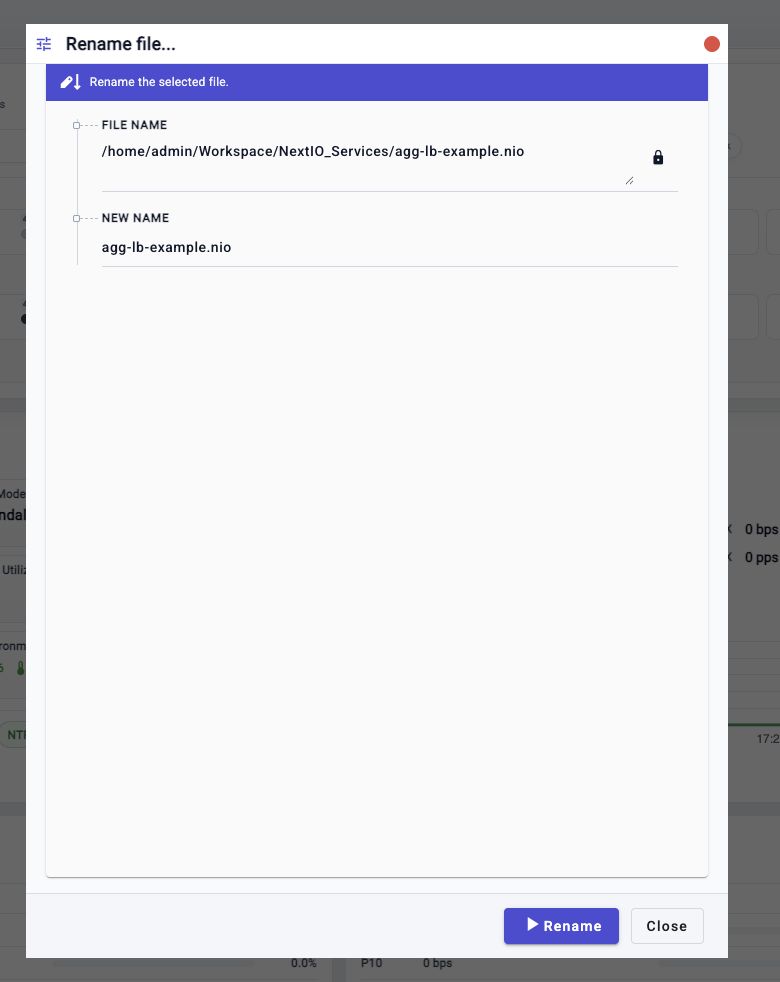
File and directory changes are handled as workflows. If an operation fails or takes longer than expected, open Activity Monitor > Workflows and review the workflow trace.
In a file workflow, review the source file path first, then change only the editable fields. The action button, such as Rename, starts the workflow. Use Close to leave the prompt without making a change.
NextIO Service Designs
Use Create NextIO Service... when starting a service design from a template. Use Verify when a service design needs validation before it is started or applied.
Open a .nio service design normally when you want the diagram editor. Open it
in text mode only when you need to inspect or edit the raw file.
Be careful when renaming, moving, or deleting service design files that are used by running services. The file operation may affect later service edits, restarts, or verification.
Troubleshooting
File Does Not Appear
Clear search and extension filters. Confirm the selected Location and directory. Refresh the file tree if a workflow just created or moved the file.
File Opens In The Wrong Mode
Use the context menu and choose Open in Text Editor... for text mode. For service designs, open normally to use the diagram editor.
Rename Or Delete Is Blocked
Check whether the file is already open in another tab. Close the editor tab or confirm the prompt before retrying.
Workflow Fails
Open Activity Monitor > Workflows, find the file operation workflow, and inspect the trace or last error.
Related Tasks
- Use Start With Activity Bar for activity-bar navigation.
- Use NextIO Service Template Browser to create a service design.
- Use NextIO Diagram Editor to edit a
.nioservice design. - Use NextIO Services to start, stop, monitor, or inspect services.
- Use Activity Monitor > Workflows to inspect file operation workflows.