
Overview
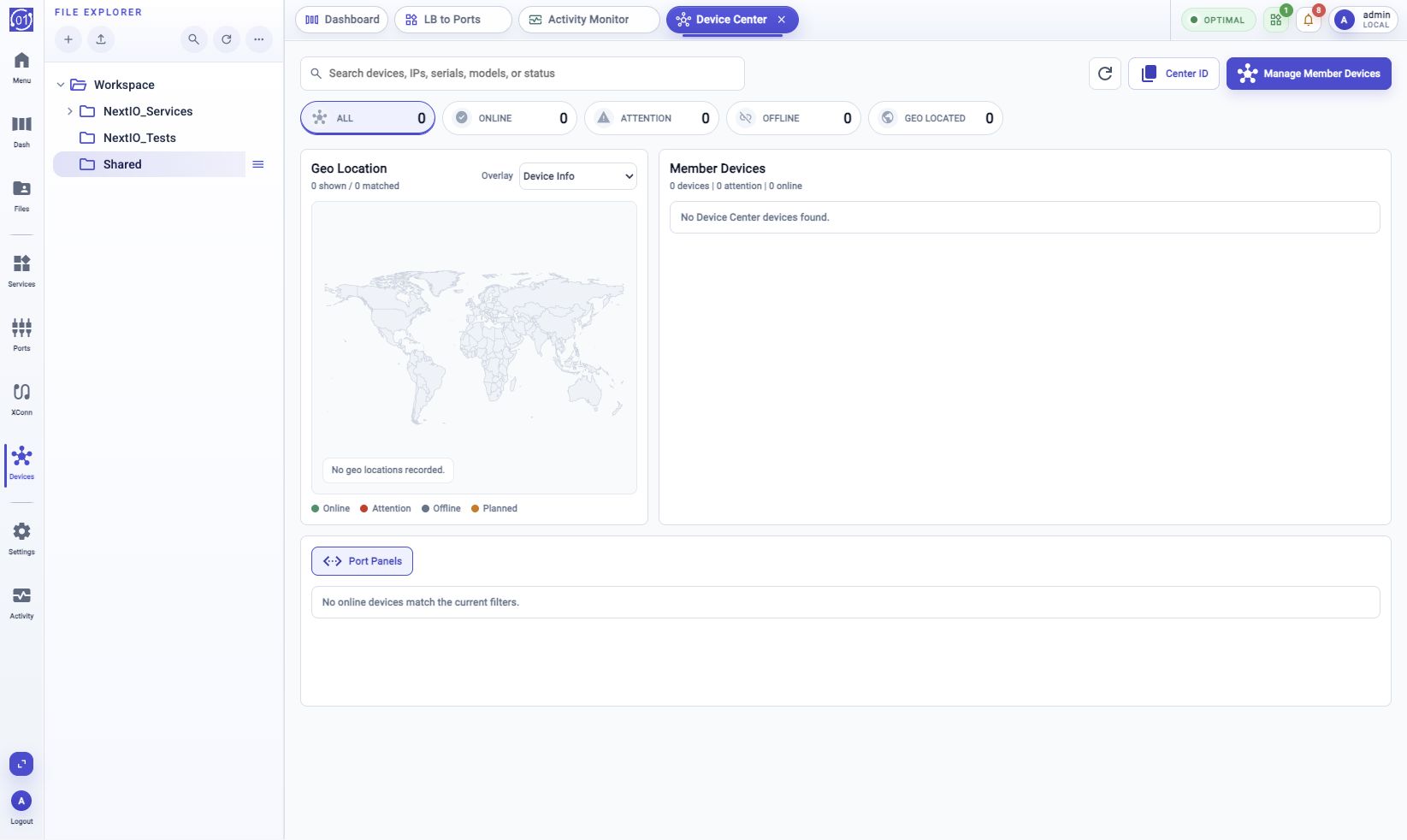
Device Center is the Web UI page for viewing member appliances from a Center appliance. Use it to see which members are online, find devices by name or address, open routed member views, and check member port panels without leaving the Center.
Some systems may still show older internal names such as NDC or NextIO Device Center in logs or compatibility views. In the Web UI and in this manual, the user-facing name is Device Center.
Open From Activity Bar
Click Device Center in the activity bar. In expanded mode, it appears below Cross Connections and above System Settings. In folded mode, use the same position in the icon column.
The page opens as a workspace tab named Device Center.
Toolbar And Filters
The top of Device Center gives you the fastest way to find the member you need.
| Control | Use it for |
|---|---|
| Search devices, IPs, serials, models, or status | Find members by identity, inventory, or state text. |
| Refresh | Reload Device Center status when the page looks stale. |
| Center ID | Copy the Center identity used when binding member access. |
| Manage Member Devices | Open the member-management workflow. |
| All | Show every configured member. |
| Online | Show members that are reachable and authenticated. |
| Attention | Show members that need review, such as login or connectivity problems. |
| Offline | Show members that are not online. |
| Geo Located | Show members with usable location data. |
Search and status filters affect Geo Location, Member Devices, and Port Panels together.
Member Devices
Use Member Devices as the main fleet view. A member card shows the device name or IP address, current state, uptime, firmware version, alert count, current Rx and Tx throughput, and a short throughput trend when metrics are available.
When the member supports routed access, the card can also provide these actions:
| Action | What it opens |
|---|---|
| Home icon | Opens the member appliance login page in a new browser tab. |
| Port Table | Opens the member's routed Port Table view. |
| Services | Opens the member's routed service view. |
If the page shows No Device Center devices found, no members match the current filters or no members have been configured yet.
Geo Location
Geo Location shows located members on the map. Use it when location is part of operations or troubleshooting.
Located members appear as map markers. Hover a marker to see member details, or select it to match the member card. Members without location data still appear in Member Devices.
If no member has usable location data, the map reports No geo locations recorded.
Port Panels
Open Port Panels when you want a compact port-status view for online members. Each member panel can show link, admin, disabled, down, and fault state in the same style as the local dataplane port panel.
Port Panels only show online members that match the current search and status filters. If a member is offline or cannot return a routed port-panel snapshot, it does not appear in this view.
Center ID And Member Management
Use Center ID when onboarding a member appliance. The button copies the Center identity to the clipboard. It does not create a token or change member configuration.
Use Manage Member Devices to add, edit, disable, mark offline, or remove member entries. After a member-management workflow runs, return to Device Center and click Refresh to confirm the new state.
Access tokens are created on the member appliance from System Settings. The token secret is sensitive; copy it when it is generated or rotate the token later.
Troubleshooting
No Device Center Devices Found
Clear the search field, choose All, and click Refresh. If the page is still empty, add members from Manage Member Devices.
Member Shows Attention
Open the member card and check the state text. Common causes include login failure, connectivity problems, or a member service that is not responding. Confirm the member IP address, route, access method, token binding, and management ACLs.
Routed Port Table Or Services Is Disabled
Confirm that the member is online and has a Device Center routing anchor. If the member recently changed state, click Refresh.
Routed View Does Not Load
Open the member appliance directly with the home icon. If the same standalone view does not load on the member, troubleshoot the member appliance first.
Port Panels Are Empty
Choose All or Online, clear the search field, and confirm that at least one online member can return a routed port-panel snapshot.
Geo Location Is Empty
Confirm that member device information includes usable latitude and longitude or other supported location fields. Members without coordinates remain visible in Member Devices.
Related Tasks
- Use Start With Activity Bar for the full activity-bar order.
- Use Port Table for detailed dataplane port rows.
- Use NextIO Services for service runtime inspection.
- Use System Settings to issue member-side Device Center access tokens.
- Use Activity Monitor to review workflows, events, metrics, and health.