
Overview
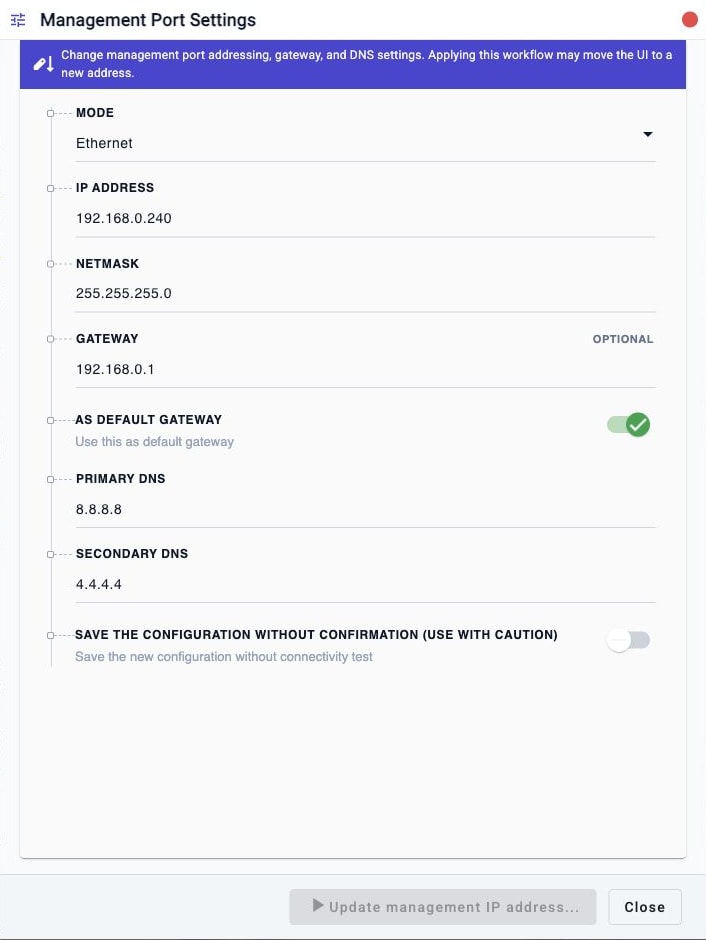
Use Management Port Settings when you need to move the appliance management interface to a different address or network. The normal flow is deliberately two-phase: the appliance applies the new address at runtime first, then saves it permanently only after you reconnect and confirm that the new address works.
Typical Uses
Use this procedure to change the management interface IP address, netmask, gateway, or DNS settings from the web UI.
The examples below use this address change:
Old address: 192.168.0.240
New address: 192.168.0.190
Prerequisites
- Confirm the current management address and the new management address.
- Confirm the netmask, gateway, primary DNS, and secondary DNS values for the target management network.
- Keep browser access to the old address available until the update starts.
- Leave Save without confirmation disabled unless you intentionally want to save the settings immediately without a reachability check.
Workflow
- Open System Settings and choose Device IP Address.
- Enter the new management IP address, netmask, gateway, primary DNS, and secondary DNS.
- Click Update management IP address... with Save without confirmation disabled.
- Log in at the new address and click Save in the confirmation dialog.
Expected Behavior
When Save without confirmation is disabled, the change is intentionally not saved immediately. Here is the normal flow:
- The appliance validates the requested management network settings.
- The web UI shows a reconnect page and automatically jumps to the new management address.
- The appliance applies the new settings to the live management interface.
- You log in again at the new address.
- The dashboard displays a confirmation dialog.
- Choosing Save persists the new settings.
- Choosing Cancel rolls the management interface back to the previous saved settings.
That confirmation step protects the appliance from permanently saving an address you cannot reach.
Procedure
Change The Management IP Address
- Open System Settings.
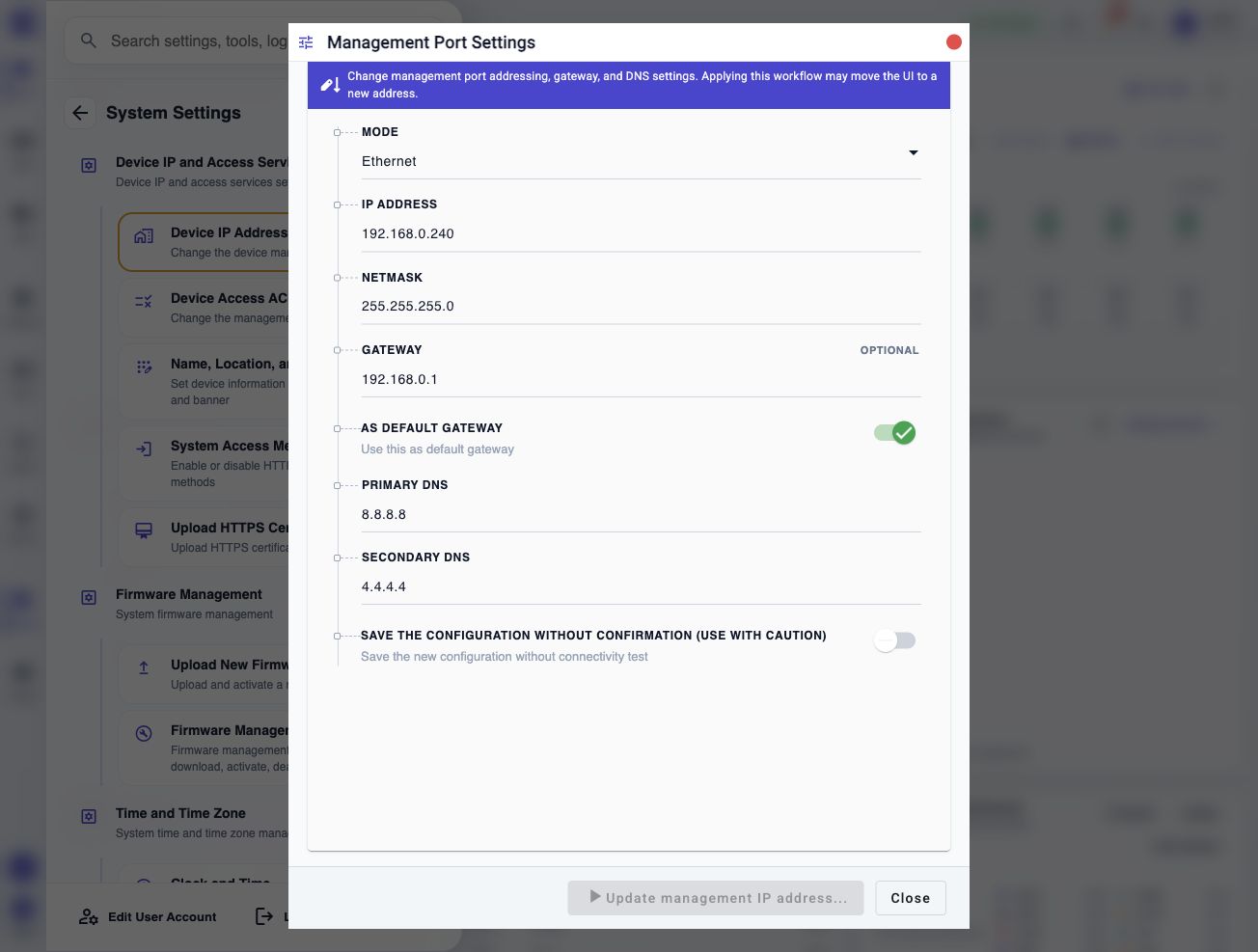
- Open Device IP Address. The workflow opens as Management Port Settings.
- Enter the new management IP address, netmask, gateway, and DNS values.
- Leave Save without confirmation disabled unless you intentionally want to save the settings immediately.
- Click Update management IP address....
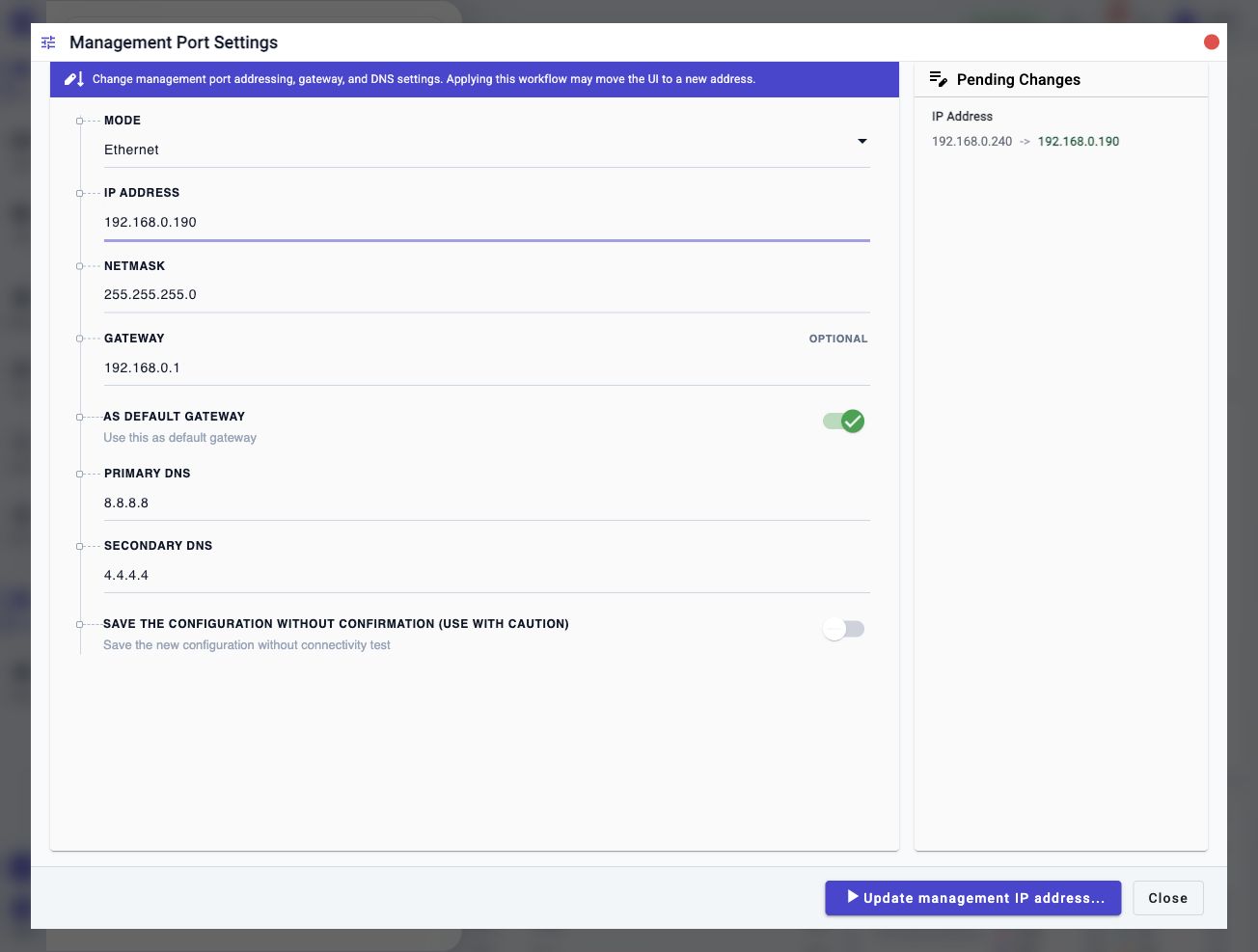
After you click Update management IP address..., the current browser session may lose contact with the old management address. The UI should show a reconnect screen and navigate to the new address automatically. If it does not jump on its own, open the new address manually.
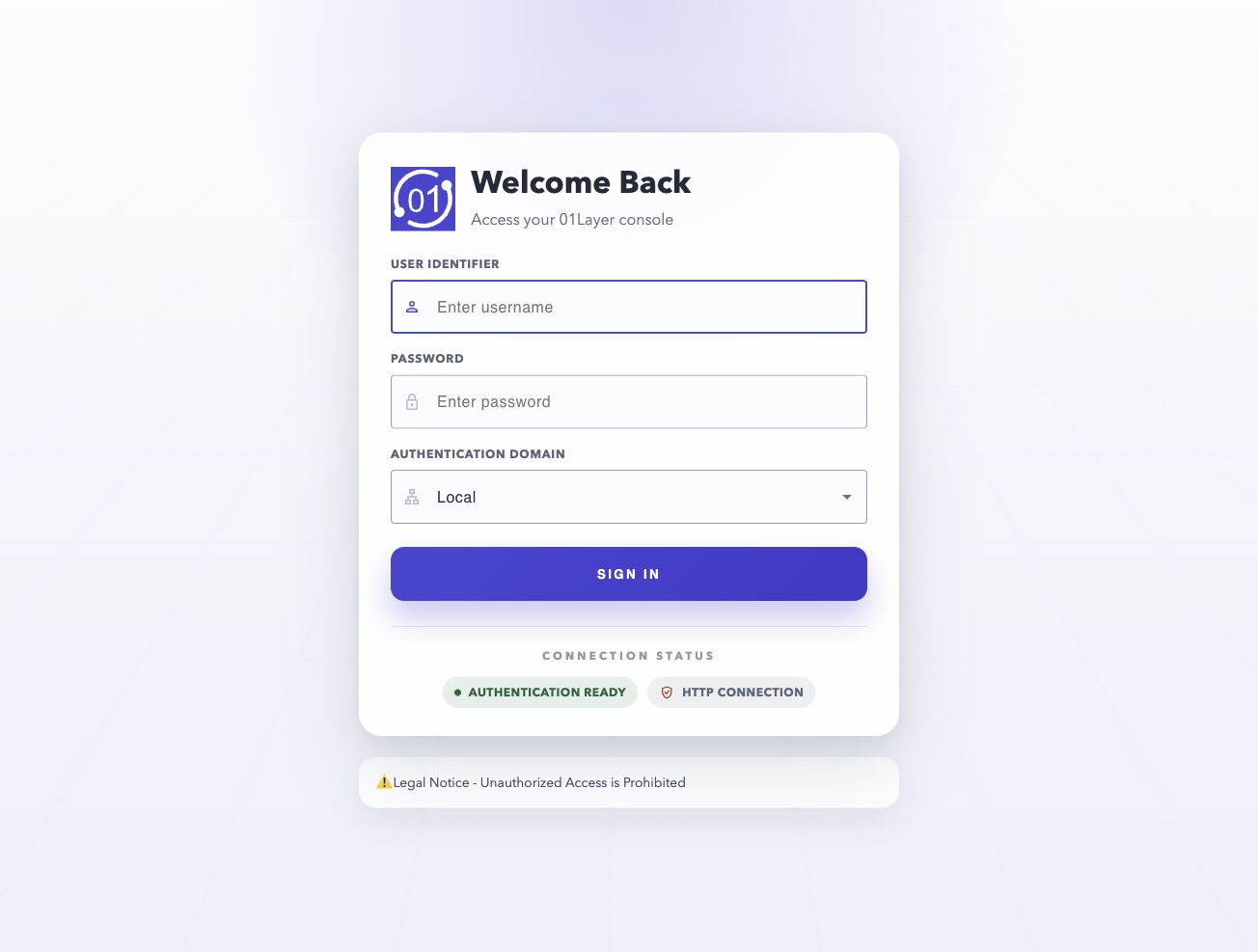
Confirm The New Address
After the browser reaches the new address:
- Log in again.
- Wait for the dashboard to load.
- Review the management IP confirmation dialog.
- Click Save to keep the new management settings permanently.
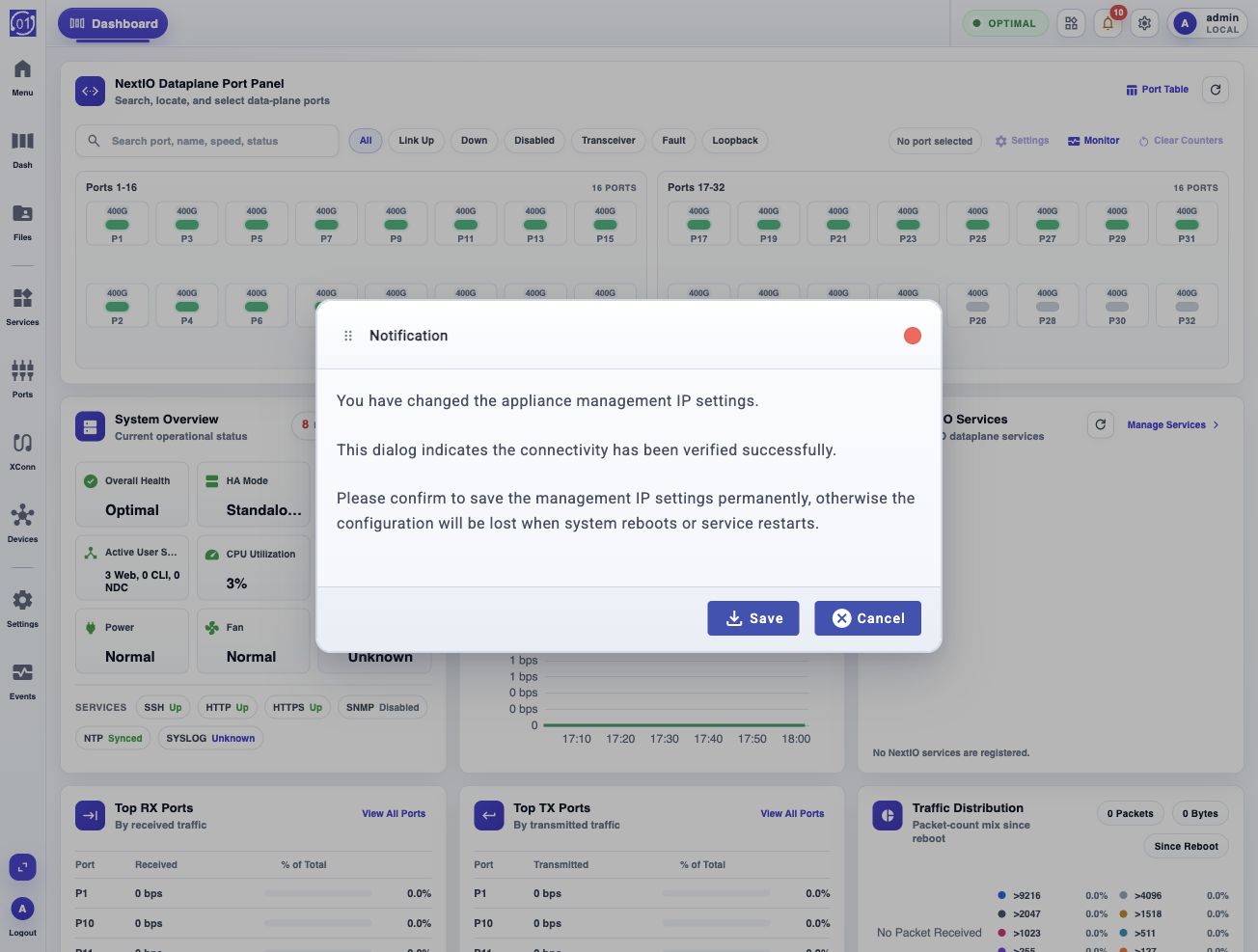
The confirmation dialog is your proof that the browser reached the appliance through the new management address. Saving at this point writes the candidate management network settings into the persistent appliance configuration.
Field Reference
| Field | Required | Notes |
|---|---|---|
| Mode | Yes | Select the management port addressing mode. |
| IP Address | Yes | Management IP address for the appliance web UI and management services. |
| Netmask | Yes | Subnet mask for the management network. |
| Gateway | Optional | Gateway used to reach networks outside the management subnet. |
| As Default Gateway | Optional | Uses the gateway value as the default gateway when enabled. |
| Primary DNS | Optional | Primary DNS resolver for management services. |
| Secondary DNS | Optional | Secondary DNS resolver for management services. |
| Save without confirmation | Optional | Saves immediately without the reconnect-and-confirm safety check. Use with caution. |
Confirmation And Rollback
Click Cancel in the confirmation dialog if the new settings should not be kept. The appliance rolls the runtime management network settings back to the previous saved configuration.
If the new address cannot be reached and the settings are never confirmed, the pending management IP change is treated as unconfirmed. On startup, the appliance restores the last saved management network configuration instead of keeping the unconfirmed runtime candidate.
Save Without Confirmation
The Save without confirmation option changes the behavior:
- The appliance validates the requested settings.
- The appliance applies the settings to the live management interface.
- The appliance saves the settings permanently immediately.
- No post-login confirmation dialog is required.
Use this mode only when you are certain that the new management settings are reachable or when you have another reliable way to recover management access.
Notes
- The confirmation prompt is shown from the dashboard after login. It must be shown for both the native dashboard and legacy dashboard rendering paths.
- The Web UI performs a post-login check for pending management IP confirmation, so the prompt is still shown if dashboard tab state is restored or a native dashboard path bypasses normal dashboard notification handling.
- If another login warning appears first, such as a multiple-login warning, continue through that dialog and then review the management IP confirmation dialog.
- Until Save is selected in the confirmation dialog, the new address is a runtime candidate, not the saved source of truth.
Troubleshooting
Browser Stays On The Old Address
Open the new address manually, using the same protocol as the original session:
http://<new-management-ip>/
https://<new-management-ip>/
Confirmation Dialog Does Not Appear
Refresh the dashboard after logging in at the new address. If the dialog still does not appear, verify that the IP address change was made with Save without confirmation disabled.
New Address Is Unreachable
If the new address cannot be reached, use the previous saved management address after the appliance or management services recover. Unconfirmed pending management settings are rolled back on startup.
Related Tasks
- Review management access control before moving the management interface to a different subnet.
- Review system access methods when HTTP, HTTPS, or SSH access must change with the management address.
- Review time and DNS settings after moving the appliance to a new management network.