
Sources and destinations
Connect physical ports and port groups, bonded links, virtual ports, OS interfaces, PCAP readers and writers, and TAP workflows.
Explore I/O componentsNextIO / Visual service design
Turn sources, processing functions, and destinations into a connected service. NextIO brings visual design, verification, deployment, and runtime inspection into the 01Layer operating environment.
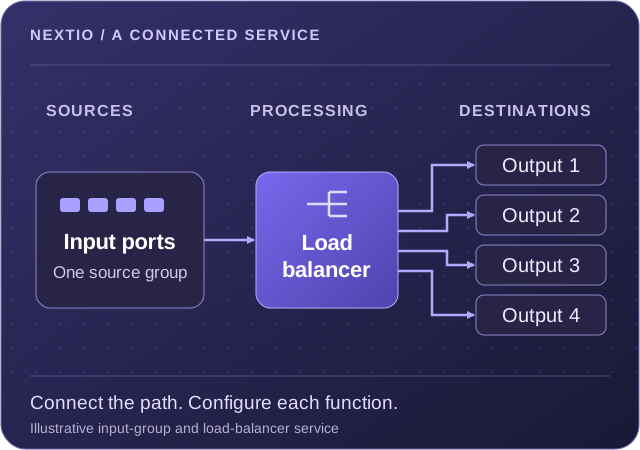
See how traffic enters, which functions process it, and where the results go.
Start from a template or an existing design, then configure it for your environment.
Move from the design to service state, traffic, counters, logs, and workflow history.
From intent to a working service
A NextIO diagram is a service definition stored in a .nio file. Open it from File Explorer or NextIO Services to work with the component palette, canvas, properties, and runtime controls in one editor.
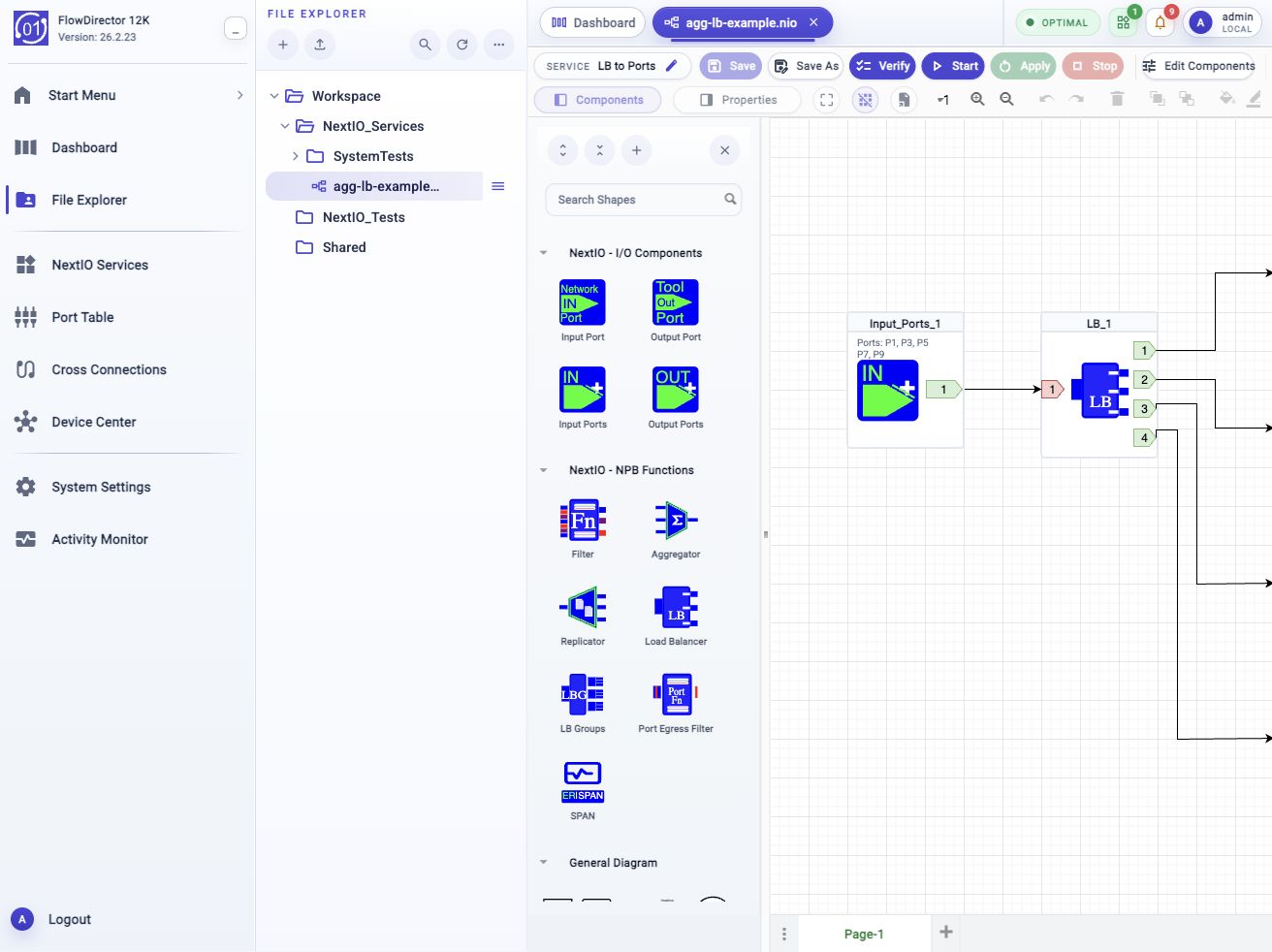
agg-lb-example.nio service. View full-size screenshot.Search or browse the component palette. Add input and output ports, groups, and processing functions supported by the target product.
Wire component outputs to the next function. In the example, an input-port group feeds a load balancer that branches toward multiple output paths.
Select a component to review its ports and attributes. Use Properties for individual settings or Edit Components for a structured view of the design.
Save the design, run Verify, and resolve reported property or wiring issues before starting or applying the service.
A connected component library
Combine I/O with the functions your service needs: traffic delivery, conditioning, capture, message transport, or validation. Live interfaces, virtual interfaces, and recorded traffic use the same visual design method.
Connect physical ports and port groups, bonded links, virtual ports, OS interfaces, PCAP readers and writers, and TAP workflows.
Explore I/O componentsFilter, aggregate, replicate, and load balance traffic to the required tools and output paths. FlowDirector adds port groups, LB Groups, egress filtering, and SPAN components.
Explore NPB functionsPrepare traffic for downstream analysis with deduplication, microburst shaping, detunneling, and True IP address restoration.
Explore advanced functionsUse Packet Capture, Packet Writer, and Metadata components to retain traffic and produce records for investigation and analysis.
Explore capture servicesReceive and send Kafka, syslog, and IPFIX messages. Add NetFlow services or Data Diode sender and receiver components for the required transport path.
Explore message brokersBuild test workflows with traffic generation, application simulation, RFC-2544, bit error rate testing, replay, and WAN emulation components.
Explore testing toolsThe component palette and settings depend on the product family and release. See the FlowDirector and FlowMagic references for component connectivity, configuration fields, and initial values.
Reuse, review, deploy
The NextIO Service Template Browser provides a starting point for visibility, inline, and visibility script applications. Create a design, review its configuration, and move through explicit verification and runtime actions.
Open Create Service from NextIO Services, the Start Menu, or File Explorer. Search by template name or description, browse categories, and review Details or a preview when available.
See the template workflow.nio file. The design opens in the Diagram Editor.| Action | What it does |
|---|---|
| Save / Save As | Write the design to its existing file or save a separate copy for another service or a variation. |
| Verify | Check the diagram before runtime use. Review the output and correct invalid settings or connections. |
| Start | Start a stopped service from its saved design. |
| Apply | Apply saved design changes to a service that is already running. |
| Stop | Stop the service when it is no longer required to carry traffic. |
Saving and applying are separate actions. Saving updates the design file; it does not by itself update a running service. If Start or Apply fails, review the operation in Activity Monitor > Workflows.
NextIO command-line referenceThe service in operation
NextIO Services brings service state and operational context together. Search by service name, design file, owner, or port, then filter for running, warning, error, or stopped services.
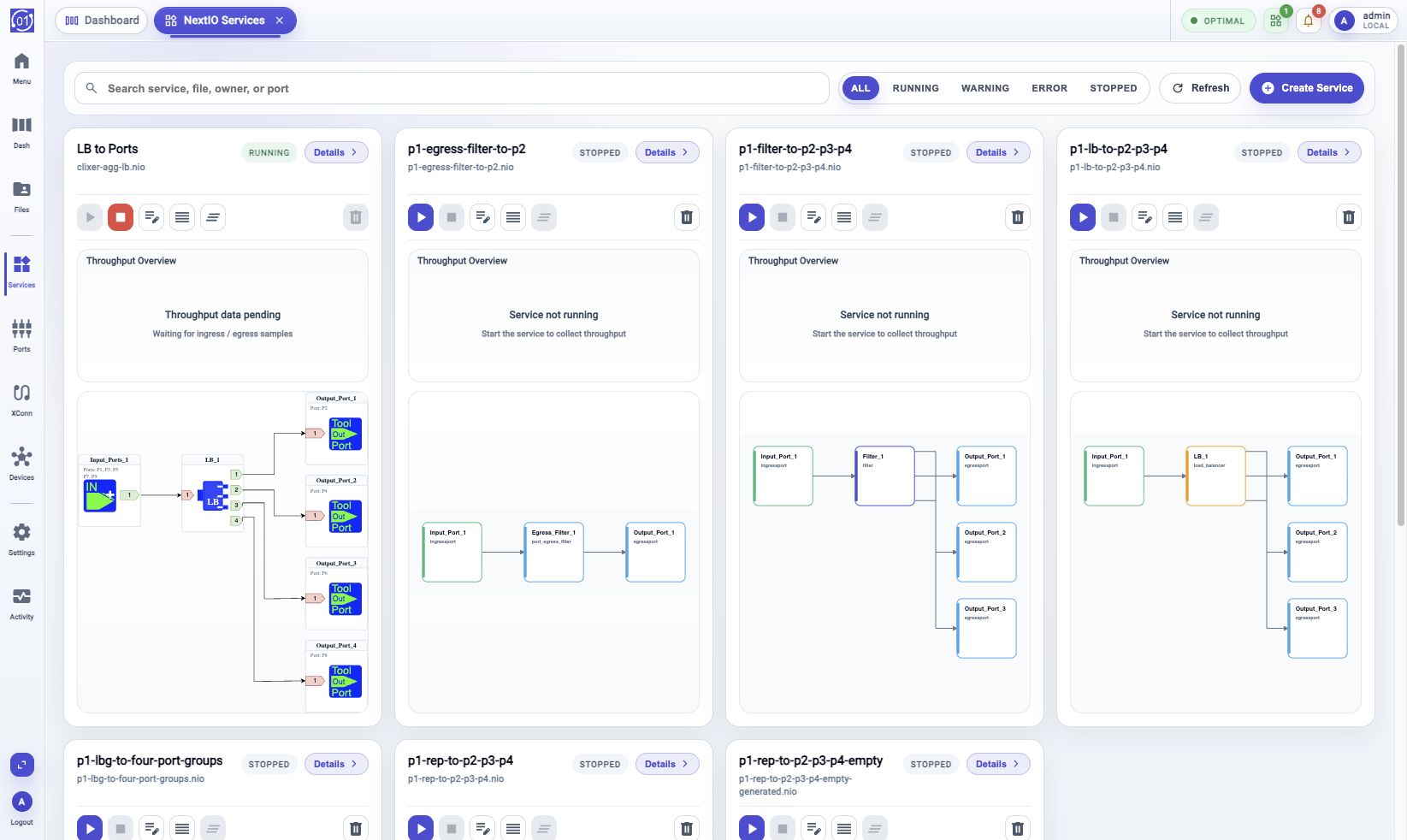
Cards summarize state, design file, owner, uptime, and available traffic or diagram previews. Open the design or use the runtime actions directly from the service.
Open Details to review ingress and egress throughput, errors, drops, and counted rules. Select a one-hour, six-hour, 24-hour, seven-day, or custom time window.
View service details screenshotUse service logs and the service record for troubleshooting. Runtime actions open workflows; Activity Monitor provides the trace when an operation needs investigation.
Where NextIO fits
Bring multiple sources into an input group, apply the required filtering, and distribute traffic through a load balancer to the selected output paths.
See the load-balancing exampleConnect live or recorded sources with capture and metadata functions. Use recorded traffic in replay and validation workflows as investigations develop.
Explore PCAP workflowsBuild a message path from application brokers through Data Diode transport to destination-side publishing, with the sender and receiver configured for the approved boundary.
Explore Data-DiodeGo deeper
Explore the 01Layer platform and the guides behind the NextIO design and operating workflows.
Work with our team to map your sources, processing requirements, and destinations to a NextIO service and the right deployment platform.